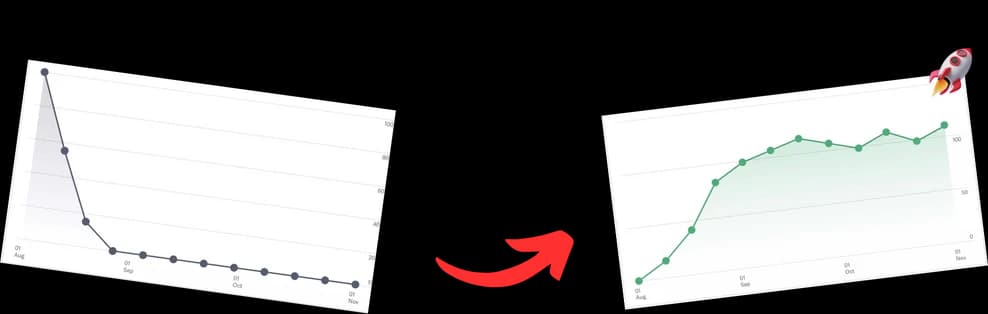
To have a YouTube video start at a specific time, you just need to tack on a little timestamp parameter to its URL. It’s a simple trick: just add ?t=X to the end of the link, where X is the time you want it to start, but in total seconds. So, if you want a video to cue up at 1 minute and 30 seconds, you’d add ?t=90.
Why Linking to a Specific Video Time Matters
We've all been there. You send a 45-minute video to a friend just to show them a hilarious 10-second clip buried somewhere in the middle. Linking directly to that exact moment cuts out all that frustrating guesswork, making your shared content way more effective and user-friendly right off the bat.
Honestly, this simple technique is all about respecting your audience's time. In a world with endless content vying for our attention, getting straight to the point is a superpower. When people don't have to scrub through a timeline hunting for the good part, they’re far more likely to actually engage with what you sent them. That translates directly to a better experience and keeps them happy.
Boost Engagement and Shareability
For creators and marketers, the benefits are even bigger. Pinpointing the exact start of a key tutorial step, a product demo, or a powerful quote transforms your video from something people just watch into a precise communication tool. This focus pays off big time.
- Increased Engagement: Viewers who find immediate value are much more likely to watch longer, drop a like, comment, and even subscribe.
- Enhanced Shareability: Let's be real, a link that jumps to a specific moment is just more compelling. People are way more inclined to share a direct link to a funny clip than a long video with no context.
- Clearer Communication: It removes all the ambiguity. You can be certain your audience sees exactly what you wanted them to see.
By directing your audience's attention, you're not just sharing a video; you're curating an experience. This precision is what separates passive content from impactful communication, making your shares more meaningful and effective.
Beyond sending people to one specific spot, think about the bigger picture of timing. For instance, digging into a data-backed guide on the best time to upload video on YouTube can help maximize your initial views. Learning how to properly format and use a YouTube time stamp gives you that granular control over the viewing journey, making your content work smarter, not harder.
Creating Timestamped Links for Easy Sharing
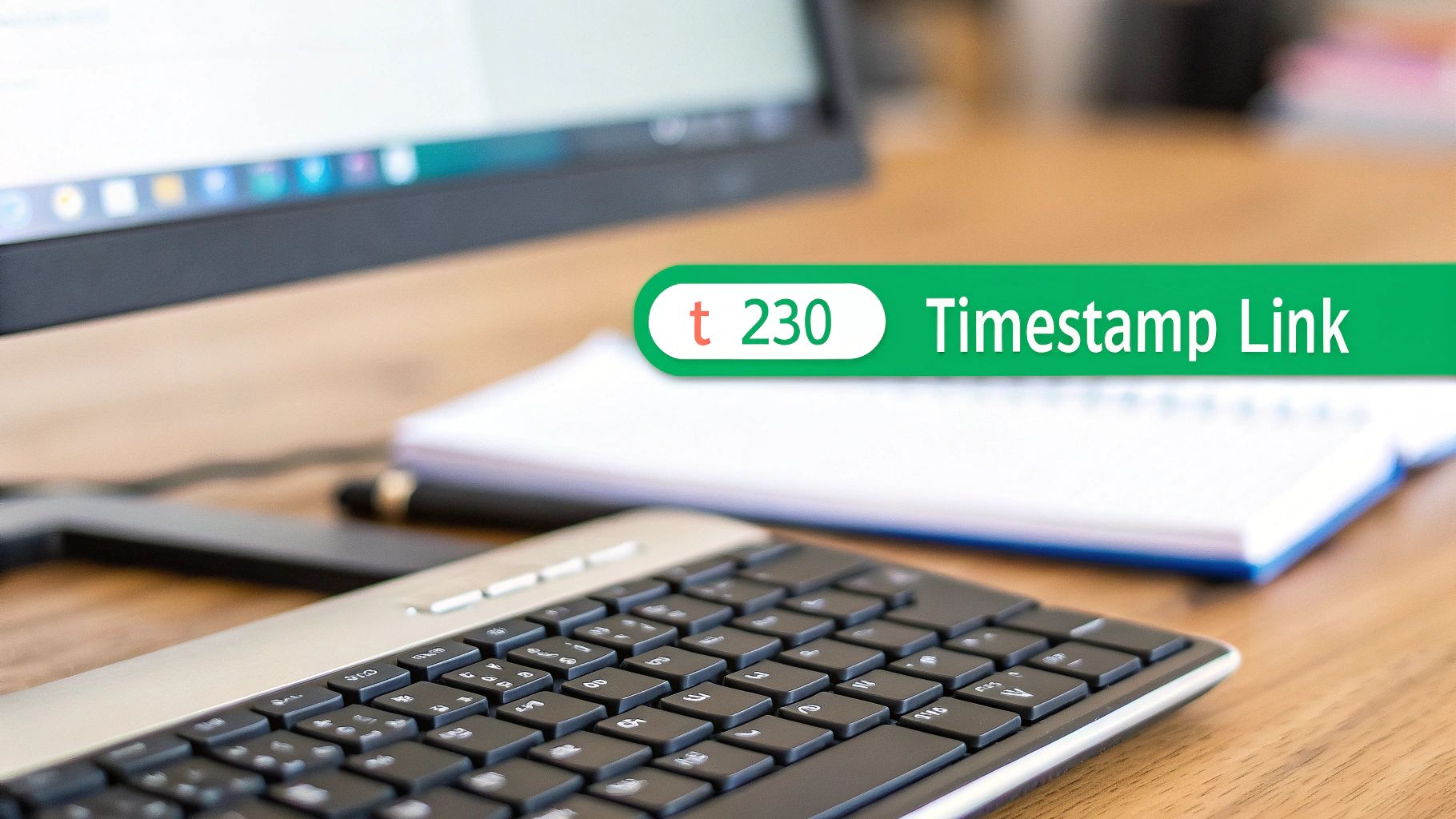
So, you want to send someone straight to the best part of a YouTube video? Forget telling them to "skip to 2:15." There's a much slicker way to do it by creating a special link that starts the video at the exact moment you choose.
It’s all about adding a simple parameter to the video's URL. This little piece of code—the ?t= parameter—tells YouTube exactly where to start playback, measured in total seconds from the beginning of the video.
Getting the right number is just a bit of quick math. If you want to link to the 2-minute and 15-second mark, you'd calculate: (2 minutes × 60 seconds/minute) + 15 seconds. That gives you 135 seconds.
How to Format the URL
Once you have your total seconds, just tack ?t= followed by that number onto the end of the video's URL. This trick works perfectly for both the standard youtube.com links and the shorter youtu.be links you get from the "Share" button.
Here’s what that looks like in practice:
- Standard URL: Let’s say you want to start a video at 1 minute and 5 seconds (that's 65 seconds). You’d change
youtube.com/watch?v=VIDEO_IDtoyoutube.com/watch?v=VIDEO_ID?t=65. - Shortened URL: The process is exactly the same for a
youtu.belink.youtu.be/VIDEO_IDbecomesyoutu.be/VIDEO_ID?t=65.
Pro Tip: Here's a shortcut I use all the time. When you pause a YouTube video on your desktop, look at the URL in your browser's address bar. It often updates automatically with an
&t=Xsparameter. You can just copy that entire updated URL—no math required!
This manual method is incredibly reliable and perfect for sharing a specific clip on social media, in an email, or through a messaging app. It ensures your audience gets right to the point, making your shares far more effective.
YouTube Timestamp URL Parameter Guide
To make things even clearer, here's a quick reference guide for adding the t= parameter to different YouTube URL formats. It can be a little confusing with all the different link types YouTube throws at you, but this table breaks it down.
| URL Type | Format Example | How It Works | Best For |
|---|---|---|---|
| Standard Watch URL | youtube.com/watch?v=VIDEO_ID&t=90s | Use & if a ? already exists. The s is optional but good practice. | Embedding or sharing links that already have other parameters. |
| Shortened Share URL | youtu.be/VIDEO_ID?t=90 | Use ? since no other parameters are present. | Quick sharing on social media, email, or messaging apps. |
| Embed URL | youtube.com/embed/VIDEO_ID?start=90 | For embeds, you must use the start= parameter, not t=. | Embedding videos on a website or blog and starting at a specific time. |
Whether you're sending a funny clip to a friend or referencing a specific point in a tutorial for a colleague, mastering these URL parameters is a simple way to make your shares more precise and professional.
Embedding Videos That Start at the Right Moment
Embedding a video on your blog or website is a fantastic way to engage visitors. But let’s be real—making them hunt through a long video to find the one relevant clip is a surefire way to lose their attention.
A much smarter approach? Make the embedded YouTube video start at the exact moment you want them to see. This drops your audience right into the action, keeping them hooked.
To do this, you’ll need to slightly tweak the standard iframe embed code that YouTube provides. While shared links use the ?t= parameter, the embed code requires a ?start= parameter instead. The logic is the same, though: the value is always the start time in total seconds.
So, if you want your video to kick off at 2 minutes and 30 seconds, you’d use a value of 150 (that’s 2 × 60 + 30).
Modifying the Iframe Code
When you grab the embed code from YouTube, you’ll notice a URL inside the src="" attribute. That’s where you need to make your move. Just add ?start=SECONDS to the very end of that video URL, right before the closing quotation mark.
Let's break it down with a quick before-and-after.
Standard Embed Code (Before):
Modified Embed Code (After): To start the video at the 2-minute, 30-second mark (150 seconds), the code becomes:
This small tweak is a game-changer for content creators. Bloggers can embed a tutorial that jumps right to a specific step, while businesses can showcase a product feature without forcing visitors to sit through a lengthy intro. It makes your embedded content more precise and shows you respect your audience's time.
Using Video Chapters for Better SEO and Navigation
Setting a specific start time on a YouTube video isn't just a neat trick for sharing. It's the core concept behind one of the most powerful on-page SEO features the platform offers: YouTube Chapters.
Think of chapters as a clickable table of contents for your video. By adding a simple list of timestamps in your video's description, you break down long-form content into easy-to-digest sections that viewers can jump to instantly. This transforms what could be an intimidating, lengthy video into an organized, accessible resource. The better the viewer's experience, the longer they'll stick around.
How to Create Clickable Chapters
Getting chapters to show up on your video timeline is surprisingly simple. You just have to follow a few ground rules in your video description:
- Always start at
0:00. Your first timestamp must kick things off from the very beginning. - You need at least three chapters. YouTube won't activate the feature unless you have a minimum of three timestamps listed.
- Keep the format clean. Each chapter needs to be on its own line, with the timestamp (
MM:SSorHH:MM:SS) followed by a space and a clear title.
A description for a video tutorial might look something like this:
0:00 - Introduction
1:25 - Preparing the Ingredients
4:10 - Cooking Instructions
9:45 - Plating and Serving Tips
When you structure your video description like this, you’re doing more than just helping your audience. You're giving search engines a crystal-clear map of your content. Both YouTube and Google read these chapters to understand the specific topics you cover, which is a massive win for your SEO.
The Real SEO Advantage of Chapters
This is where things get really interesting. When Google understands the structure of your video, it can start showing "Key Moments" right inside its search results.
Imagine someone searching for a specific step in a complex process. If your video has a chapter that matches their query, Google might show a direct link that jumps them to that exact spot. This gives you a huge leg up on the competition and drives highly targeted traffic.
The numbers don't lie. YouTube users spend an average of 40 minutes per session, and with over 800 million videos on the platform, holding their attention is everything. Chapters are your best defense against viewer fatigue, preventing people from endlessly scrubbing through your timeline to find what they need.
In the end, chapters turn your video into a highly efficient, searchable asset that ranks better and serves your audience far more effectively. To get a full breakdown of the process and best practices, check out our complete guide on how to create and optimize YouTube chapters for maximum impact.
Automating Chapters with AI to Maximize Your Reach
Let's be honest: manually creating chapters for your podcast, tutorial, or long-form interview is a grind. Scrubbing through timelines, jotting down timestamps, and trying to come up with decent titles can eat up hours. Thankfully, AI-powered tools are completely changing the game here, saving creators a ton of time while seriously boosting their content's performance.
Instead of you doing all the heavy lifting, these tools analyze your video’s audio and visual cues to pinpoint where topics shift. In just a few seconds, they spit out a full list of SEO-optimized chapters, packed with relevant keywords that help people discover your video. This isn't just about saving time; it's about creating smarter, more searchable chapters from the get-go.
Why Automation Is a Game-Changer
For any busy creator or marketer, this kind of automation is a huge win for your workflow. The impact on viewer retention and visibility can be massive. We're seeing creators who use timestamped chapters get visibility boosts of up to 220%. It makes sense—when you let viewers jump straight to the content they care about, they're far less likely to drop off.
Tools like TimeSkip can generate chapters for videos up to four hours long, using AI to lock onto keywords that can increase discovery by 25% and total viewing duration by 15%. For podcasters and educators, this is a massive advantage, especially in markets like the U.S., where a staggering 82% of adults tune into YouTube every day.
By automating chapter creation, you shift your focus from tedious editing to high-level strategy. This allows you to produce more accessible, search-friendly content that captures and holds viewer attention far more effectively.
This automated process unlocks a ton of organic reach by making your videos easier for both viewers and search engines to navigate. If you want a full rundown of how AI can fit into your entire production workflow, consult this complete guide on AI for YouTube videos.
And to see how the process works in more detail, check out our guide on how to create chapters in YouTube using AI.
Got Questions About YouTube Timestamps?
Once you start using timestamps, a few common questions always seem to pop up. Getting the hang of how to start a YouTube video at a specific time is simple enough, but knowing the little details can save you from some common headaches and help you get the most out of the feature.
Troubleshooting Common Timestamp Issues
One of the biggest worries creators have is whether sending a link with a specific start time will kill their watch time. The short answer? Nope. In fact, it usually helps. YouTube starts the clock the moment a viewer hits play. By pointing them straight to the good stuff, you’re making it way more likely they’ll stick around, which is a win for your audience retention.
Another big one: can you set both a start and an end time? With a regular share link, you can't. But for embedded videos, you absolutely can. Just add an &end= parameter (in seconds) to the URL inside your iframe code. The video will play from your specified start time and then automatically stop at the end time. Super handy for showing specific clips on a website.
And what about when your timestamps in the description just won't turn into clickable chapters? This is almost always a simple formatting hiccup. Run through this quick checklist:
- Does your list start with
0:00? This one is non-negotiable. - Do you have at least three chapters listed? That's the minimum for YouTube to activate the feature.
- Is each timestamp on its own line in the
MM:SS Titleformat?
You might also see both
t=andstart=floating around and wonder what the deal is. It's pretty simple:t=is for your standard shareable links (likeyoutu.be/ID?t=90). Thestart=parameter is used specifically foriframeembed codes on websites. Using the right one for the job ensures your video always starts exactly where you want it to.
Tired of manually creating chapters? TimeSkip generates SEO-optimized timestamps for your videos in just a few seconds. It’s a huge time-saver that can give your visibility a serious boost. Try TimeSkip for free and see how it works.