Ever told a friend to "just skip to the good part"? Linking to a specific time on YouTube is the digital version of that. It lets you create a special URL that drops a viewer right at the exact moment you want them to see, like putting a bookmark on a single video frame.
Why Linking to Specific YouTube Moments Matters
Let's be real. Sending someone a link to a 45-minute video and telling them to "find the part around 23 minutes" is a fantastic way to make sure they never watch it. We all value our time, and a direct link to the key information shows you respect that. It instantly makes for a better viewing experience.
This one simple action can be a complete game-changer for your engagement. When you get rid of the friction of scrubbing through a video, people are far more likely to actually watch, get your point, and stick around. It’s all about delivering value, fast.
Boosting Viewer Engagement and Retention
Direct links get your audience to the content they actually care about instantly. Say you’re referencing a killer tip in a long tutorial or a hilarious moment from a podcast. A timestamped link ensures the viewer lands exactly where the action is, which can seriously slash your drop-off rates.
This focused approach is a win for everyone:
- For Creators: It's an amazing tool for cross-promoting your work. You can drop links to specific moments in older videos right in your new descriptions, creating a web of content that keeps people on your channel longer.
- For Marketers: Sharing precise clips on social media becomes a breeze. Instead of just hoping people find that key product mention, you can lead them directly to it.
- For Viewers: They get the exact info they were promised without any frustrating guesswork. That kind of positive experience builds trust and is what turns a casual viewer into a subscriber.
Unlocking Powerful SEO Benefits
But maybe the biggest win of all is how Google and YouTube use this data. When you add timestamps to your video description (which we'll get into later), you’re basically creating a clickable table of contents. Google often pulls this information to create "Key Moments" right in the search results.
What does this mean for you? Your video can show up with multiple, tappable segments directly in Google Search. This gives users a sneak peek of your content and makes them much more likely to click. Suddenly, your video isn't just ranking for its main title; it can rank for all the specific topics you cover inside it.
Using timestamps effectively can completely change your video's discoverability and organic reach. If you want to go deeper, you can learn more about how YouTube timestamps impact your channel's visibility. This strategy transforms a single video into multiple doorways for new viewers, maximizing its SEO power.
How to Create a Timestamped YouTube Link
So, you see the power in pinpointing specific moments in a video. Now, let's get our hands dirty and actually do it. Linking to an exact time on YouTube is surprisingly simple once you know the tricks, and you've got a few different ways to pull it off.
Which method you choose really depends on what you're doing. Are you just quickly firing off a link to a friend, or are you carefully embedding a video into a detailed tutorial on your website? Each scenario has a best fit. We'll look at three ways to get it done: the old-school manual way, YouTube's handy built-in tool, and how to make it work for embedded videos.
The Manual URL Method
This is the most direct approach and honestly, it's my go-to. It gives you total control and is incredibly fast once you get the hang of it. All you need is the standard YouTube video URL and the time you want the video to start.
The secret is a little snippet you add to the end of the URL: ?t=. You just follow that with the time you want, but here's the catch—it has to be in seconds.
Let's say you want to link to the 2-minute and 15-second mark.
- First, do a quick conversion: (2 minutes * 60 seconds/minute) + 15 seconds = 135 seconds.
- Grab your standard video URL, something like
https://www.youtube.com/watch?v=VIDEO_ID. - Tack
?t=135sonto the end.
Your final link looks like this: https://www.youtube.com/watch?v=VIDEO_ID?t=135s. When someone clicks that, the video will jump right to 02:15. If you want to get really technical with the formatting options, we've broken down all the nuances in our detailed guide on the YouTube timestamp format.
Using the Built-In Share Feature
Don't feel like doing math? I get it. YouTube has a built-in feature that automates the whole process, which is perfect for sharing on social media or in a quick message.
Here’s how to do it on a desktop computer:
- Find the YouTube video you want to share and pause it at the exact moment you want to link to.
- Look for the "Share" button right below the video player and give it a click.
- In the window that pops up, you'll see a little checkbox at the bottom that says "Start at" followed by the current timestamp. Just make sure that box is ticked.
- YouTube automatically updates the share link for you. Copy it, and you're good to go.
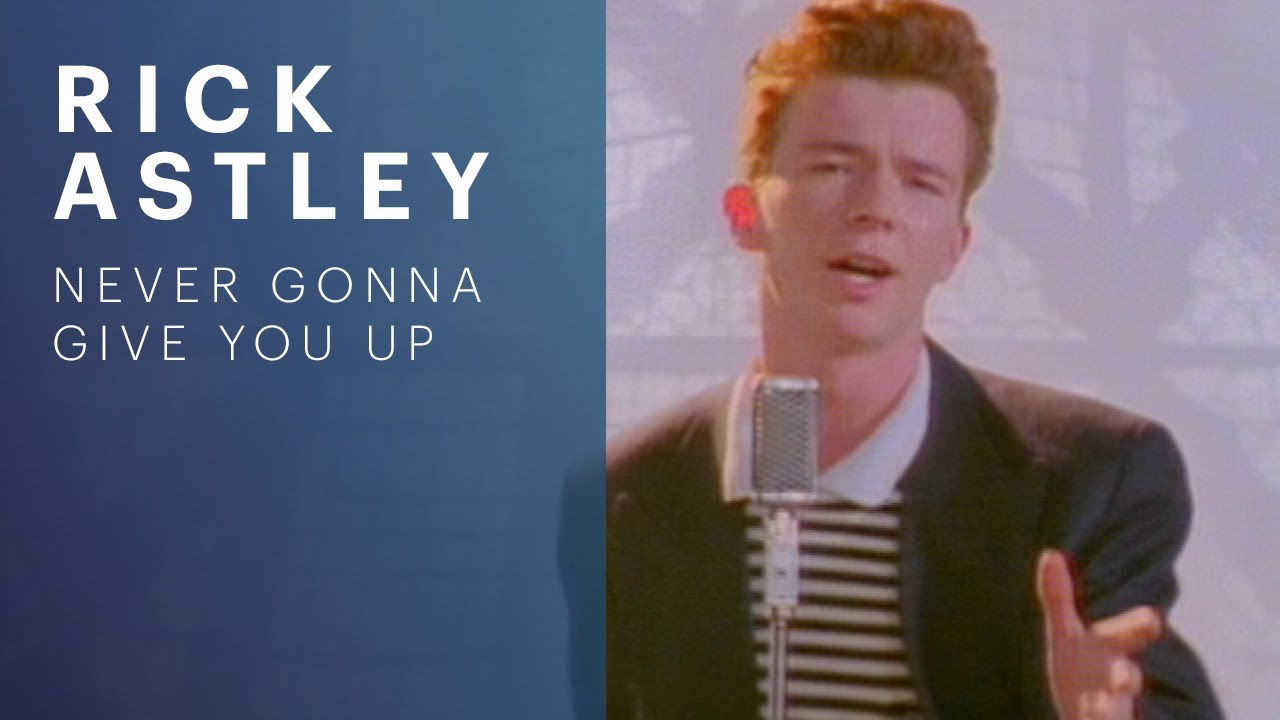
As you can see in the screenshot, that simple checkbox does all the heavy lifting. It’s easily the most user-friendly way to create a time-specific link, eliminating any chance of error. The process is pretty much the same on the mobile app, too—just hit "Share" and look for the start time option.
Timestamping Embedded Videos
What if you want a video embedded on your blog or website to start at a specific point? The good news is, the same logic applies here. When you grab the embed code from YouTube, you're just getting a chunk of HTML that you can easily tweak.
Inside the <iframe> tag, find the src attribute that holds the video URL. All you have to do is add ?start=SECONDS to the end of that URL.
Heads up: For embeds, the parameter is
start, nott.So, if your original embed code has
src="https://www.youtube.com/embed/VIDEO_ID", you’d change it tosrc="https://www.youtube.com/embed/VIDEO_ID?start=135"to make the video start playing at the 2-minute and 15-second mark.
Comparing YouTube Time-Linking Methods
To make things even clearer, here’s a quick breakdown of the different methods we just covered. This should help you decide which one to use based on your needs.
| Method | How It Works | Best For | Device Compatibility |
|---|---|---|---|
| Manual URL | Add ?t=SECONDS to the end of a standard YouTube URL. | Quick, precise linking when you already know the exact time. Great for power users. | Works everywhere (Desktop, Mobile, etc.) |
| Built-In Share | Use the "Share" button and check the "Start at" box. | Fast, error-free sharing on social media, email, or messaging apps. | Works on Desktop and Mobile apps. |
| Embedded Video | Add ?start=SECONDS to the URL within the <iframe> embed code. | Forcing an embedded video on your website or blog to start at a specific point. | N/A (Applies to websites) |
Each technique gets you to the same result—a link that jumps to a specific moment. Now you can choose the right tool for the job every time.
Using YouTube Chapters for Navigation and SEO
Linking to a specific moment is great, but YouTube Chapters take this a huge step further. Think of them as a fully interactive table of contents that's baked right into your video's progress bar. This feature carves up your video into distinct, titled sections, giving viewers a clear roadmap of what's ahead so they can jump to the parts that matter most to them.
This isn't just a minor convenience—it fundamentally changes how people engage with your content. Someone watching a long tutorial can easily skip to the "Advanced Settings" section without aimlessly dragging the playhead. For a podcast, they can jump straight to an interview with a particular guest. Better navigation means a better user experience, which often translates to higher audience retention.
This infographic neatly summarizes the main ways you can create a link that sends someone to a specific time.
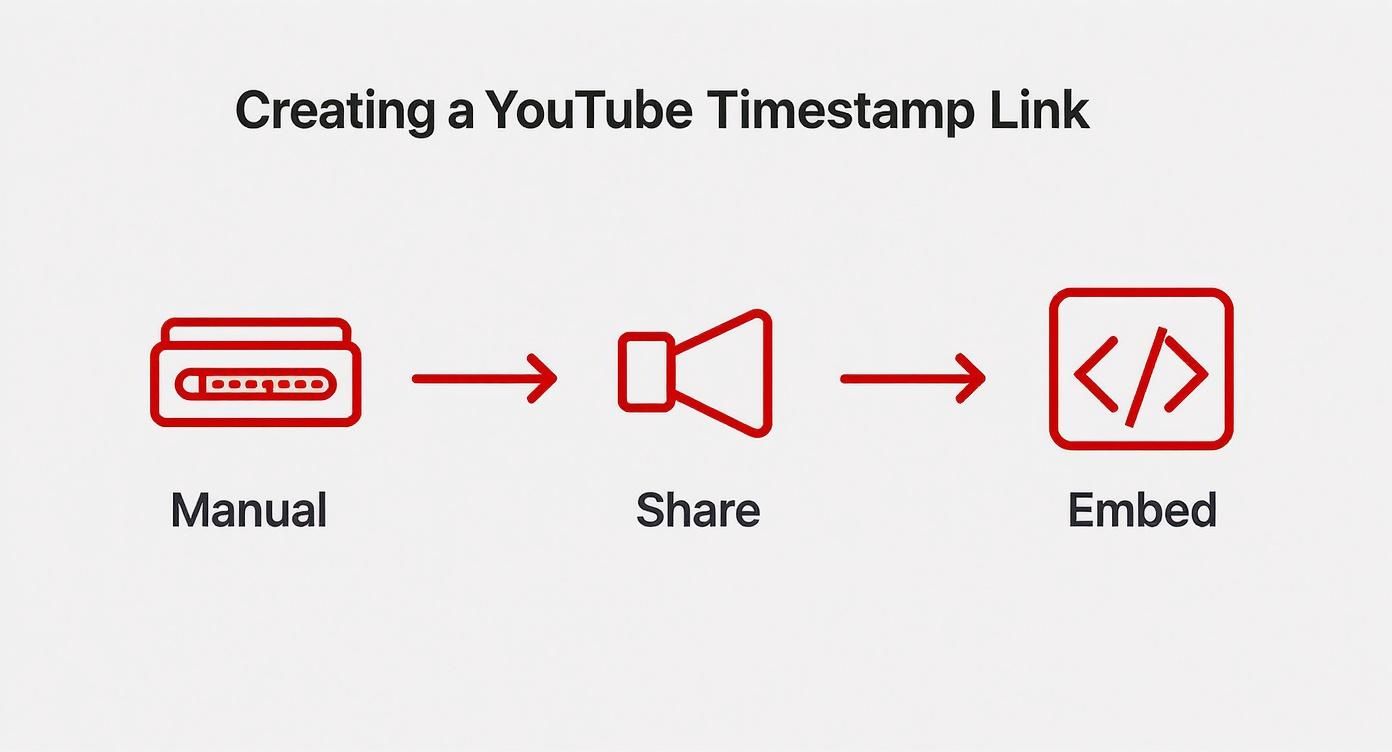
As you can see, whether you're tweaking a URL by hand, using the built-in share feature, or adjusting embed code, the end goal is the same: get people directly to the most valuable content, fast.
How to Format YouTube Chapters Correctly
To get chapters to show up, you just need to add a simple list of timestamps right in your video's description. YouTube is smart enough to recognize this format and will automatically create the clickable segments on the progress bar. The structure is simple, but you have to be precise.
Here are the hard-and-fast rules for your timestamp list:
- Start at Zero: Your first timestamp absolutely must be
00:00. If you skip this, the whole feature won't work. - Keep It Chronological: The list has to be in sequential order. You can't have a
05:10timestamp appear before a02:30one. - A Minimum of Three: You need at least three timestamps in your list for YouTube to enable chapters.
- Give Them a Title: Each timestamp needs a short, descriptive title for that chapter.
Here's what a perfectly formatted chapter list looks like in a description:
00:00 Introduction to the Project
01:45 Gathering Your Materials
04:20 Step-by-Step Assembly Guide
08:55 Final Touches and Polishing
11:10 Project Reveal
That simple block of text transforms your description into a powerful navigation tool. For a deeper dive, check out our guide on https://timeskip.io/blog/youtube-chapters.
The SEO Impact of Video Chapters
The real magic of chapters goes way beyond just helping viewers on YouTube. Google's search algorithm actively reads this information. When your video pops up in search results, Google will often display your chapters as "Key Moments," creating rich snippets that make your video stand out from the crowd.
This means your one video can rank for many different search queries. Instead of just ranking for its main title, it can now show up for searches related to each of your chapter titles. A video on "Complete Home Renovation" could also rank for "how to install kitchen cabinets" if that's one of your chapters.
This segmentation gives search engines a much deeper understanding of what your content is about. For creators who want to get serious about this, understanding video transcription is a huge help, as it gives you a text-based blueprint for identifying those key moments accurately.
This increased visibility feeds directly into user engagement. By making your video easier to navigate with chapters, you're capitalizing on that engagement potential, no matter when or how a viewer finds your video.
Best Practices for Timestamps and Chapters
Simply dropping a list of timestamps into your description is a decent start, but if you want to turn them into a real asset, you need to think strategically. The real magic happens when you treat your chapters not just as a navigation tool, but as a powerful driver for engagement and SEO.
The key is to get inside your viewer's head. Think about what they're actually searching for. Generic titles like "Part 1" or "Next Steps" don't help anyone. Instead, you want descriptive, keyword-rich phrases. For example, a title like "Camera Settings" is okay, but "How to Configure Low-Light Camera Settings" is infinitely better. This kind of precision helps both people and search algorithms understand exactly what each segment is about.
Crafting Viewer-Centric Chapter Titles
Think of each chapter title as a mini-headline. It needs to be descriptive enough to grab attention and concise enough to be scannable. Your goal is to give viewers a clear, compelling reason to click on a specific part of your video.
When you nail this, you not only improve their experience but also help your video rank for more specific, long-tail keywords. Here are a few tips I've picked up:
- Lead with action verbs. Start your titles with words like "How to," "Installing," or "Comparing." It immediately tells the viewer what they'll learn or do.
- Think like a search engine. Align your chapter titles with the common questions and problems your audience is trying to solve. What would they type into Google or YouTube?
- Keep it simple. Avoid jargon or overly clever phrases. Clarity is your best friend when it comes to both viewers and search engines.
To make this process even easier and more accurate, consider transcribing your video content to text. A full transcript is the perfect reference for pinpointing the exact start and end of each topic you cover.
Finding the Right Chapter Structure
So, how many chapters should you have? The honest answer is: it depends. A quick five-minute video might only need three or four logical breaks. A one-hour deep dive, on the other hand, could easily have a dozen or more.
There’s no magic number. The goal is to create logical, digestible segments that guide the viewer through your content without feeling forced.
Don't add chapters just for the sake of it. Each timestamp should mark a distinct and meaningful shift in topic. When a video is well-structured from the start, creating chapters feels natural because the segments just flow.
This structure is a game-changer for keeping people watching. With the average daily YouTube watch time in the U.S. projected to hit 37 minutes in 2025, clear navigation is non-negotiable for holding attention. When viewers can easily find exactly what they need, they're far more likely to stick around, boosting your overall watch time.
Mastering how to link time on youtube through smart chaptering directly caters to this behavior, making your content more accessible, engaging, and ultimately, more successful.
Troubleshooting Common Timestamp and Chapter Issues
It's incredibly frustrating when you’ve put in the work to add chapters to your YouTube video, only for them to… well, not show up. When your efforts to link time on youtube fall flat, it’s almost always due to a few common formatting mistakes. Don’t worry—these are usually simple fixes.
The most frequent culprit I see is a missing or incorrect starting point. YouTube’s system is a stickler for rules, and its number one rule is that your very first timestamp must be 00:00. If you start your list at 00:10 because that's when your intro ends, the whole chapter feature will fail to activate. Always, always begin your list with something like 00:00 Intro.
Another common pitfall is just not having enough timestamps. For chapters to pop up on the video player, you need a minimum of three separate entries in your description. Two timestamps just won't cut it. Make sure you’ve broken your video into at least three logical parts, each with its own timestamp and title.
Why Your Chapters Are Not Appearing
Okay, so you've checked the basics and your chapters still won't show up. It's time to get a little more granular with the formatting. YouTube is very particular about the structure, and even a tiny error can make the system ignore your list entirely.
First, check that each timestamp is on its own line. A list formatted horizontally like 00:00 Intro 01:23 Main Topic is a no-go. Each entry needs its own line break to be recognized.
Also, be consistent with your time format. The MM:SS (minutes:seconds) format works for most videos, but if you’re creating an epic that goes over an hour, you must switch to HH:MM:SS (hours:minutes:seconds). Mixing these up or using the wrong punctuation, like a period instead of a colon, will break the whole thing.
- Correct:
01:15:32 Concluding Thoughts - Incorrect:
1.15.32 Concluding Thoughts - Incorrect:
1:15:32Concluding Thoughts(you need a space after the timestamp!)
Remember, the list must also be in chronological order. A timestamp for
05:10can't appear before one for02:45. YouTube reads the list from top to bottom and will stop if it finds an entry that’s out of sequence.
Solving Inaccurate Time Links
What about when the chapters appear, but clicking them sends the viewer to the wrong moment in the video? This usually happens when the link itself has a conflicting time parameter baked into it. For instance, if you share a link like your.video/watch?v=123?t=60s and the viewer then clicks on a chapter for the 03:00 mark, the URL’s original timestamp can sometimes interfere and cause confusion.
If you're embedding a video, take a close look at the src URL in your iframe code. An old ?start=SECONDS parameter might be lurking in there, overriding the chapter navigation.
The cleanest way to share a video with chapters is to just provide the standard, clean URL. Let the user navigate with the beautiful chapter markers you've already created in the description. This ensures the viewing experience is exactly as you intended it.
Got Questions About YouTube Timestamps? We Have Answers.
It's one thing to know how to add timestamps, but it's another to understand the strategy behind them. As you start digging into how to link time on youtube, a lot of questions pop up. Let's tackle some of the most common ones creators ask.
Many people wonder if it's worth going back to update old videos with timestamps. The answer is a huge yes. YouTube and Google are always re-crawling content. Adding fresh, well-structured chapters to an older video can breathe new life into it, giving it a second chance to rank for new keywords and show up in Google's "Key Moments."
Do Timestamps Hurt Watch Time?
This is the big one, isn't it? The fear is that if you let people skip ahead, your watch time will plummet. In my experience, the opposite is usually true.
When you give viewers chapters, you're giving them control. If they hit a slow spot or a section that isn't relevant to them, they don't have to leave your video entirely. They can just skip to the next interesting part.
Think about the two scenarios:
- No Chapters: A viewer gets bored and clicks away. Game over.
- With Chapters: That same viewer sees a compelling chapter title, jumps ahead, and keeps watching.
This actually leads to a better viewing experience, which sends positive signals to the YouTube algorithm about your audience retention.
A clear roadmap through your content shows respect for your viewer's time. That builds trust and makes them far more likely to stick around and watch more of your videos, even if they skip a section here and there.
Can I Add Timestamps to YouTube Shorts?
As of now, you can't. YouTube Shorts are designed for a completely different viewing experience—short, snappy, and continuous. They don't have the traditional progress bar where chapters would live.
You can technically list timestamps in a Short's description, but they won't be clickable or create those nice navigable segments. For now, chapters are a powerful tool reserved for standard, long-form videos where they make the most impact.
What's the Best Format for Timestamps?
Keep it simple. Sticking to the right format prevents any weird glitches or issues. The most reliable format is MM:SS (e.g., 03:15) for videos under an hour and HH:MM:SS (e.g., 01:12:45) for longer ones.
And remember the golden rules for chapters to work correctly:
- Your list must start with
00:00. - You need at least three timestamps in your list.
- The timestamps have to be in chronological order.
- Each timestamp gets its own line.
Following these basic guidelines is the easiest way to make sure your efforts to link time on youtube pay off every single time.
Tired of manually creating chapters? TimeSkip uses AI to generate SEO-optimized timestamps for your YouTube videos in seconds. Install the Chrome extension and get two free video generations to see how it can boost your channel's visibility. Start optimizing with TimeSkip today.