A YouTube link timestamp is just a fancy way of saying you can send someone a link that starts a video at an exact moment, instead of right at the beginning. Instead of starting at 00:00, playback jumps right to the point you want to show them. If you create long-form content, this is an absolute must-have in your toolkit.
If you need a complete chapter list rather than a single shared link, use the YouTube timestamp formatting guide to build it correctly.
Why Timestamps Are A Creator's Secret Weapon
Let's be real: attention spans are shorter than ever. Getting your audience to the most valuable part of your video instantly is a massive advantage. A YouTube link timestamp does just that, turning a passive viewing session into something much more interactive and efficient.
It’s the difference between a viewer scrubbing aimlessly through your 45-minute podcast and one who finds the exact answer they were looking for in just a few seconds.
By respecting your audience's time, you're not just being helpful; you're dramatically improving user satisfaction. That sends powerful positive signals to YouTube's algorithm, which loves to promote content that keeps viewers happy and engaged.
The Undeniable SEO Advantage
Beyond just a better viewing experience, timestamps are a core part of modern YouTube SEO. When you string a bunch of timestamps together to create chapters, you're basically handing Google and YouTube a "table of contents" for your video. This makes your content way more discoverable.
Here’s how it helps:
- Better Search Visibility: Chapter titles often show up in Google search results as "Key Moments," giving your video more screen real estate and attracting clicks from people who are looking for exactly what you're offering.
- Smarter Content Indexing: Search engines get a much clearer picture of the topics you cover, helping you rank for more specific, long-tail search queries.
- Stronger Engagement Signals: When you guide viewers straight to the good stuff, you boost watch time on those key segments and make them more likely to drop a like or comment.
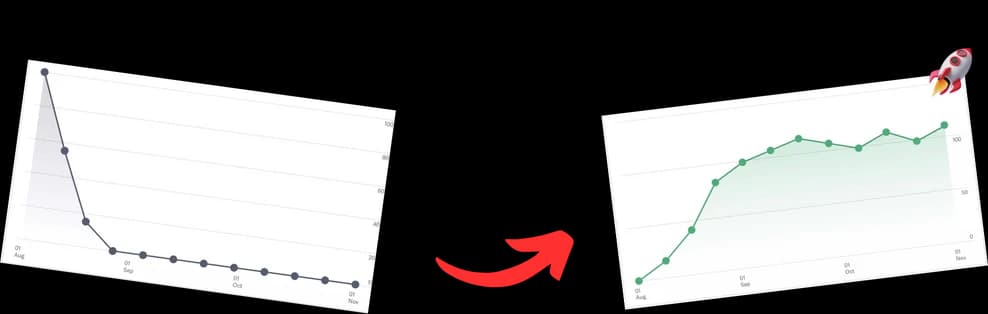
The proof is in the data. Take a look at how implementing timestamps and chapters can give your video's performance a serious lift.

Here's a clearer breakdown of what those performance boosts can look like.
Impact of Timestamps on Key YouTube Metrics
| Metric | Video Without Timestamps | Video With Timestamps |
|---|---|---|
| Average View Duration | Lower (viewers may drop off) | Higher (viewers find relevant sections) |
| Audience Retention | Significant drop-offs | Better (smoother curve with peaks at chapters) |
| Search Visibility (Google) | Standard listing | Enhanced (Key Moments feature) |
| Engagement Signals | Standard | Higher (likes/comments on specific sections) |
The numbers don't lie. Videos structured with chapters consistently outperform those without them in the areas that matter most for channel growth.
Boosting Engagement Through Chapters
The impact chapters have on engagement isn't a small tweak—it's a game-changer. Some studies have shown that chaptered videos can achieve over 200% more engagement than videos without them. That's a staggering difference, and it points to a clear viewer preference for content they can easily navigate.
YouTube's algorithm is all about user experience, and it rewards features that help people find what they need quickly. If you're making tutorials, interviews, or any multi-topic video, this is non-negotiable for preventing viewer drop-off and getting your content seen.
For any serious creator, strategically breaking down your videos isn't just a nice-to-have anymore. By 2026, it's a fundamental part of any successful growth strategy. If you want to go deeper, we've got a whole guide on optimizing YouTube SEO with timestamps that breaks down even more advanced techniques.
How To Create A YouTube Link Timestamp On Any Device

Creating a timestamped YouTube link is a core skill for any creator or marketer, and thankfully, it's dead simple no matter what device you're on. Whether you're at your desk or out and about, you can generate a link that sends someone to a specific moment in just a few clicks.
The easiest way is to just use YouTube’s built-in sharing feature. It does all the heavy lifting for you, which is perfect when you need to quickly share a specific highlight with a friend or drop a video into a blog post.
The Desktop Method Using The Share Button
On a desktop or laptop, just pull up the video you want to share. Play it until you get to the exact spot you want the link to start from, and then hit pause.
Look right below the video player and click the Share button. A little popup window will appear with all your sharing options. Down at the bottom, you'll spot a small checkbox labeled Start at, followed by the current time of the video.
Go ahead and tick that box. You'll see the URL in the field above instantly update with the timestamp. All you have to do now is hit Copy, and you’ve got your perfectly timed link.
Creating A Timestamp On Mobile Devices
The process is pretty much the same on the YouTube app for both iOS and Android, even though the layout is a bit different. Find the video you want, scrub to the exact point you want to share, and pause it.
Tap the Share button, which is usually that little curved arrow icon just below the video title. In the share menu that pops up, you’ll find the same Start at checkbox. Ticking it adjusts the link, which you can then copy or share directly to another app.
Pro Tip: When sharing from your phone, give the timestamp a quick double-check before you send it off. It’s surprisingly easy to accidentally nudge the timeline while you’re navigating the share menu, which can throw off the time you meant to capture.
Manually Building Your Timestamp URL
If you want more control or find yourself needing to edit a URL directly, you can actually build a timestamp link by hand. This is a great skill to have because it helps you understand how these links really work under the hood.
Every timestamp is just a small bit of code, known as a parameter, tacked onto the end of a standard YouTube URL.
The two main parameters you’ll run into are ?t= and &t=. Knowing the difference is key.
- Use
?t=when it's the very first parameter you're adding to the URL. The question mark kicks off the query. - Use
&t=when the URL already has another parameter (like&list=for a playlist). The ampersand just adds another instruction to the existing query.
You can specify the time in a few different ways, like in total seconds (135s) or in minutes and seconds (2m15s). So, to link to the 1 minute, 30-second mark, you could add either ?t=90s or ?t=1m30s to the end of the URL. This hands-on control is fantastic for anyone who needs to link to a time on YouTube with absolute precision.
Strategic Best Practices For Timestamps And Chapters

Knowing how to create a YouTube link with a timestamp is one thing. But using them strategically is what really separates the channels that grow from the ones that stagnate. When used correctly, chapters and timestamps are absolute powerhouses for boosting both your SEO and viewer retention.
Think of your video's description as a roadmap for your viewer. A well-laid-out list of timestamps is like a table of contents, showing them exactly what value you’ve packed into the video at a single glance. It's not just about a better user experience; it's a massive quality signal to the YouTube algorithm.
The real trick is to ditch generic chapter titles. "Topic 2" isn't going to cut it. You need descriptive, keyword-rich phrases that real people are searching for. If you’re reviewing a product, a chapter like "Unboxing and First Impressions" is infinitely more compelling than a lazy "Intro."
The Non-Negotiable Rules For Chapters
Before you get creative, you need to know the ground rules. YouTube is pretty specific about how it recognizes chapters, and if you mess these up, the whole feature simply won't work.
- Start at 00:00: Your very first timestamp must begin at the zero-second mark. If you skip this, YouTube won't process any of your other chapters.
- A Minimum of Three: You need at least three timestamps in your list to activate the chapter feature on the video's progress bar.
- Keep It Chronological: This one’s a no-brainer. Your timestamps have to be listed in sequential order, from the start of the video to the end.
Get any of these basics wrong, and your chapters just won't show up, wasting all your effort. It’s a simple checklist to run through before hitting publish.
By crafting thoughtful chapters, you can turn potential drop-off points into moments of re-engagement. If a viewer is getting bored and about to click away, a juicy chapter title just ahead on the timeline can be the exact thing that convinces them to stick around.
Optimizing Chapters For Retention and SEO
The YouTube algorithm is pushing more content than ever before, which sounds great on the surface. But recent analysis tells a more complicated story. While average views per video shot up 76% in the past year, the overall engagement rate actually plummeted by 37%.
This fascinating data comes from Metricool’s latest YouTube statistics report, and it highlights a critical point: getting seen is easier, but keeping viewers engaged is the real battle.
This is exactly where strategic timestamps and chapters come in. They directly combat dropping retention rates.
Imagine you’ve created a long tutorial on video editing software. A viewer who is only struggling with color grading can see your "7:15 Mastering Color Correction" chapter and jump right there. You've just provided them with immediate value, which boosts their session watch time and makes them far more likely to subscribe.
That positive interaction is a powerful signal to the algorithm that your content solves specific problems. Better yet, each one of those chapter titles becomes a micro-opportunity to rank for a whole new set of search queries.
Troubleshooting Common Timestamp And Chapter Issues
Nothing kills your workflow faster than spending time setting up perfect video chapters, only to find they’ve vanished into thin air. When your YouTube link timestamp or chapters aren't working, it’s almost always because of a small, easy-to-fix formatting mistake.
Before you start pulling your hair out, just run through this quick diagnostic checklist. Most problems come down to YouTube's very specific, and honestly, pretty rigid formatting rules. One tiny slip-up can make the whole thing fall apart, so that's the first place we'll look.
The Essential Chapter Checklist
Let’s start by looking at the timestamp list in your video description. From my experience, this is where most creators trip up when they're in a rush to publish.
- Does your first timestamp start at
00:00? This one is completely non-negotiable. YouTube's system simply won't recognize your chapter list unless the very first entry is at the00:00mark. - Do you have at least three timestamps? To get those nice visual chapter breaks on the video player's progress bar, you need a bare minimum of three entries. Two just won't cut it.
- Is the time format correct? You have to stick to either the
hh:mm:ssormm:ssformat. A super common mistake is dropping the leading zero for minutes under ten (like writing5:20instead of05:20), which can sometimes throw the system for a loop. - Are your chapter titles too long? Keep your titles short and to the point. Overly long titles can sometimes mess with the formatting, especially when people are watching on their phones.
Honestly, running through these four checks will solve the problem 9 times out of 10. If you've double-checked and everything looks right, the issue might be a little more subtle.
Fixing Pesky Link And Display Errors
Sometimes your chapters are formatted perfectly in the description, but the timestamped link itself is the real troublemaker. A link that stubbornly starts the video from the beginning instead of your chosen time is the classic sign of a URL parameter issue.
Remember the difference between ?t= and &t=. If the video URL already has a question mark in it (which often happens with links from playlists or other sources), you absolutely must use &t= to add your timestamp. Using a second ? will break the link every time.
Another sneaky culprit can be your browser's cache. If you just updated your video description with new chapters, your browser might be holding onto an older, cached version of the page.
A simple hard refresh is a surprisingly common fix. Just hit Ctrl+F5 on Windows or Cmd+Shift+R on a Mac. This forces your browser to grab the latest version of the page, and your new chapters will often pop right up.
By methodically walking through these common failure points, you can quickly figure out why your YouTube link timestamp is misbehaving and get your video's navigation back on track.
Automating Your Workflow With TimeSkip AI
Getting the hang of manual timestamping is a great skill, but let's be honest—it's a massive time sink, especially for long-form content. For creators who'd rather spend their time actually creating, it’s time to work smarter, not harder. This is where automation tools completely change the game, giving you back hours you'd otherwise spend tediously scrubbing through footage.
Enter TimeSkip, an AI-powered Chrome extension built for exactly this. Instead of manually watching, pausing, and typing out timestamps, TimeSkip spits out a full, optimized list of chapters in just a few seconds. Even if your video is an hour long, the process is practically instant.

The whole thing is designed for speed. It plugs right into your YouTube dashboard, so you can generate, check, and copy your chapters with a single click. That one-click workflow is where the real efficiency gains kick in.
Unlock The Power Of AI-Driven Chapters
TimeSkip does more than just generate timestamps. Its real magic is in the AI-driven optimization. The tool actually analyzes your video’s content to suggest chapter titles packed with relevant keywords. This directly tackles the SEO challenges we've been talking about, helping your videos show up for more specific searches on both YouTube and Google.
The benefits are immediate and easy to see:
- One-Click Operation: Get a complete list of chapters with a single click, right inside the YouTube interface.
- SEO Optimization: The AI proposes keyword-rich chapter titles built to boost your video's discoverability.
- Enhanced Viewer Retention: A well-structured video with clear chapters acts as a roadmap, keeping viewers locked in.
- Proven Results: Creators using the tool are seeing real bumps in channel visibility and total watch time.
By automating the most tedious part of the process, you can get back to what actually matters—making awesome content. Of course, TimeSkip isn't the only AI tool creators use to speed things up. Many also use tools like an AI meme generator to quickly create engaging social media assets. If you want a deeper dive into the process, check out our guide on how to auto-generate chapters on YouTube.
“I was spending over an hour creating chapters for my weekly podcast episodes. With TimeSkip, I get it done in about 15 seconds. It’s been a total game-changer for my productivity.” – Joyce B., Podcaster
Why Automation Is Crucial For Long-Form Content
The push toward long-form content is impossible to ignore. A 2024 YouTube report found that long-form videos are actually more popular than short-form content, even with Shorts pulling in billions of daily views. This is a huge opportunity for creators making in-depth content, but it also makes manual chaptering completely impractical.
With audience retention benchmarks showing that a 35-45% retention rate is good for videos over 10 minutes, every little thing you can do to help viewers navigate your content is critical. These trends show why well-structured, long-form videos are the key to sustainable growth, a point you can see in YouTube's latest creator insights.
This is where a tool like TimeSkip offers an effortless fix to a growing problem. It closes the gap between producing the long-form videos the algorithm loves and delivering the great user experience your viewers expect. For any creator serious about growth, automating this part of your workflow isn’t a luxury anymore—it’s a necessity. You can even try it risk-free with two free video generations to see the impact for yourself.
Answering Your Top YouTube Timestamp Questions
Once you get the hang of timestamps, you'll find they're incredibly useful. But a few common questions always seem to trip people up. Let's run through the most frequent ones I hear from creators so you can use timestamps like a pro in any situation.
Think of this as your rapid-fire guide to clearing up any lingering confusion, from dropping a timestamp in a comment to the nitty-gritty of URL formats.
Can I Add A YouTube Link Timestamp In A Comment?
You absolutely can, and you should! It's one of the most useful and underutilized features in the YouTube comments section.
All you have to do is type the time directly into your comment using the mm:ss or hh:mm:ss format. So, typing 4:25 automatically creates a clickable, blue link. When someone clicks it, the video instantly jumps to the 4-minute, 25-second mark. It's a fantastic way to highlight a specific moment or point someone to the exact answer they're looking for.
What Is The Difference Between ?t and &t In A URL?
This one trips up a lot of people, but it's simpler than it looks. The symbol you need just depends on what the URL already looks like. It all comes down to whether you're starting a set of instructions for the browser or adding to an existing list.
- Use
?t=when the timestamp is the first parameter you're adding. The question mark kicks off the list of instructions, telling the browser, "Hey, I have a command for you." You'll use this on clean, standard video URLs. - Use
&t=when another parameter is already in the URL, like a link from a playlist (&list=...). The ampersand acts as a separator, basically saying, "And here's another instruction."
Getting this right is critical. If you use a
?t=on a URL that already has a question mark, the link will break and just play the video from the beginning.
Do Video Chapters Automatically Create Timestamp Links?
Yes and no. When you add chapters to your video description, YouTube creates those slick, navigable segments on the video timeline. This doesn't automatically generate a list of shareable URLs, but it makes creating them incredibly easy for anyone.
A viewer can click on a chapter title, and when they hit the Share button, YouTube is smart enough to pre-check the "Start at" box with that chapter's exact time. It instantly creates a perfectly timestamped link for them to copy.
How Many Chapters Should I Add To My Video?
There isn't a single magic number here. The real goal is to create a helpful, logical outline for your viewers, not just to jam the timeline with segments.
A good rule of thumb I follow:
- For a 10-15 minute video, I usually find that 5-8 chapters offer plenty of navigation without feeling cluttered.
- For a 60-minute podcast or interview, that number might jump to 15-20 chapters to break down all the different conversation topics.
The key is balance. You want to avoid slapping chapters too close together, which just makes the progress bar look messy and defeats the purpose of providing clear navigation.
Ready to stop wasting time and start creating perfectly optimized chapters in seconds? TimeSkip uses AI to do the hard work for you, boosting your SEO and viewer retention with a single click. Try it for free and see the difference. https://timeskip.io