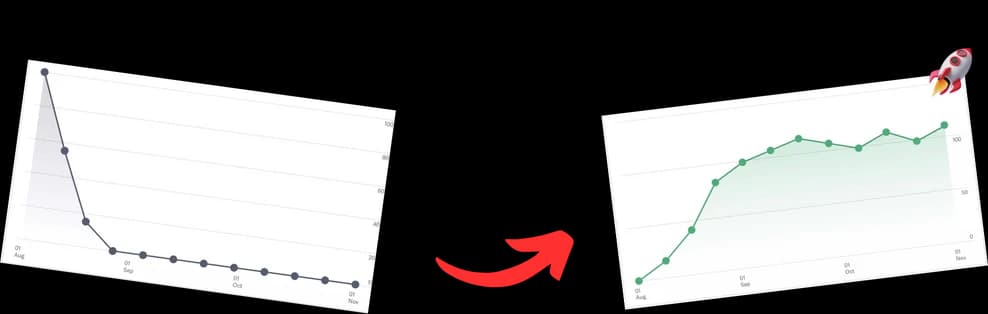
A YouTube time link is just a special URL that sends viewers to a specific moment in your video. Instead of making people scrub through a long video to find what they're looking for, you can drop them right at the good part. It's a simple but incredibly powerful way to share highlights, specific tutorial steps, or key arguments, making the whole experience better for your audience.
Why YouTube Time Links Are Your Secret Weapon
Let's be real: attention spans are shorter than ever. Long videos, while awesome for deep dives, can feel like a huge commitment. Most people land on a video with a specific question in mind, and if they can't find the answer fast, they're gone.
This is where a YouTube time link goes from being a nice-to-have to a strategic tool for keeping people watching.
When you guide your audience directly to the most relevant part of your video, you cut out all the friction and frustration. It’s a small gesture that shows you respect their time, and it massively increases the odds they'll actually stick around and engage with your content instead of just bouncing.
Boost Key Channel Metrics
The perks go way beyond just a better user experience. The YouTube algorithm is always watching how viewers interact with your videos, and using time links can directly influence the metrics that matter most:
- Increased Watch Time: By sending users straight to the high-value moments, you're encouraging them to watch longer. This is a huge positive signal to the algorithm.
- Higher Engagement: Viewers who quickly find what they need are way more likely to leave a like, drop a comment, or hit that subscribe button.
- Improved Click-Through Rates: Sharing a link to a specific, juicy moment in an email or social media post is much more tempting to click than just a generic video link.
With over 2.7 billion monthly active users watching more than 1 billion hours of video every single day, you have to do everything you can to stand out. Making people hunt through long-form content is one of the quickest ways to lose them.
A Practical Example of Impact
Imagine you just dropped a one-hour podcast episode. A potential viewer only cares about the five-minute segment where you discuss a hot industry trend. Instead of telling them to "skip to around the 45-minute mark," you can just send them a direct link to that exact spot.
That tiny change transforms a potentially annoying experience into a seamless one. For a deeper dive into creating these, our guide on how to time stamp a YouTube video has all the details.
By mastering the YouTube time link, you're not just sharing a video—you're delivering a precise solution. It’s a fundamental shift from hoping viewers find value to guaranteeing they do, which is how you build a foundation for real, sustained channel growth.
Of course, these links work best when the video itself is solid. For some additional tips for creating awesome YouTube videos, checking out what other experts have to say can give you some fresh ideas for your next project.
Creating Time Links The Easy Way
Ever felt like you're sending someone on a treasure hunt just to find one specific clip in your video? There's a much easier way. Creating a YouTube time link is far simpler than most people think, and you don't need any special tools to do it. You can point your viewers directly to the most important moments in seconds, whether you're on a computer or your phone.
The most common method is built right into YouTube's "Share" button. Just pause the video at the exact moment you want to share, click "Share," and you'll see a small checkbox that says "Start at." Check that box, and YouTube instantly adds the correct timestamp to the URL for you. It's a one-click trick that guarantees your link is spot on.
This simple action can completely change how people interact with your content, turning a long video into a quick, direct answer to their question.
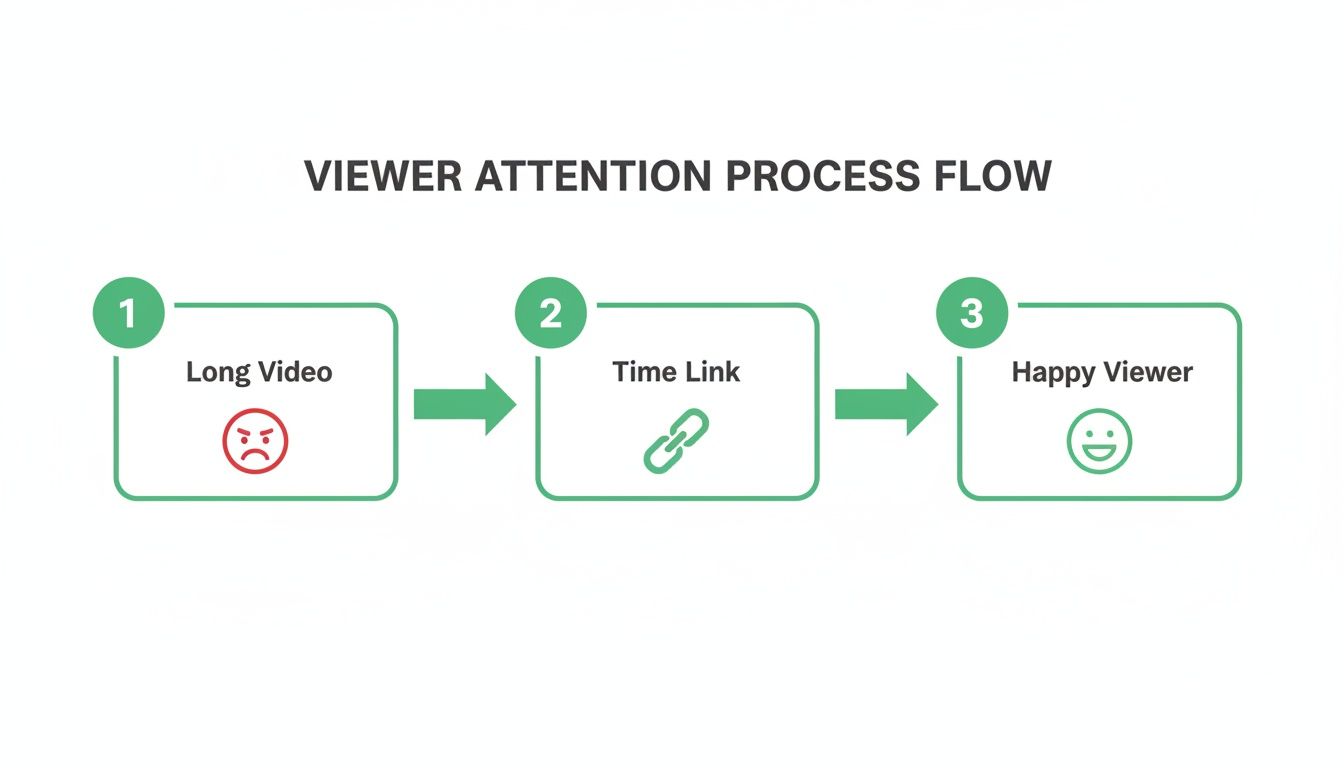
As you can see, a time link acts as a bridge, taking a viewer from the potential frustration of a long video to the immediate satisfaction of finding exactly what they need.
Manually Crafting Your Time Link
For those who like a bit more control or need to edit an existing URL, you can add the timestamp yourself. This is the secret sauce behind every time-specific YouTube link. All you're doing is telling the browser exactly how many seconds into the video it should start playing.
You'll use one of two parameters at the end of the video's URL:
?t=Use this if the URL doesn't already have a question mark (?).&t=Use this if the URL already has a question mark, which is common for links from playlists or those with other tracking codes.
The number after the equals sign represents the start time in total seconds. Don't worry, the math is simple: just multiply the minutes by 60 and add the remaining seconds.
Let's break it down. To link to 3 minutes and 15 seconds (3:15), the calculation is:
(3 minutes * 60 seconds) + 15 seconds = 195 seconds.
Your final parameter would look like ?t=195s or &t=195s.
This manual approach is perfect when you're editing links in a blog post, an email, or a content management system. For instance, if you have a standard video link like https://www.youtube.com/watch?v=VIDEO_ID, you would simply add &t=195s to the end.
Putting It All Together With Real Examples
Let's walk through a real-world scenario. Say you've filmed a long tutorial and you want to share the "big reveal" that happens at the 12-minute, 20-second mark.
First, calculate the total seconds: (12 minutes * 60) + 20 seconds = 740 seconds.
Next, grab your original video URL:
https://www.youtube.com/watch?v=AbcDeFg1234
Now, you just need to tack on the time parameter. Since this URL doesn't have a ? yet, you'll use ?t=. The final, shareable link becomes:
https://www.youtube.com/watch?v=AbcDeFg1234?t=740s
While creating these links manually works great, it can get repetitive if you're producing a lot of content or building out video chapters. If that's you, a dedicated YouTube timestamp generator can be a huge time-saver. It automates the whole process, ensuring your links are perfectly formatted every single time. This lets you focus on creating amazing content instead of getting bogged down in the technical details of sharing it.
Turn Timestamps into a Powerful SEO Advantage
Creating a single YouTube time link is great for sharing a specific moment, but the real growth hack is integrating this concept directly into your video’s description. This is where you unlock YouTube Chapters, a simple feature with a massive impact on your video's discoverability.
By strategically listing timestamps in your video description, you're doing way more than just helping your current audience. You're giving Google and YouTube a detailed roadmap of your content, letting them index and feature specific segments of your video for highly targeted search queries.

The Magic of Key Moments in Google Search
When you format timestamps correctly in your description, Google automatically turns them into “Key Moments” right there on its search results pages. Instead of just a single link to your video, Google shows a rich snippet with clickable chapter links that take searchers to the exact section answering their question.
Think about it. Someone searches for "how to fix a noisy bike chain." If your video has a chapter titled "2:15 Fixing a Noisy Chain," Google can feature that specific segment as a direct answer. This gives your video a huge visibility boost and a much higher click-through rate because you're offering an instant solution.
To really get why this works, it helps to understand the basics of what is Search Engine Optimization (SEO). You're essentially optimizing parts of your video for individual search queries, not just the video as a whole.
Correctly Formatting Chapters for Maximum Impact
Getting this right is all about the formatting. YouTube is picky about how it reads timestamps, so you have to follow these rules:
- Start at the Beginning: Your first timestamp absolutely must be
0:00. If you miss this, the whole chapter feature won't even turn on. - Keep It Chronological: List all your timestamps in order, from the start of the video to the end. No jumping around.
- Use the Right Format: Each chapter needs to be on its own line and follow the
MM:SS TitleorHH:MM:SS Titlestructure.
Here’s a perfect example of what to pop into the description for a tutorial on video editing software:
0:00 Introduction to the Interface 1:32 Importing Your First Clip 3:45 Making Basic Cuts and Trims 5:10 Adding Text and Titles 7:28 Exporting Your Final Video
By turning timestamps into chapters, you are essentially creating multiple entry points into a single piece of content. Each chapter title becomes a potential keyword you can rank for, dramatically expanding your video's organic reach.
This structured approach doesn't just help your SEO; it makes for a much better viewer experience. Research shows that when users can easily navigate a video, they’re more likely to watch longer and subscribe. They feel in control and can get the exact value they came for, which sends powerful positive signals back to the YouTube algorithm.
This small bit of effort transforms your video from one big block of content into a dynamic, searchable resource that works much harder for your channel's growth.
How We Automate Chapter Creation with TimeSkip
Let's be honest: creating YouTube chapters manually is a grind. For long-form content like podcasts, tutorials, or deep-dive interviews, it can feel like a full-time job. You spend hours scrubbing through footage just to find the right break points.
While the SEO and viewer experience benefits are huge, the time commitment can be a killer. This is exactly why we ditched the manual process and found a tool to do the heavy lifting for us.
For our workflow, that tool is TimeSkip. It’s a simple Chrome extension that uses AI to analyze a video's transcript and structure, then spits out accurate, SEO-friendly chapters in seconds. What was once a tedious chore is now a simple "install, click, and copy" task.
This single change freed up hours that we now pour back into creating more content, engaging with our community, or just planning what's next. It’s a no-brainer for any creator who sees the value in chapters but just doesn’t have the bandwidth.
From Manual Labor to AI Efficiency
The whole point of a tool like this is to let technology handle the repetitive stuff so you can stay focused on the creative work. TimeSkip plugs directly into your YouTube Studio, so you're not jumping between different apps or websites.
Once it's installed, a button appears right on the video details page. You click it, and the AI immediately gets to work identifying logical topic shifts and generating concise, keyword-rich titles for each chapter.
Here’s what that looks like right inside YouTube:
It's a one-click process. The tool generates, previews, and formats the final chapter list so you can copy it straight into your video description. A task that used to take us 30 minutes now takes about 10 seconds. The efficiency gain is massive.
Maximizing Your Content's Reach
Automating chapters isn't just about saving time; it's a strategic move. The YouTube ecosystem is exploding, with Shorts now pulling in 70-90 billion daily views. By properly chaptering your long-form videos, you make them more accessible to viewers who might only want quick highlights, effectively bridging the gap between long and short-form content.
This optimization helps you capture a wider audience and capitalize on YouTube's growth. For a deeper dive, you can discover more YouTube statistics and trends that show just how much a well-structured channel can grow.
The real power of automation isn't just saving time—it's achieving consistency. When chaptering is effortless, you ensure every single video is fully optimized for viewer experience and search visibility, compounding your channel's growth over the long haul.
Fixing Common Time Link and Chapter Problems
There's nothing more frustrating than spending time setting up the perfect YouTube time link or chapter list, only to find out it doesn't work. When a link breaks, it doesn't just confuse your viewers—it can make your content look unprofessional.
The good news is that most of these issues come from a handful of common, easy-to-fix mistakes. More often than not, the problem is a simple formatting error. Precision is everything, whether you're building a link by hand or creating a chapter list. One misplaced character can break the whole thing. Let's walk through the usual suspects so you can get things working again.

Why Your Chapters Aren't Appearing
If you've typed out timestamps in your video description but they aren't magically turning into clickable chapters, it's almost always because of one of these three rules:
- You must start with
0:00. This is the #1 mistake people make. Your very first timestamp has to be0:00(usually titled "Intro" or something similar). Without it, YouTube won't even try to process your list as chapters. - You need at least three timestamps. To get the chapter feature to kick in, your list needs a minimum of three separate timestamps, and that includes the required
0:00start time. - Each chapter needs its own line. Stick to the
MM:SS Chapter Titleformat, with each entry on a new line and listed in chronological order.
A correctly formatted chapter list is a clear signal to YouTube. Think of the
0:00timestamp as the "on" switch for the feature. If it's missing, the system never even gets the memo to activate chapters for your video.
Troubleshooting Broken Manual Time Links
When a manual youtube time link you created isn't jumping to the right spot, the problem is usually hiding in the URL's structure. Take a close look at the link and hunt for any syntax errors. The most common culprit? Using the wrong symbol to add your time parameter.
Just remember this simple rule for adding the t= parameter:
- Use
?t=if the URL does not already have a question mark. - Use
&t=if the URL already has a question mark (like in a playlist or share link).
A classic mistake is adding ?t=60s to a link that already includes a parameter like ?feature=share. That will always fail. The correct version would use &t=60s instead. Double-checking that one tiny character is usually all it takes to fix a broken manual link.
Common Questions About YouTube Time Links (Answered)
Even after you get the hang of creating time links and chapters, a few specific questions always seem to pop up. I see creators bump into the same challenges and curiosities all the time, so let's clear the air and tackle the most common ones head-on.
From creating links that end at a certain time to understanding the real SEO impact, here are the answers you need to make these features work for you.
Can I Create a YouTube Time Link That Ends at a Specific Time?
Yes, but there's a pretty big catch. You can technically set both a start and an end time using URL parameters, but this trick is really only designed for embedded videos. It’s just not reliable when you share it as a regular link on social media or in an email.
To get it working for an embedded video, you'll need to tweak the URL inside the embed code (the one with /embed/ in it). Just add start= and end= parameters, making sure to list the times in seconds.
For example, if you wanted to play a clip from the 30-second mark to the 90-second mark, your embed URL would look like this:
https://www.youtube.com/embed/VIDEO_ID?start=30&end=90
This is perfect for spotlighting a specific highlight on your website or blog. For everyday sharing, though, just stick with the simple start-time link.
How Do YouTube Chapters Really Affect My Video's SEO?
The impact is massive—honestly, it's one of the biggest low-effort SEO wins on the platform. When you add well-titled chapters, Google often pulls them directly into its search results as "Key Moments." This feature transforms a single video result into a rich, interactive snippet with multiple entry points.
Imagine someone searches for a super-specific question you only answered in one small part of your video. Without chapters, they'd have to find your video and scrub through it. With chapters, Google can serve them a direct link to that exact moment.
This dramatically boosts your video’s visibility and click-through rate because you're giving searchers an instant, zero-effort solution. Every chapter you name with a relevant keyword becomes another shot at ranking in Google search.
Why Are My Timestamps Not Turning into Clickable Chapters?
This is easily the most common frustration I hear, and it almost always boils down to one of three simple formatting mistakes. If your timestamps are just sitting there as plain text instead of clickable chapters, run through this quick checklist:
- You forgot the
0:00start time. Your list of chapters must begin with a timestamp for the very start of the video. No exceptions. - You don't have enough timestamps. YouTube requires a bare minimum of three timestamps listed in chronological order for the chapter feature to kick in.
- There’s a typo somewhere. Each timestamp has to be on its own line and follow the
MM:SS TitleorHH:MM:SS Titleformat. Even a misplaced space or colon can break the whole thing.
Think of the
0:00timestamp as the "on switch" for your chapters. Without it, YouTube's system doesn't even bother trying to process the rest of your list, no matter how perfect it is.
Is Using an Automated Tool Like TimeSkip Safe for My Channel?
Absolutely. A tool like TimeSkip is completely safe because it's just automating a task that YouTube actively wants you to do. All it does is generate the properly formatted text for your video description, which you then copy and paste yourself. It works entirely within YouTube's terms of service.
By creating high-quality, relevant chapters, you're making your video better for viewers and more visible to search engines. That sends all the right signals to the YouTube algorithm. Using a tool to do it faster is just being efficient—it’s not a sketchy shortcut.
Ready to stop wasting time on manual timestamping and start optimizing every video for maximum reach? With TimeSkip, you can generate perfect, SEO-friendly chapters in seconds. Try it for free and see how effortless it is to improve your workflow. Get started with TimeSkip today.