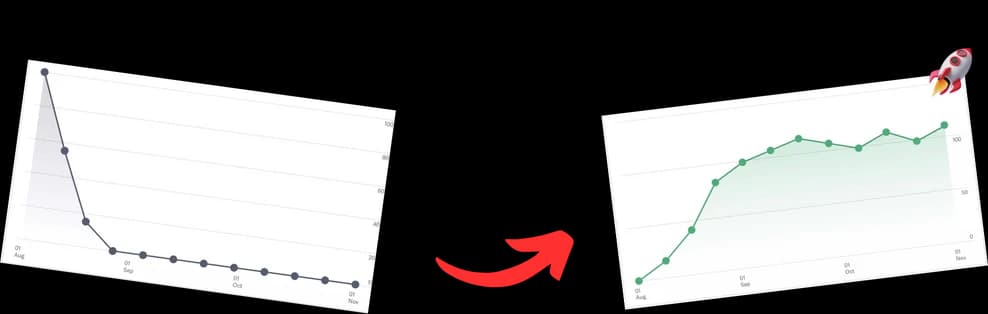
A YouTube time URL is a simple but powerful trick: it's a special link that sends viewers to a specific moment in your video, not just the beginning. Think of it as a direct flight to the best part of your content, skipping the layover. It’s an incredibly simple way to improve the viewing experience and, in turn, boost your channel’s key metrics.
Why a YouTube Time URL Is Your Secret Weapon for Growth

We've all been there. You publish a long, detailed tutorial or an in-depth podcast, only to see viewers drop off in the first few minutes. It's a common frustration for creators. The reality is, viewers today have short attention spans and want answers now. A timestamped link gets rid of the friction of scrubbing through a video, delivering instant value and showing you respect their time.
This simple act of guiding your audience can have a huge impact on your channel's performance. By making your content easier to get through, you solve a major headache for viewers—especially on mobile, where trying to land on a specific second can feel like a game of chance.
Drive Engagement and Viewer Satisfaction
When you share a link that jumps right to the exact quote, highlight, or tutorial step someone's looking for, you create a genuinely helpful experience. This makes it more likely they'll stick around, subscribe, and come to trust your content.
- Eliminate Friction: Viewers get what they need without the frustrating search.
- Boost Watch Time: By dropping them into a high-interest moment, you increase the odds they'll stay engaged longer. If you're looking for more ways to keep people watching, check out our guide to boost your YouTube watch time with proven tips.
- Improve Shareability: Timestamped links are perfect for sharing on social media, in forums, or via email, letting you promote specific clips from your longer videos.
Enhance Your Video SEO
Beyond just making viewers happy, using timestamps to create video chapters has some serious SEO benefits. These timestamps can show up directly in Google's search results as "Key Moments," giving your video more real estate on the results page and a much better click-through rate.
With the average video length now around 11.7 minutes and long-form content pulling in most of the watch time, chapters are no longer a "nice-to-have." They are essential for retention, especially since a whopping 63% of viewing happens on mobile, where easy navigation is everything.
Ultimately, this technique helps you market your content more effectively. To really get the most out of your channel, it's worth exploring different strategies for marketing your website on YouTube.
The Easiest Way to Create a Timestamp Link
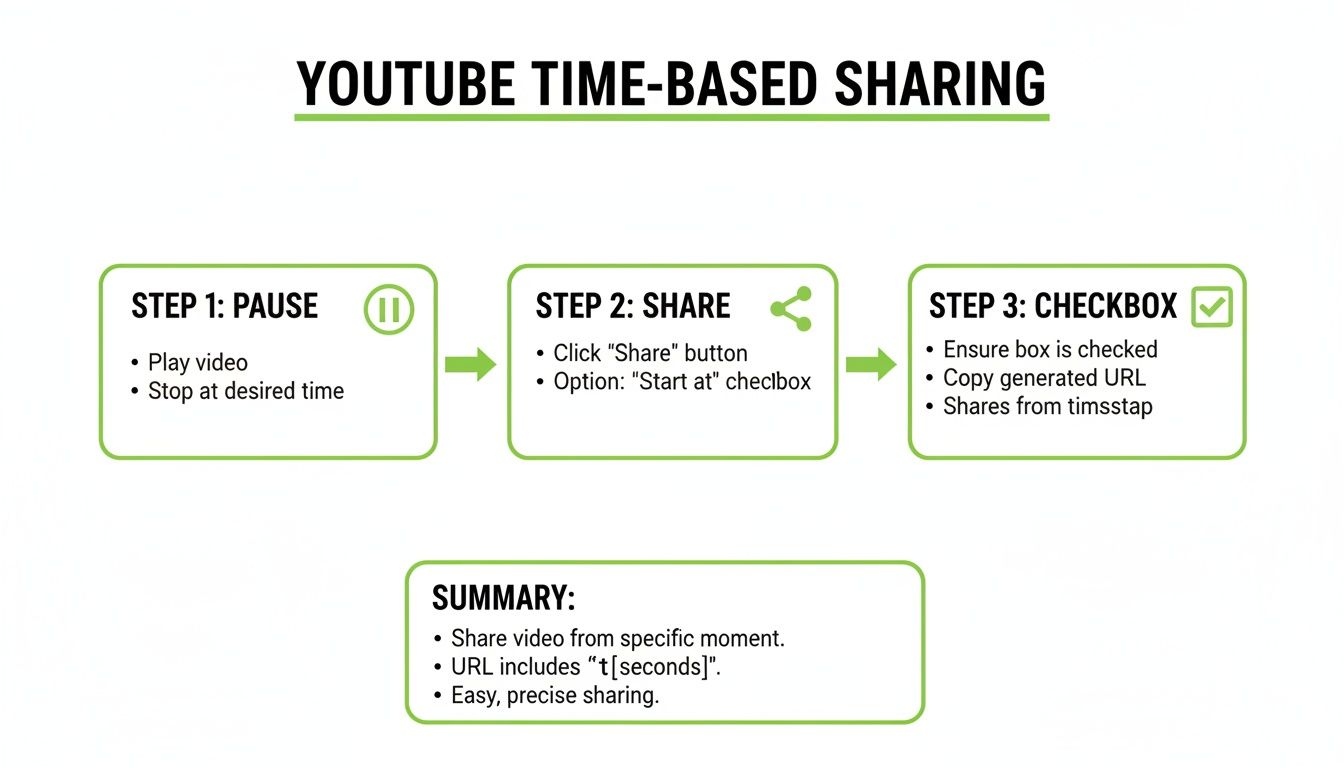
Forget about messing with URL parameters or doing math to figure out the right number of seconds. The fastest, most foolproof way to create a link to a specific moment in a YouTube video is by using the platform's own share feature.
It’s an incredibly simple trick that works perfectly whether you’re on a desktop or your phone.
Just find the YouTube video you want to share and pause it at the exact moment you want your link to begin. This could be right before a key quote, at the start of a tutorial step, or just as the punchline lands. Once you've found the perfect spot, you're ready to go.
Using the Desktop Share Feature
On your computer, look for the "Share" button right below the video player. When you click it, a pop-up window appears with all your sharing options. Down at the bottom, you'll see a little checkbox that says "Start at" followed by the timestamp where you paused the video.
All you have to do is check that box.
As soon as you do, YouTube automatically tweaks the share link for you, adding the correct time parameter. No guesswork, no manual editing—it just works.
This is the perfect move for quickly sending a video clip to a coworker or dropping a relevant link into a group chat. It takes less than ten seconds and ensures your audience lands exactly where you intend them to.
Pro Tip: This is hands-down the most reliable method for everyday sharing. It’s built right in, so you can be confident you're generating a valid timestamp link without needing to know any of the technical details we'll get into next.
From there, just copy the new link and paste it wherever you want—a direct message, a blog post, or a forum comment. You can be sure it'll start playing at the precise moment you chose.
Manually Crafting Your Perfect YouTube Time URL
While YouTube's built-in share feature is handy for a quick link, sometimes you need to get your hands dirty. Manually editing a video's URL is a fantastic skill to have in your back pocket, giving you total control to create a precise YouTube time link for any situation.
It all comes down to adding a small bit of code, called a parameter, to the end of the standard video URL.
The Two Parameters That Matter: ?t= and ?start=
You've got two main options here: ?t= and ?start=. Honestly, for all practical purposes, they do the exact same thing—they tell the video to start playing at a specific moment.
The key thing to remember is that both of these parameters work in total seconds. They don't understand the usual "minutes and seconds" format we're all used to.
This whole manual process is basically a more flexible version of what YouTube's share feature does automatically.
From Minutes to Seconds: The Quick Conversion
The only real "work" involved is converting your timestamp into total seconds. It’s pretty simple math: (Minutes x 60) + Seconds = Total Seconds.
Let’s say you want to link to the 2 minute, 15 second mark of a video:
- First, convert the minutes: (2 minutes x 60) = 120 seconds
- Then, add the remaining seconds: 120 + 15 = 135 seconds
Now you just tack ?t=135 (or ?start=135) onto the end of the video’s base URL. It's that easy.
To make things even faster, here's a quick reference table. It's a lifesaver when you're creating a lot of timed links and don't want to pull out a calculator every single time.
| Time (MM:SS) | Total Seconds (for ?t=) | Example URL Suffix |
|---|---|---|
| 00:30 | 30 | ?t=30 |
| 01:00 | 60 | ?t=60 |
| 01:45 | 105 | ?t=105 |
| 02:30 | 150 | ?t=150 |
| 05:00 | 300 | ?t=300 |
| 10:20 | 620 | ?t=620 |
Just find your desired time, grab the total seconds, and you’re good to go.
What if the URL Already Has a Question Mark?
This is a super common trip-up. You grab a URL from a playlist or a search result, and it already has other parameters in it, always starting with a question mark (?).
If a URL already contains a
?, you must use an ampersand (&) to add your timestamp. Using a second question mark will break the entire link.
For example, look at this URL from a playlist: youtube.com/watch?v=VIDEO_ID&list=PLAYLIST_ID. It already has the ?v= parameter. To add a timestamp that starts at 90 seconds, you’d simply append &t=90 to the end. The final link becomes youtube.com/watch?v=VIDEO_ID&list=PLAYLIST_ID&t=90.
Getting this one detail right means you can modify virtually any YouTube link you come across. For a deeper dive into all the nuances, check out our guide on the proper YouTube timestamp format.
Turn Timestamps Into SEO Gold
Alright, you've got the basics down for creating a YouTube time URL. Now, let’s talk strategy. Where can you place these links to actually make a difference? The single biggest move you can make is adding video chapters right into your video's description.
This isn't just a nice little feature for your viewers; it's a huge play for search engine optimization.
When you nail the formatting, YouTube magically turns those timestamps into clickable chapters that slice up your video's timeline. Viewers can instantly skip to the good parts, which is a massive win for their experience and can seriously pump up your total watch time.
How to Format Chapters the Right Way
Getting chapters to show up is simple, but YouTube is very picky about the rules. Get one thing wrong, and the feature just won't work. Trust me, I've seen it happen countless times.
Here’s the non-negotiable checklist:
- The very first timestamp must be
00:00. - You need at least three timestamps in your list, and they have to be in order.
- Each timestamp goes on its own line, followed by a short, punchy title.
So, if you were making a recipe video, the description might look something like this:
00:00 - Intro & What We're Making
01:15 - Prepping the Ingredients
03:45 - Step-by-Step Cooking
07:30 - Plating Like a Pro
This structure is exactly what Google looks for to pull "Key Moments" from your video and feature them in search results. Talk about a massive visibility boost.
Think Beyond the Description Box
Video chapters are the main event, but don't just stop there. You can drop timestamped links in other high-traffic spots. A classic move is to pin a comment with a "Table of Contents" to catch viewers who never bother to expand the description.
Use it to highlight the juiciest parts of your video or link directly to answers for frequently asked questions.
By making your content ridiculously easy to navigate, you’re not just helping your audience—you’re spoon-feeding search algorithms the structured data they absolutely love. It's a direct line to better rankings and happier viewers.
For anyone in marketing, this kind of precision is pure gold. Done right, chapters and time URLs can lead to 15-25% gains in both viewing duration and content discovery. In a world where YouTube commands a 12.4% share of all TV watch time, making sure your content is scannable on every device is non-negotiable. If you want to dive deeper, you can find out more about these key YouTube statistics and see how they're shaping the creator economy.
Automate Your Workflow with AI Chapter Generation
Manually creating chapters for a library of long-form videos is a huge time commitment. For busy podcasters, marketers, and course creators, the manual process of creating a perfect youtube time url for every key moment can feel like a barrier to scaling up content production.
This is where automation becomes a game-changer. Modern tools now use AI to do the heavy lifting, analyzing your video’s content to generate perfectly optimized chapters in seconds. Imagine uploading a one-hour podcast and having a complete, keyword-rich set of timestamps ready to paste into your description almost instantly.
These tools don’t just save time; they improve quality. By identifying the most relevant topics and turning them into chapter titles, they help make your videos more discoverable on both YouTube and Google. This is the key to reclaiming hours while still getting all the SEO benefits. To fully understand the mechanics, it’s interesting to see how developers approach building a YouTube transcript AI from the ground up.
The Power of One-Click Chapters
For creators who understand the value of chapters but are crunched for time, AI-powered tools like TimeSkip are invaluable. This type of tool integrates directly into your YouTube workflow, allowing you to generate chapters with a single click without ever leaving the page.
Instead of scrubbing through a video and manually typing out each timestamp, AI can analyze a four-hour video and deliver accurate chapters in under five seconds. This efficiency allows you to focus on creating great content, not administrative tasks.
This approach is especially powerful for anyone managing a large back catalog of videos that lack chapters. You can quickly go back and optimize older content, breathing new life into it and improving its long-term organic reach.
If you're looking for practical steps, you can learn more about how to auto-generate chapters on YouTube and see the process in action. By automating this crucial step, you can consistently apply best practices across all of your content without sacrificing your time.
Common Questions About YouTube Time URLs
Getting a YouTube time URL to work just right can sometimes feel a bit tricky. Let's walk through some of the most common snags people hit, so you can create and share these links like a pro.
Why Are My Timestamps Not Working in the Description?
This is, without a doubt, the most frequent headache creators run into when trying to add video chapters. When they don't show up, it almost always comes down to a tiny formatting mistake.
YouTube is really particular about how it reads your timestamp list. To get those clickable chapters to appear, you have to follow three rules, no exceptions.
First, your list absolutely must start with 00:00. Even if your intro is just a few seconds long, you can't skip this. Second, you need at least three timestamps, and they have to be listed in chronological order. Finally, make sure each timestamp is on its own line with a clear, descriptive title right after it.
A perfect list looks like this:
00:00- Introduction01:30- Main Topic Explained03:15- Key Takeaway
If you miss any one of these rules, the chapters simply won't appear.
Can I Link to a Specific Time in an Embedded Video?
You bet, and it's an awesome way to guide visitors on your website straight to the most relevant part of a video. All you have to do is add the ?start= parameter to the video URL inside the embed code from YouTube.
Just find the src attribute inside the <iframe> tag and tack on the time parameter. For example, if you want an embedded video to start playing at the 90-second mark, you’d change the URL to look something like this: src="https://www.youtube.com/embed/VIDEO_ID?start=90". This little tweak forces the video to start exactly where you want it.
Just remember that the time needs to be in total seconds. This small adjustment makes your embedded content so much more effective, letting you guide your blog or website audience just as precisely as you would on YouTube itself.
Is There a Difference Between Using ?t= and ?start=?
For all practical purposes, they do the exact same thing. Both ?t= and ?start= tell YouTube to kick off playback at a specific moment, measured in total seconds from the beginning.
The ?t= parameter is the old-school original, while ?start= is what you'll typically see in modern embed codes and share links generated by YouTube.
At the end of the day, either one will work just fine for creating your link. The most important thing to remember is to use an ampersand (&) instead of a question mark (?) if there's already another parameter in the URL.
Tired of typing out timestamps and chapters by hand? TimeSkip is a slick Chrome extension that uses AI to generate SEO-friendly chapters for your videos in about five seconds. Get your time back and make your videos more discoverable. Try it for free and see for yourself. Get TimeSkip Now.