So, you want to add tags to a YouTube video. The short answer? You'll find the "Tags" box way down in the video details section of YouTube Studio. You have to click "SHOW MORE" to even see it, but once you do, you can type or paste them right in.
That's the how. But the why and what have changed a lot over the years.
The Truth About How YouTube Tags Work in 2024
Let's get one thing straight: YouTube tags aren't the SEO powerhouse they used to be. Not even close. Back in the day, they were a huge ranking signal. Now? They're a tiny piece of a much bigger puzzle. Your video’s title, thumbnail, and description are the real heavy lifters for YouTube's algorithm.
This isn't just a small tweak; it's a fundamental shift. YouTube used to rely heavily on creators to manually categorize their content with tags. But that system was easy to game. Creators would stuff the 500-character tag box with every keyword under the sun, relevant or not, hoping to trick the algorithm.
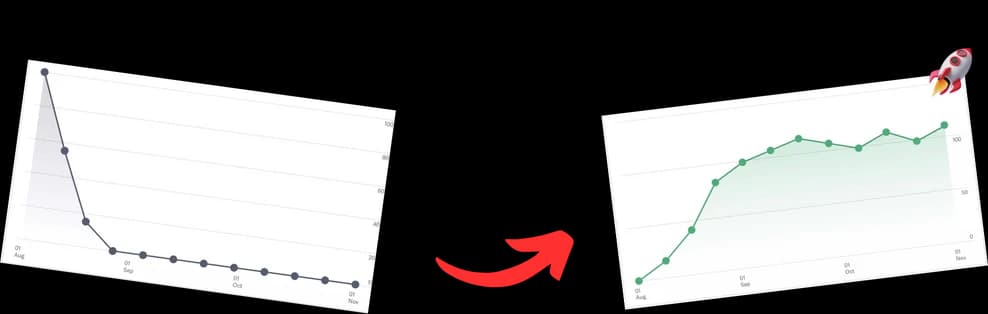
Eventually, YouTube got a lot smarter. The platform moved to a sophisticated, AI-driven analysis of your actual content—what you say, what's on screen, and the overall context provided by your title and description. As a result, the direct impact of tags on discovery plummeted.
Just look at how dramatically their importance has dropped.

This shift from manual signals to deep content analysis is clear. The days of tags being a primary SEO lever are long gone.
To understand how much things have changed, here's a quick look at the evolution of key YouTube SEO factors.
The Evolution of YouTube SEO Factors
| SEO Element | Importance Before 2018 | Importance Today |
|---|---|---|
| Video Title | High | Very High |
| Thumbnail | High | Very High |
| Description | Medium | High |
| Tags | High | Low |
| Chapters | N/A | Medium |
| Content Transcript | Low | High |
As you can see, the algorithm now prioritizes elements that directly impact the viewer's experience and provide rich context, like your title, thumbnail, and the actual words spoken in the video.
So, What Are Tags Good for Now?
If tags don't drive most of your views, should you even bother? Yes, but your strategy needs to be smart and focused. Think of tags as a support system, not the main event. They're there to help the algorithm connect the dots, especially when your primary metadata isn't perfect.
Tags have become a low-priority metadata field. Their main job now is to help catch common misspellings of keywords that are already in your title and description. Beyond that, they offer very little SEO value.
Here are the few specific jobs tags still do well:
- Catching Common Misspellings: This is their most valuable function. If your video is about "Gordon Ramsay," adding tags like "Gordan Ramsey" or "Gorden Ramsey" helps YouTube route those misspelled searches to your video. You're essentially giving the algorithm a safety net.
- Clarifying Ambiguous Topics: Sometimes a single word can have multiple meanings. A video titled "Jaguar" could be about the luxury car or the big cat. Tags like
jaguar f-type,car review, orsports carimmediately tell the algorithm which "Jaguar" you're talking about. - Reinforcing Your Channel Identity: It's always a good idea to include your channel name (and common variations of it) as a tag on every video. This small step helps reinforce your brand and can encourage YouTube to suggest your other videos in the "Up Next" sidebar.
Understanding this new reality is the key to an effective tagging strategy. You can stop wasting hours trying to find the "perfect" tags and instead focus your energy where it actually counts. For a full breakdown of the process, check out our complete guide on adding tags to YouTube videos.
Adding Tags Inside YouTube Studio
Alright, let's get down to the nitty-gritty of adding tags on YouTube. If you're new to creating content, finding the tags box can feel a bit like a treasure hunt. YouTube tucks it away, but once you know the spot, you'll never forget it.
The good news is, the process is pretty much the same whether you're uploading a new video or tweaking an old one.
For a Brand-New Upload
When you upload a new video, you’ll land on the "Details" page. After you've nailed your title and crafted a killer description, just scroll down. Keep going until you see the blue text that says SHOW MORE. Click that.
Once you click it, a bunch of new options will appear. You'll scroll past sections for paid promotions and automatic chapters. Right after those, you'll finally see it: the Tags box. This is your command center for typing or pasting in all your keywords.
Updating Tags on an Existing Video
Going back to optimize older videos is a pro move. Maybe a video didn't perform as you hoped, or you've gotten better at keyword research. Here's how to update your tags:
- Head into your YouTube Studio and click on the Content tab on the left.
- Find the video you want to edit, hover over it, and click the little pencil icon for "Details."
- Just like with a new upload, scroll down and hit that SHOW MORE link to reveal the hidden fields.
- From there, you can add fresh tags, delete the ones that aren't pulling their weight, or give your entire tag strategy a makeover.
Here’s exactly where you’ll find the tags box after you click "SHOW MORE" on the video details page.

As you can see, it's a bit buried, but YouTube gives you a generous 500-character limit. Make them count
Building Your Strategic YouTube Tag List

Crafting the right set of tags is less about stuffing the box with every keyword you can think of and more about giving YouTube—and your ideal viewer—crystal-clear signals. Your goal is to create a tight, logical list that reinforces exactly what your video is about.
A simple yet incredibly effective way I've found to do this is by breaking tags down into three core categories. This framework makes sure you're covering all your bases, from super-specific searches to broader discovery, all while tying everything back to your channel.
The Three Pillars of a Strong Tag Strategy
A well-rounded tag list gives YouTube a ton of context to work with. Think of it as a pyramid of relevance, starting with the most specific terms at the top and broadening out. It’s a good idea to ground yourself in the basics of how to choose keywords for SEO, as those same principles are gold here.
Let’s break down the three tag types you need:
-
Specific Tags: These are your money tags. They’re the long-tail keywords that someone would type directly into the search bar when they know exactly what they want. For a video on baking, think
how to make chewy chocolate chip cookiesoreasy cookie baking tutorial for beginners. -
Broad Tags: Think bigger picture. These are general, one or two-word tags that place your video in a wider content category. They help YouTube understand the general topic, so for that same cookie video, you’d use tags like
baking,cookies, anddessert recipes. -
Branded Tags: This is your digital signature. You should always include your channel name and any common variations or misspellings. If your channel is "Katy's Kitchen," you absolutely need
Katy's Kitchenand maybe evenKatys Kitchenas tags. This helps group your videos together and strengthens your brand recognition.
A great tag list isn't just a random assortment of words; it's a carefully constructed set of signposts. Your most specific tag should almost mirror your video title, reinforcing the primary topic for the algorithm.
Putting It All Together
So, how does this look in practice? Let's say you just uploaded a review of the iPhone 15 Pro's camera. A solid, strategic tag list would look something like this:
- Specific:
iPhone 15 Pro camera review,iPhone 15 Pro cinematic mode test,best camera settings iPhone 15 Pro - Broad:
smartphone camera,iPhone 15,tech review,Apple - Branded:
YourTechChannel,Your Tech Channel review
This combination tells YouTube precisely what the video is, who it's for, and connects it back to your channel's authority on the topic. If you're ever stuck brainstorming ideas, a good YouTube tags generator can help get the creative juices flowing.
Using Hashtags for Broader Discovery
While the tags we've been talking about work their magic behind the scenes, hashtags are their flashy, visible cousins. They offer a clickable, public-facing pathway for viewers to stumble upon your videos.
Unlike the tags you tuck away in the dedicated tag box, you'll place hashtags directly inside your video’s description. It’s a strategic move. YouTube automatically grabs the first three hashtags you list and displays them as prominent, blue links right above your video title. This is prime real estate designed to catch the eye of someone exploring a topic, practically begging them to click and see more.
The Right Way to Use Hashtags
When it comes to hashtags, precision beats volume every time. The sweet spot on YouTube is the 3-5 rule. The platform itself officially recommends using three to five highly relevant hashtags for the best results.
From what I’ve seen, the algorithm gives a ton of weight to the first three, which are absolutely critical for getting your video into the 'Suggested' sidebar. But don’t get carried away. One of the biggest mistakes creators make is going overboard. If you use more than 15 hashtags, YouTube’s system just ignores all of them. Even worse, it might flag your video as spam, which can seriously tank your visibility.
This makes your choice of the first three hashtags incredibly important. For example, if you just made a video about drone cinematography, you might use:
- #DroneFilmmaking
- #CinematicFootage
- #DJIMini4Pro
See what’s happening here? We’ve got a mix that covers the specific technique, the broader interest, and even the gear used. This creates multiple paths for new viewers to find you.
Remember, hashtags are a discovery tool, especially for new audiences. They connect your video to a broader conversation, helping you show up in suggested feeds and on the hashtag-specific pages that viewers browse.
This is especially true for YouTube Shorts. Hashtags in the title or description play a huge role in how the algorithm sorts and pushes your content to the Shorts feed. A couple of well-chosen hashtags can make a massive difference in your reach.
Want to go a bit deeper on this? Learn more about how hashtags work on YouTube in our detailed guide. By understanding how hashtags really function, you're adding another powerful tool to your SEO toolkit.
Let's Talk Descriptions and Chapters: The Real SEO Heavyweights

While tags still have their place, the real muscle in modern YouTube SEO comes from your video description and chapters. I've seen it time and time again: a well-optimized description is the single most important piece of text you can give YouTube's algorithm.
Think of it as the script you're handing directly to the AI, telling it exactly what your video is about and, more importantly, who it's for. The first couple of sentences are gold because they show up in search results, giving both people and the algorithm a quick, punchy summary. My advice? Weave your main keywords into a natural, conversational paragraph right at the top.
Unlock Hidden Views with Video Chapters
Now for the secret weapon so many creators overlook: video chapters. Breaking your video into timestamped, keyword-rich sections is so much more than a convenience for viewers—it's a massive SEO advantage.
Each chapter you create can rank on its own in both YouTube and Google search results. This is a game-changer. Let's say you have a video called "Complete Guide to Smartphone Photography." You could create chapters like:
- 00:00 Understanding Aperture
- 02:45 Mastering Composition
- 05:10 Best Apps for Mobile Editing
If someone Googles "how to master composition," they might see a direct link to the 2:45 mark of your video. Just like that, you've turned one video into multiple potential search results, seriously multiplying your chances of getting discovered. This is exactly why a tool like TimeSkip is so powerful—it finds the best keywords and automates this whole process for you.
The goal is synergy. Your title, description, and chapters need to work together. The keywords in your chapter titles should echo the main topic of your description, which in turn delivers on the promise you made in your title.
Getting this right is how you grow on a platform with over 2.70 billion monthly users. Tapping into that audience means being discoverable, and that discoverability is built on a foundation of solid descriptions and strategic chapters. For more on the numbers, check out the latest YouTube user statistics from Global Media Insight.
Common Questions About YouTube Tags Answered
Let's clear up some of the most common points of confusion around YouTube tags. When you get straight answers, you can stop wasting time and focus your energy on what actually moves the needle.
How Many Tags Should A YouTube Video Have?
This is a classic case of quality over quantity. Sure, YouTube gives you a 500-character limit, but stuffing it full of every tag you can think of is a rookie mistake. A much smarter strategy is to aim for 8-12 highly relevant tags.
That gives you more than enough room to cover your bases without sending mixed signals to the algorithm. A solid mix usually looks something like this:
- Specific phrases that perfectly match your video's main topic.
- Broader terms that define the general category or niche.
- Your channel name as a branded tag to help group your content together.
Anything more than that, and you're just getting diminishing returns for your effort.
Are YouTube Tags Still Relevant?
Yes, but their job has changed dramatically. Back in the day, they were a major ranking factor. Now? Not so much. Think of them as a supporting tool for YouTube's AI.
Today, tags are most useful for catching common misspellings or clarifying topics that could have multiple meanings. Your title, description, and thumbnail carry far more weight in modern YouTube SEO. Tags are there to simply confirm the context you’ve already established with that more important metadata.
Tags are the safety net, not the main event. They exist to fill in the small gaps your title and description might leave, helping the algorithm fully understand your video’s specific niche.
Should I Put Tags on YouTube Shorts?
Absolutely. The process for adding standard tags to Shorts is identical to any other video upload. However, it's a bit of a different game because hashtags often play a bigger role in how Shorts get discovered.
For the best visibility, I recommend a combined approach. Add 2-3 relevant hashtags directly into your Short's title or description—these are critical for getting picked up by the Shorts feed. Then, pop a few core tags into the designated tag field to help with search discoverability. This hybrid strategy gives you the best of both worlds.
Ready to unlock more views with less effort? TimeSkip automates the creation of SEO-optimized video chapters, boosting your discoverability on YouTube and Google. Try it for free at timeskip.io and see the difference in minutes.