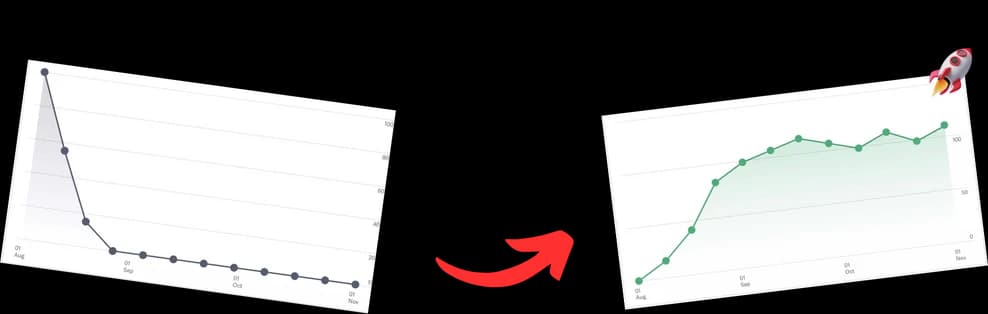
You've probably done the easiest part already. You picked a topic, opened a doc, wrote a rough outline, and maybe even imagined the thumbnail. Then recording time got close and everything felt heavier than it should.
That's normal. The hard part of learning how to record for YouTube usually isn't the idea. It's the moment where you have to turn an idea into usable footage without sounding stiff, looking flat, or wasting an afternoon on settings that don't matter.
Your Idea Is Great But Your Record Button Is Scary
Most creators don't get stuck because they have nothing to say. They get stuck because recording feels like a technical exam. Camera choice, mic choice, lighting, framing, screen capture, background noise, posture, delivery. Each one feels like a way to fail in public.
That pressure gets worse because YouTube is crowded at a level few comprehend. One analysis estimated that YouTube had about 9.881 billion uploaded videos by the end of 2022, and described the platform as having over 10 billion videos at publication. The same analysis found that the median video had 35 views, while only 3.67% of videos reached 10,000 views, yet that small group accounted for 93.61% of all views. It also reported that 70% of traffic comes from recommendation algorithms. You can review that breakdown in this YouTube platform analysis.
That sounds discouraging until you look at it the right way. It means weak execution gets buried fast, but it also means clean recording quality matters more than many creators admit. If viewers click and immediately hear echo, clipping, room noise, or watch a dim, badly framed shot, the video has to work harder than it should.
Practical rule: Recording quality doesn't replace a good idea. It gives a good idea a fair chance.
You don't need a studio buildout to record for YouTube well. You need a repeatable process. Good creators usually aren't winning because they bought the most expensive gear. They're winning because their setup matches their format, their settings stay consistent, and their recording workflow removes friction instead of adding it.
Planning Your Video and Assembling Your Gear
Before buying anything, decide what kind of video you're making. A desk tutorial, a talking-head commentary video, a product demo, and a walk-and-talk vlog do not need the same setup. Most bad gear purchases happen when creators buy for an imaginary future channel instead of the format they're filming this week.

Start with the format, not the wishlist
If your videos are mostly educational or scripted, spend your early energy on audio and lighting before chasing a camera upgrade. A clear voice and a flattering image do more for credibility than a fancy body with poor sound.
If your videos depend on mobility, a phone plus a compact mic often beats a larger camera that makes setup annoying enough that you record less often. Convenience is part of quality. Gear that lives in a drawer doesn't improve your channel.
A useful planning step is to script for the way you'll film. A talking-head video needs short spoken sections, while a tutorial needs clear action beats and transitions. If you want a cleaner planning framework, this guide on writing a script for a YouTube video helps match the script to the final format.
Camera choices that solve real problems
You can record for YouTube with a smartphone, a webcam, or a mirrorless/DSLR-style camera. Each solves a different problem.
- Smartphone: Best when you need speed, portability, and the lowest setup friction. It's strong for vlogs, shorts, simple desk videos, and creators who need to film without turning the room into a studio.
- Webcam: Good for tutorials, commentary, live content, and any setup where you sit in the same place every time. It's less flexible visually, but it removes barriers.
- Mirrorless or DSLR-style camera: Best when you want more control over lens choice, depth, exposure, and a polished look. It gives you more room to grow, but it also adds complexity, batteries, mounting, and file management.
The wrong move is buying a camera that solves cinematic problems when your real issue is that your room sounds bad.
Audio gear deserves more thought than camera gear
Most viewers will tolerate average video longer than they'll tolerate bad sound.
Here's the simplest breakdown:
- USB microphone: Easy, direct, and practical for solo creators at a desk. Great for tutorials, commentary, and voice-led educational content.
- XLR microphone: Better when you want a more expandable audio chain and more control, but it requires more hardware and setup knowledge.
- Lavalier mic: Useful when you move around, need the mic hidden, or want freedom from a desk setup.
- Shotgun mic: Useful when you want directional pickup without placing a mic directly in frame.
If your channel is one person talking to camera in the same room every week, a good USB mic is often the most rational first upgrade.
Lighting is where cheap setups often break down
A ring light can work, but it isn't magic. It's useful when you need a fast, compact source close to camera. The downside is that it can flatten your face and make everything look a bit one-note.
A better setup for many creators is simpler than it sounds:
- Window light: Great if it's consistent and you can face it
- Single LED panel or soft light: Better for control and repeatability
- Softbox or two-light setup: Better when you need separation, balance, and a polished studio look
If you want the shortest path to better visuals, place one soft light slightly off-center and keep some distance from the background. That alone usually improves the frame more than adding extra gear everywhere.
Essential Software and Technical Settings
Good recording gets easier when you stop changing your settings every session. You want a default setup that works often enough that you can focus on delivery instead of troubleshooting.

Pick software you'll actually keep using
For screen-heavy content, OBS Studio is the practical standard because it handles screen capture, webcam layers, scenes, and audio routing well. It's powerful, but the interface can feel dense the first time you open it.
If you want a friendlier all-in-one path, Camtasia is easier to learn and fits creators who record tutorials and want editing in the same general workflow. Built-in desktop tools also work when speed matters more than flexibility.
TechSmith recommends a practical capture workflow: film in 1080p at 30–60 fps, orient the device horizontally, and record a 10-second test clip before the full take to confirm your microphone is clear and your levels are right. It also notes that desktop shortcuts like Win+Alt+R on Windows and Shift-Command-5 on Mac can speed up capture setup, as explained in this YouTube recording workflow guide.
If you're deciding between frame sizes and playback trade-offs, this article on YouTube video resolution settings is a useful companion.
The settings that matter most
Creators often obsess over 4K too early. In practice, 1080p is a strong working standard because it's easier on storage, easier on editing systems, and still looks clean when the lighting, focus, and compression are handled well.
Use this baseline:
- Resolution: 1080p
- Frame rate: 30 fps for standard talking content, 60 fps if you show motion-heavy demos, gameplay, or movement
- Orientation: Horizontal for standard YouTube videos
- Audio check: Always test before the full session
The point of these settings isn't to sound technical. It's to make your setup stable. A stable setup beats a theoretically better one that keeps failing.
Screen recording needs its own discipline
Tutorial creators often lose quality because their desktop is cluttered, text is too small, or the capture area includes things that don't matter. Viewers shouldn't have to hunt around your screen.
For screen recordings:
- Increase interface size so menus and text remain legible.
- Close distractions like notifications, chat apps, and unrelated tabs.
- Record full screen only if it helps clarity. Sometimes a cropped app window is easier to follow.
- Match your narration pace to the cursor. Don't click ahead of your explanation.
Clean screen recordings feel more professional because they reduce decision-making for the viewer.
If you record for YouTube regularly, save your scenes, input devices, and audio sources once. Rebuilding a software setup every week is one of the fastest ways to burn time and motivation.
Mastering Audio Capture and Framing
You finish a take, play it back, and the problem is obvious in five seconds. The picture is fine, but the voice sounds roomy, thin, or harsh. Or the audio is clean, but the frame feels awkward and distracting. Both issues are fixable before you hit record for real, and both come down to setup choices that match the kind of video you're making.

Microphone placement changes everything
Mic choice matters less than mic position. A mid-range mic placed well will usually beat an expensive mic placed badly.
For talking-head videos, keep the mic close enough to sound direct and full, but not so close that breaths, plosives, and mouth noise take over. For tutorials, I usually bias toward clarity over warmth because the viewer needs to follow instructions, not admire the tone of the room. For interviews or podcast-style videos, a slightly tighter mic position often works better because it keeps the voice consistent if energy rises and falls.
A few setup rules save a lot of cleanup later:
- Aim the mic slightly off-axis if P and B sounds hit too hard.
- Set levels at your real performance volume so your actual take does not clip.
- Monitor with headphones if you can. You will hear fan noise, clothing rub, and room echo before they ruin a full session.
- Watch your input gain and leave headroom. Distortion is much harder to repair than a slightly quiet recording.
If your setup uses a mixer, audio interface, keyboard output, or another direct feed, this guide to recording from line in without routing mistakes is useful before you start testing levels.
Room sound matters too. Hard walls and empty desks make even a good mic sound cheap. Curtains, rugs, wall hangings, and a quieter recording position usually improve the result more than another gear upgrade.
Framing should match the job of the video
Good framing makes the viewer understand where to look. That sounds basic, but it changes retention because the screen stops competing with your message.
A medium shot works well for most solo YouTube videos because it keeps facial expression visible while leaving enough space for natural hand movement. That framing is especially practical for education, commentary, and product walkthroughs. If you record reaction-heavy content or storytelling videos, a slightly tighter shot can add energy. If you demonstrate physical objects, tools, or desk movements, pull wider so your actions stay in frame.
Use the frame with intent:
- Centered framing fits direct teaching, explainers, and straightforward commentary.
- Rule of thirds placement suits conversational pieces or videos with on-screen graphics beside you.
- Leading room helps when you angle your body instead of facing the lens straight on.
- Background control matters more than decoration. Remove bright distractions, clutter, and anything that looks accidental.
Eye line is another common miss. If you look too far below the lens, the video starts to feel like a video call. Raise the camera to eye level, or slightly above, and check where your gaze lands before each take.
A useful walkthrough of mic technique and on-camera presence is below.
Audio and framing work together. A close, clear mic pairs well with a tighter educational shot. A wider demo frame often needs more deliberate mic placement because the microphone sits farther from your mouth. The best recording setups are not just “good gear” setups. They are format-specific setups where the camera position, mic placement, and delivery style support the same kind of video.
Step-by-Step Recording Workflows for Popular Formats
You sit down to record what looked like a solid idea on paper, then the format starts dictating the mistakes. A talking-head video drags because you tried to force one perfect take. A tutorial becomes hard to follow because the cursor outruns the explanation. An interview sounds uneven because one guest is much louder than the other. Good recording gets easier when the workflow matches the format.
The goal is consistency you can repeat next week, not a one-off setup that only works when everything goes right.
Talking-head videos
Talking-head videos reward control. They also punish overconfidence fast. If you try to perform the whole script in one run, your energy usually drops in the middle and the edit gets longer.
Use a section workflow instead:
- Lock the setup before the first take. Set your shot, exposure, focus, and mic position once so each clip matches.
- Split the script into clear beats. Hook, point one, point two, example, close is enough for most videos.
- Record each beat as its own clip. That keeps your delivery sharper and gives you clean edit points.
- Watch back the weak parts immediately. Re-record the flat section while the tone and framing still match.
- Mark the best take as you go. A spoken cue or hand clap saves time when you edit.
This method works because it connects performance to post-production. Shorter takes keep delivery tighter, and they give you cleaner cuts without hunting through one long file.
Software tutorials
Tutorials need a different rhythm. The recording has to teach in order, so your setup and your narration need to support the same path.
A reliable tutorial workflow looks like this:
- Prepare the desktop for recording. Increase text size if needed, close stray apps, hide bookmarks you do not want on screen, and turn off notifications.
- Run the process once before you record. You are checking for friction points, not memorizing every sentence.
- Record the screen and voice with editing in mind. Separate tracks are easier to fix if you miss a line or need to punch in a cleaner explanation.
- Explain one action, then perform it. Viewers fall behind when the mouse is already three clicks ahead of the voiceover.
- Redo the problem segment only. A clean 20-second pickup is better than restarting a 10-minute walkthrough.
Remote demos and call-based tutorials need one more layer of planning. If that is part of your setup, this guide has more on Skype recording from Trade.com.au and covers practical call capture options to sort out before the session starts.
Podcast-style interviews
Interviews are less about camera polish and more about protecting the conversation. If the tech gets in the way, the guest feels it. If you do not protect the edit, you pay for it later.
Use this workflow:
- Record each speaker to a separate track whenever your software allows it
- Do a real sound check with both people talking, not just a quick “can you hear me?”
- Ask guests to pause and restart after interruptions so you have a clean point to cut from
- Decide before recording whether the footage is for full episodes, shorts, or both
- Keep a backup capture running on another device or platform if the interview matters
Separate tracks are the biggest win here. They let you fix uneven levels, cut coughs, and tighten pacing without damaging the other speaker.
Gaming videos
Gaming content puts the most pressure on your recording chain because several things are happening at once. The game has motion, your commentary needs to stay clear, and the webcam has to add something without covering useful information.
A practical gaming workflow:
- Build simple scenes first. One for gameplay, one for gameplay with webcam, and one for face-cam-heavy moments is enough to start.
- Split audio sources where possible. Game audio, mic audio, and chat or alerts are much easier to balance later when they are not baked together.
- Test the most demanding part of the game. Fast movement and dark scenes expose problems that menu screens hide.
- Place overlays and webcam after checking the HUD. Health bars, maps, and subtitles need to stay visible.
- Record a short sample and review it full screen with headphones. Small issues are obvious there and easy to miss in a live preview.
Creators often add too much too early. A stable recording with clear commentary and readable gameplay will outperform a complicated setup that drops frames, clips audio, or breaks mid-session.
Across all four formats, the pattern stays the same. Choose gear based on the kind of video you are making, then build a recording workflow that supports that format from the first take to the final edit. That is what reduces retakes, shortens editing, and gives you footage you can publish with confidence.
The Post-Recording Quick Edit and Export Checklist
Recording is only half the job. A rough edit with clean exports is what turns usable clips into something upload-ready.
The quick edit pass that matters
You don't need a complicated edit on every video. Most videos benefit from the same short cleanup pass:
- Trim the dead space: Cut the reach for the record button, the reset breath, and the awkward ending.
- Remove obvious mistakes: Long pauses, repeated lines, failed clicks, and sections where your energy drops.
- Balance the basic look: Correct exposure and white balance enough that the image feels intentional.
- Add only necessary support elements: Titles, callouts, B-roll, or screen zooms should clarify, not decorate.
If your room audio is usable but a bit rough, cleanup tools can help at this stage. For creators exploring post-processing options, this guide on Clearer sound with AI is a useful reference for basic audio cleanup approaches.
Editing checkpoint: If a cut improves clarity, keep it. If it only shows off the editor, it's probably unnecessary.
Export settings should stay boring
A bad export can soften text, crush motion, or create file headaches that weren't in the timeline. The safest approach is to match your edit settings to the footage you recorded and keep your aspect ratio aligned with the destination format.
Here's a practical cheat sheet.
| Setting | YouTube Standard Video (16:9) | YouTube Shorts (9:16) |
|---|---|---|
| Resolution | 1080p | 1080p vertical |
| Frame rate | Match source, usually 30 fps or 60 fps | Match source |
| Codec | H.264 | H.264 |
| Aspect ratio | 16:9 | 9:16 |
| Audio | AAC, clear stereo or mono mix | AAC, clear stereo or mono mix |
| File check before upload | Watch for soft text, audio distortion, or sync drift | Watch for crop errors, oversized captions, or clipped framing |
Final review before upload
Watch the exported file once before uploading it. Not the timeline. The actual export.
Look for three things:
- Does the audio stay clean the whole way through?
- Does text remain readable on a laptop and phone-sized screen?
- Does the pacing still feel deliberate after the cuts?
That final watch catches mistakes that are expensive in public and easy in private.
Finishing Touches for Maximum Reach
You finish the edit, export the file, upload it, and then the video underperforms because the packaging is vague. That happens more than creators like to admit. Recording quality gets the viewer to stay. Packaging gets the right viewer to click in the first place.
The upload should match the format you recorded. A searchable tutorial needs a clear promise in the title and useful chapters. A short opinion clip needs a tighter title, a stronger first line in the description, and a thumbnail that reads on a phone. A podcast-style episode needs segment labels that help viewers jump to the part they came for. Treat metadata like part of the workflow, not admin work at the end.
Metadata and structure still influence discovery
Titles work best when they describe the outcome, topic, or problem directly. If the video shows a process, say what the viewer will be able to do by the end. Descriptions should add context, key terms, and any resources that support the video. Tags matter less than many creators assume, but clear naming still helps keep the upload aligned with the subject.
Chapters are often the missing piece on long-form videos.
They help viewers skim, return to a specific answer, and understand the structure before committing to the full runtime. They also force better organization upstream. If your chapters are messy, the recording usually was too. That is why I treat chapter planning as a recording decision, not just a publishing task for later.

Chapters are worth doing even when you're busy
Manual timestamps are tedious, especially if you publish tutorials, interviews, or podcast-style videos every week. That is a primary reason many creators skip them. The trade-off is simple. Saving ten minutes on upload often makes the video harder to search, browse, and revisit later.
TimeSkip can speed up chapter creation and timestamp drafting for creators who publish longer videos regularly. Used well, it reduces repetitive post-publish work. It does not fix a weak structure, so the better approach is to record with segments in mind, then use tools to tighten the final packaging.
The final layer is trust. Thumbnail, title, opening hook, and chapter labels should all describe the same video. If the thumbnail promises a gear setup walkthrough, the title should support that promise, and the chapters should reflect the actual workflow from setup to result. That alignment helps the right viewer click and stay.
A lot of channels do not need bigger ideas. They need tighter execution from planning, to recording, to packaging the upload so the format is easy to understand and worth watching.