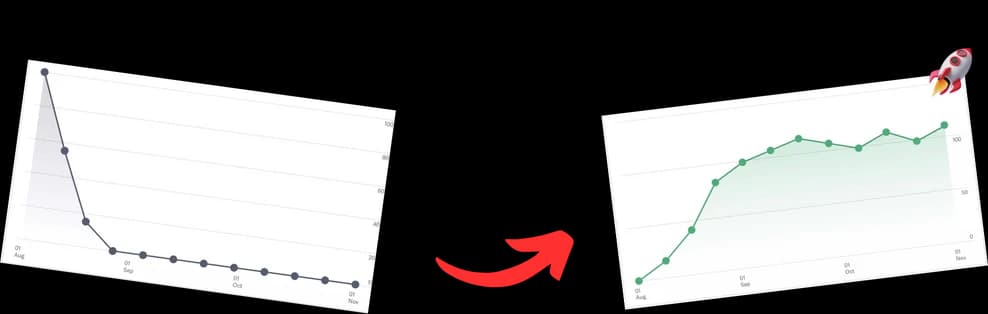
You upload a video that looks sharp in your editor. On YouTube, it opens in a soft 480p stream, your on-screen text turns mushy, and viewers miss the chapter they came for because they can’t read it fast enough. That’s the fundamental problem with youtube video resolution settings. It isn’t just a technical checkbox. It changes how your video feels, how easy it is to watch, and how usable your content is once it’s live.
I’ve found that most quality problems come from one of two places. Either the viewer leaves playback on Auto and gets a lower stream than the video deserves, or the creator exports a file that gives YouTube too little quality to work with in the first place. Fix both, and a lot of YouTube frustration disappears.
Take Control of Your Viewing Experience
You tap a tutorial on your phone to jump to a chapter, but the opening stream comes in soft enough that the chapter title and on-screen labels are hard to read. That is not a small playback annoyance. It changes whether viewers can follow the video fast enough to stay, click the right chapter, and get value before they bounce.
For viewers, resolution is a control. For creators, it affects how the work is ultimately experienced once YouTube starts making delivery decisions on its own.
Start with a manual quality check on desktop
Desktop gives you the clearest view of what YouTube is serving.
- Open the video.
- Click the gear icon.
- Click Quality.
- Choose 1080p or the highest stable option available.
Use this any time the video includes small text, screen recordings, subtitles, charts, or chapter markers that need to be legible at a glance. Auto often plays it safe. That is helpful for unstable connections, but it can undercut videos where clarity does real work.
Higher playback settings can also improve how clean the image looks on a standard monitor. If the upload has 1440p or 4K, test it. YouTube’s higher-quality streams often preserve text edges, interface lines, and compression-heavy detail better than the lower rungs.
Practical rule: If viewers need to read the screen, identify a product detail, or skim chapters quickly, check Quality manually before judging the video.
Mobile is where this matters most
Mobile playback is usually more conservative, and that has a direct effect on engagement. If a viewer opens a how-to video on the train, gets a muddy first impression, and cannot read the first key screen, they are less likely to scrub, use chapters, or stay for the answer.

Inside the YouTube app:
- Tap the video
- Tap the gear icon
- Choose Quality
- Select a higher resolution manually
This is especially useful for software demos, educational content, and product walkthroughs. I pay close attention to this on videos with timestamps because chapters only help if the viewer can read the screen fast enough to confirm they landed in the right place. The same principle applies to short-form vertical content, where screen space is tighter and text clarity matters even more. If that is your format, this guide to YouTube Shorts video size requirements helps line up export choices with how the app displays them.
Set stronger app defaults, but expect exceptions
If you watch YouTube regularly on mobile, change the app preference once instead of fixing every video by hand:
- Open YouTube app settings
- Choose Video quality preferences
- Set Higher picture quality or Advanced for WiFi, mobile data, or both
This improves day-to-day playback, but it does not create a permanent lock. YouTube can still lower the stream when bandwidth dips, the device is under load, or data-saving behavior kicks in. Browser settings, app state, and connection changes can also reset what viewers see in practice.
That trade-off matters for creators. A viewer who sees your video at a weaker resolution may miss subtitle nuance, product UI details, or chapter cues in the first few seconds. That can lower watch time before your content has a chance to prove itself. I see this a lot in creating polished product demo videos, where a clean interface recording can still look rough if the player starts too low.
A quick manual quality check fixes more YouTube viewing problems than people expect.
The Creator's Guide to Perfect Uploads
Most creators don’t need a complicated export tree. They need one preset that works almost every time. For standard YouTube videos, that preset is 1080p, 16:9, H.264.

The baseline has settled around 1920×1080 with a 16:9 aspect ratio, and for H.264 at 30fps, the minimum bitrate is 10 Mbps according to the upload guidance summarized in this YouTube video size reference. That combination became the standard because it balances sharpness with manageable file sizes across phones, desktops, and TVs.
The 80 20 export preset
If you want the shortest path to reliable results, use this:
- Resolution: 1920×1080
- Aspect ratio: 16:9
- Codec: H.264
- Audio: AAC
- Frame rate: match your source footage
- Bitrate: enough to preserve detail without bloating the file
That last point matters. A bigger file isn’t automatically a better file. If the export is sloppy, you just hand YouTube a heavy upload that still compresses poorly.
Why these settings work
Think of resolution as the size of the canvas and bitrate as the amount of paint you’re allowed to put on it. A big canvas with too little paint looks thin. A normal canvas with enough paint often looks better.
That’s why 1080p is still the best default for most channels. It’s sharp enough for talking heads, tutorials, interviews, product demos, and podcasts without slowing down your workflow.
If you produce software walkthroughs or screen-based content, I’d pay extra attention to readable UI text and motion handling during export. For that kind of work, this guide on creating polished product demo videos is a useful companion because screen content exposes weak resolution settings fast.
You should also keep your format choices separate by content type. Shorts aren’t a smaller version of a standard upload. They use a different framing logic entirely, and this breakdown of YouTube Shorts video size requirements helps avoid mixing vertical and horizontal presets.
Match frame rate instead of forcing it
A common beginner mistake is exporting everything at 60fps because it sounds “better.” It isn’t always.
Use 30fps for most talking-head, commentary, and educational content. Use 60fps when motion clarity is part of the value, like gameplay, sports, camera pans, or fast product movement. Forced frame conversion can create weird motion or unnecessary file weight.
A quick visual refresher helps if you want to compare export logic inside an editor:
What usually fails
The bad uploads I see most often have one of three issues:
- Wrong aspect ratio: this creates black bars or awkward cropping
- Undersized exports: low-resolution files don’t recover well after YouTube compression
- Mismatch between footage and preset: screen recordings, gameplay, and static interviews don’t compress the same way
If you solve those basics, your youtube video resolution settings stop being guesswork. They become a repeatable workflow.
Advanced Resolution and Bitrate Optimization
Once your basic preset is stable, the next quality gains come from understanding the relationship between resolution and bitrate. Most creators treat them as the same thing. They’re not.
Pixels and paint
Resolution is the number of pixels in the frame. Bitrate is the amount of data available to describe those pixels over time. The cleanest analogy is this: resolution is the wall size, bitrate is the amount of paint.
A bigger wall with thin paint looks patchy. A smaller wall with enough paint looks solid.
That’s why some 4K uploads still look rough, and some 1080p uploads look excellent. If the bitrate doesn’t support the motion and detail inside the frame, extra pixels don’t save you.
Higher resolution helps, but only when the bitrate can carry the detail.
The bitrate settings that actually matter
For upload optimization, the practical workflow is to record at your target resolution in 16:9, then export with H.264 and AAC-LC audio, using bitrate matched to the resolution and frame rate. The specific upload ranges below come from this YouTube upload settings guide.
| Recommended YouTube Upload Bitrates (SDR) | Standard Frame Rate (24-30fps) | High Frame Rate (48-60fps) |
|---|---|---|
| 1080p | 10 Mbps | 15 Mbps |
| 4K | 44-56 Mbps | 66-85 Mbps |
Those numbers explain a lot of real-world quality issues. A standard talking-head video at 1080p doesn’t need the same data budget as a high-motion gaming clip or a sports highlight reel.
When 4K makes sense
4K can be worth it even if a lot of your audience won’t watch in native 4K. It gives YouTube more source detail to work with, and cleaner downscaling often improves the look of lower-resolution playback too.
But it only pays off when the source footage deserves it. If your camera, lighting, or screen capture quality is weak, exporting weak footage at 4K just creates a larger weak file.
Use 4K when:
- You crop in during editing: extra resolution gives you room
- You show fine text or UI detail: software demos benefit
- You shoot high-end footage: especially scenic vistas, product closeups, and controlled studio scenes
Skip it when your bottleneck is somewhere else, like bad lighting, noisy footage, or an underpowered edit machine.
Fast motion changes everything
Bitrate stress shows up first in movement. Hair, water, foliage, scrolling interfaces, and gameplay all expose compression quickly. If your video falls apart during action but looks fine when static, that’s usually not a resolution problem. It’s a bitrate problem.
For creators trying to improve source quality before export, tools that create HD videos with AI can be useful in restoration or enhancement workflows, especially when older footage needs cleanup before YouTube gets a crack at compressing it.
If you’re wrestling with muddy uploads after export, I’d also review a deeper breakdown of YouTube video compression, because many “resolution issues” are really compression issues wearing a different label.
Don’t upscale blindly
Upscaling can help in some cases, but it isn’t magic. If the source is already soft, pushing it to a larger frame won’t invent detail. What it can do is change how YouTube handles the upload, which sometimes improves the final stream.
That’s useful as a test, not as a default belief. Compare exports, check motion scenes, and inspect text sharpness after processing. Let the uploaded result decide.
Troubleshooting Common YouTube Quality Problems
You publish a tutorial, it looks clean on your timeline, then the live video shows black bars, muddy motion, or soft text right where viewers need to read chapter labels and on-screen steps. That kind of quality drop does more than annoy people. It makes the video harder to watch, harder to follow, and easier to abandon.

Black bars and awkward framing
Symptom: your video has bars on the sides or top and bottom, or YouTube crops it strangely.
Cause: the export frame does not match the format you intended to publish. Standard YouTube long-form videos are built around 16:9. If you send YouTube a mismatched frame, it has to pad or crop the image, and that can make titles, lower thirds, and chapter callouts sit in the wrong place.
Solution:
- Check sequence settings: match your timeline to the delivery format before you edit heavily
- Confirm export dimensions: use a true 16:9 frame like 1920x1080 or 3840x2160
- Separate Shorts from long-form: vertical videos need their own project or export preset
I usually catch this before upload by watching the exported file full screen, not inside the editor preview. The preview can hide framing mistakes that become obvious on YouTube.
Action scenes turn blocky
Symptom: interviews look fine, but gameplay, sports, handheld shots, or screen recordings break apart.
Cause: the file does not give motion enough data. Bitrate works like lane width on a highway. Static shots need less room. Fast movement needs more, or detail starts crashing into itself during compression. YouTube then re-encodes the upload, which can make that weakness more visible in the final stream.
Solution:
- Raise bitrate on high-motion exports instead of only raising resolution.
- Keep frame rate honest. Export 60fps only if the footage was shot or edited for 60fps.
- Test a higher-resolution upload if your source is clean enough to support it.
- Review the processed YouTube version at the exact timestamps where motion, text, or effects fall apart.
The key check is practical. If faces look acceptable but scrolling text, UI elements, or chapter prompts smear during movement, viewers lose information, not just sharpness. That can hurt watch time on tutorials and breakdowns where reading the screen matters.
The video is stuck looking soft after upload
Symptom: you uploaded a strong master file, but YouTube only offers low-quality playback right after publish.
Cause: higher-quality encodes often take longer to finish. YouTube commonly makes lower-resolution versions available first, then adds better streams later.
Solution:
- Wait before pushing traffic: especially for launches tied to email, social, or search demand
- Refresh and test on multiple devices: desktop, mobile, and TV apps do not always surface the same stream first
- Check available playback options manually: confirm whether higher resolutions have finished processing
This matters more than creators think. If early viewers arrive from search and get a soft version with blurry text or unreadable chapter references, they may bounce before YouTube finishes serving the better encode. I treat processing time as part of publishing, not an afterthought.
Viewer-side fixes still matter
Sometimes the upload is fine and playback is the problem.
Run through this checklist:
- Manual quality selection: Auto can default too low
- Browser or app update: older versions can affect playback behavior
- Background system load: busy devices can force weaker playback
- Connection stability: inconsistent internet can push YouTube down to a lower stream
That is one reason quality troubleshooting connects directly to discovery. Search can bring the click, but the stream quality shapes whether the viewer stays long enough to use chapters, follow on-screen instructions, and send positive engagement signals back into YouTube. For creators thinking about search behavior beyond YouTube itself, LLMrefs' AI search guide is a useful reference for how content quality and usability affect visibility.
How Resolution Impacts Viewer Retention and SEO
A lot of creators still think resolution is a cosmetic choice. It isn’t. It affects whether viewers can use the video the way you intended.
That matters most in long-form content where navigation is part of the experience. Podcasts, tutorials, breakdowns, and lectures often depend on chapters, labels, on-screen prompts, and small interface text. If YouTube serves a low-res stream, those navigation aids stop doing their job.
Auto quality can undermine your best engagement tool
When a viewer opens a long video on a slower connection, they can land in 360p or 480p, and that can make chapter timestamps too small to read cleanly. In the underserved chapter-focused analysis summarized here, that mismatch leads to 15 to 25% higher drop-off before key sections, while creator tests show chapters can boost retention by up to 220% only at 720p+ where chapter text is legible, based on this chapter usability reference.

That changes how I think about youtube video resolution settings. The floor isn’t “whatever still plays.” The floor is the lowest quality where your text, chapters, and navigation still work.
The chapter test I use
When I evaluate a long-form upload, I don’t just ask, “Does this look sharp?” I ask three practical questions:
- Can a viewer read chapter text quickly?
- Can they identify the section they want without squinting?
- Does on-screen text remain usable on a phone?
If the answer is no, the video has a usability problem, not just an aesthetic one.
A blurry chapter marker is a navigation failure, and navigation failures cost watch time.
Better usability supports discovery
Good engagement tools help people stay in the video longer, jump to the right section faster, and trust that your content is organized. Those are the behaviors that make long-form YouTube work.
This also connects to how creators should think about search more broadly. Clear structure, helpful segmentation, and machine-readable organization all matter more than they used to. For that reason, LLMrefs' AI search guide is worth reading because it frames discoverability around content structure rather than just old-school keyword stuffing.
For podcasters and educators, the practical takeaway is simple. If your content relies on chapters, labels, slides, code, interface text, or visual navigation, treat 720p as the minimum floor and build your workflow upward from there. Low resolution doesn’t just soften the image. It weakens the tools that help viewers keep watching.
Final Checks for a Flawless YouTube Video
The best youtube video resolution settings are the ones you can apply consistently without second-guessing every upload. Quality improves fast when both viewers and creators control the obvious variables instead of letting defaults decide.
Three checks for viewers
- Open the quality menu: don’t assume Auto picked the best stream
- Set stronger app preferences: especially for WiFi viewing
- Recheck when a video looks soft: playback settings can change across devices
Three checks for creators
- Use a stable export preset: 1080p, 16:9, H.264 is still the workhorse
- Match bitrate to motion: static talking videos and fast gameplay need different data budgets
- Review the final upload like a viewer would: test text, clarity, and navigation on desktop and mobile
If your workflow includes long videos, it also helps to understand the platform limits around file size and duration before you render. This overview of the size limit for YouTube videos is a practical reference to keep handy before a big export.
The bigger lesson is that quality isn’t only about making video look nice. It’s about making content easier to watch, easier to follow, and easier to trust. Creators who treat resolution settings as part of audience experience usually end up with cleaner videos and fewer silent drop-off points.
If you publish long-form YouTube videos, chapters deserve the same attention as your export settings. TimeSkip helps generate SEO-focused YouTube chapters quickly, so viewers can browse your content and search engines can understand it better. It’s especially useful for podcasters, educators, and creators who want their long videos to be easier to watch and easier to discover.