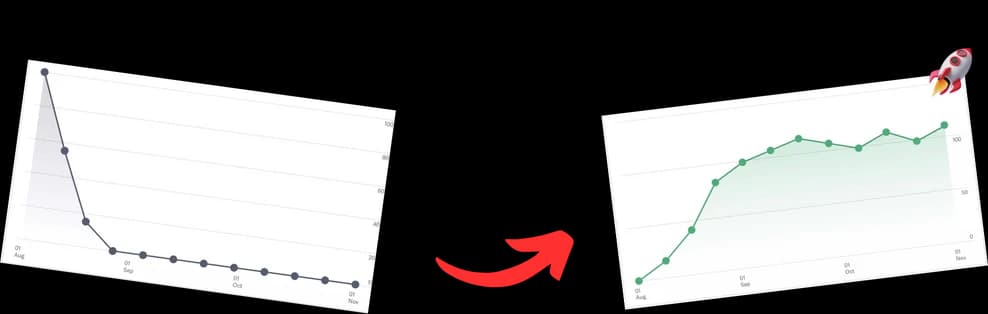
Let's be real—YouTube video compression sounds like a term only a video engineer would love. But mastering it is the secret to making your videos look crisp and professional on your audience's screens, not a blocky, pixelated mess. It's all about shrinking your video's file size before you upload, striking that perfect balance between quality and a manageable upload.
Why Your Export Settings Matter to YouTube

Ever wondered what really happens after you drag that file into the uploader? YouTube doesn't just store your video. It takes your file and runs it through its own powerful compression system, re-encoding it into a dozen different versions. This is to make sure your video plays smoothly for everyone, whether they're on a 5G phone or struggling with spotty Wi-Fi in a coffee shop.
Think of it this way: you're giving a master chef (YouTube's algorithm) your best ingredients. Hand over a pristine, data-rich video file, and the chef has everything they need to cook up a beautiful final product. But if you give them a file that's already been squashed down and over-compressed, there's not much they can do. The final meal will look—and taste—disappointing.
The Building Blocks of a Great Export
To get this right, you only need to understand three core pieces of the puzzle. They all work together.
- Codec (H.264 & VP9): This is the tech that actually does the compressing and decompressing. You've almost certainly been using H.264 (AVC)—it's everywhere. But for popular videos, YouTube often re-encodes to the more modern VP9 codec, which delivers better quality for the same amount of data.
- Container (MP4): This is the box that holds everything together: the compressed video, the audio, and other data. The MP4 container is the universal standard and exactly what YouTube wants to see.
- Bitrate: Measured in megabits per second (Mbps), this is the amount of data packed into each second of your video. A higher bitrate means more data, which gives you better quality... and a much larger file.
A classic mistake I see creators make is over-compressing their video just to make the upload go faster. It's tempting, I get it. But doing this starves YouTube's algorithm of the data it needs to work its magic. When YouTube re-compresses your already low-quality file, it just makes any existing flaws—like blockiness or blurriness—even more obvious.
Key Takeaway: Always upload a video with a higher bitrate than what YouTube will ultimately show. You need to give it "quality headroom" because data is always lost during YouTube's transcoding process. Giving it more data upfront ensures the final, viewer-facing versions come out looking clean and professional.
The Real Goal of Your Export
Your objective isn't to create the absolute smallest file you can. It's to create an optimized file that gives YouTube exactly what it needs, based on its own recommended specs. This approach means you aren't wasting hours on a needlessly huge upload, but you're also protecting the visual quality you worked so hard to capture and edit. Getting this balance right is a massive part of a solid video optimization for YouTube strategy.
By understanding this relationship between your export settings and YouTube's internal process, you can dodge the common pitfalls and consistently deliver content that looks sharp. That's how you keep viewers engaged and grow your channel.
How YouTube's Compression Algorithm Actually Works
When you hit "upload" on a video, you're not just sending a single file to YouTube. You're actually starting a huge, automated process called transcoding. YouTube's servers immediately get to work, creating dozens of different versions of your video. Each one is specifically designed for different devices, screen sizes, and internet speeds to make sure every viewer gets a smooth experience.
This whole operation is massive. With over 720,000 hours of video projected to be uploaded every single day by 2026, YouTube's cloud transcoding engine never stops. It spins up multiple streams for every video, using a variety of codecs for different jobs. If you're curious about the sheer scale, you can learn more about how YouTube's platform statistics shape its future.
This multi-version process is also why your video might look a bit fuzzy for a few minutes right after you upload it. The lower-quality streams get processed first, so they're ready almost instantly, while the pristine HD and 4K versions are still crunching in the background.
The Codec Hierarchy: H.264, VP9, and AV1
YouTube doesn't give every video the same five-star treatment. It strategically uses different codecs—the tech that actually compresses and decompresses your video data—based on a video's popularity and resolution.
-
H.264 (AVC): This is the old workhorse. It's the most common codec out there, serving as the default for most standard-definition videos and a reliable fallback for older devices that can't handle newer, more demanding formats. It’s incredibly compatible but not the most efficient.
-
VP9: This is where the magic starts to happen. Developed by Google, VP9 is a much more advanced and efficient codec that delivers noticeably better visual quality at the same bitrate compared to H.264. YouTube typically saves this higher-quality encode for popular videos, or for any video that's viewed at 1440p or higher.
-
AV1: As the new kid on the block, AV1 is the most efficient codec in YouTube's toolbox. It can slash bandwidth usage by up to 50% over VP9 while maintaining the same quality, which is a game-changer for 4K and 8K streaming. While it's being adopted more and more, it takes a lot more processing power to encode, so YouTube uses it more selectively for now.
The VP9 Trigger: A Pro-Level Trick
Here’s a tip that many top creators swear by. Even if your original footage is just 1080p, uploading your final video in 1440p (Quad HD) or 4K can force YouTube to use the superior VP9 codec for all playback versions, including the 1080p one.
This is what's known in the community as the "VP9 trigger." By upscaling your 1080p video before you export, you're essentially telling YouTube's algorithm that your video is "high quality." This pushes it to apply the more advanced VP9 compression across the board. The result? A visibly cleaner and sharper 1080p stream for your audience, with far fewer ugly compression artifacts, especially in scenes with lots of motion or fine detail.
Dialing In Your Export Settings for Flawless YouTube Uploads
Nailing your export settings is arguably the most critical part of making sure your video looks sharp on YouTube. This is your cheat sheet for hitting that perfect sweet spot between pristine quality and a file size that won't take all day to upload. Forget the guesswork; these are the practical settings that just work.
Your main goal is to feed YouTube a high-quality "master" file. Why? Because YouTube re-compresses every single video you upload. By giving its algorithm more data than the final version will have, you create "quality headroom." This is the secret to preventing those ugly, blocky artifacts that can ruin otherwise fantastic content.
Video Codec and Container: The Foundation
First things first, always export your video in an MP4 container. It's the universal standard that YouTube expects, and it neatly packages your video, audio, and metadata all in one file. Simple.
For the video codec itself, H.264 (AVC) is your most reliable workhorse. It’s supported by practically every piece of editing software out there and is exactly what YouTube recommends. While you might hear about newer codecs like HEVC (H.265) offering smaller files, H.264 gives you maximum compatibility and fantastic results when you pair it with the right bitrate. YouTube is just going to transcode your video into its own preferred formats anyway, as you can see below.

As the chart shows, YouTube plays the field, using H.264 for older devices and the more efficient VP9 and AV1 codecs for higher-quality streams on compatible devices. Your H.264 upload gives it the perfect source to create all of these.
Bitrate: The Most Important Setting You'll Touch
Bitrate is the lifeblood of your video's quality, dictating the amount of data used for each second of video. For YouTube, your best bet is to use a 2-pass VBR (Variable Bitrate) setting if your software offers it. This is a smart approach where the encoder analyzes your video twice, allocating more data to complex, high-motion scenes and less to simple, static shots. It’s the most efficient way to get the best quality for a given file size.
So, what numbers should you aim for? Here’s a quick reference table for YouTube's recommended bitrates for standard dynamic range (SDR) uploads.
| Resolution | Standard Frame Rate (24, 25, 30 fps) | High Frame Rate (48, 50, 60 fps) |
|---|---|---|
| 4K (2160p) | 35-45 Mbps | 53-68 Mbps |
| 1440p | 16 Mbps | 24 Mbps |
| 1080p | 8 Mbps | 12 Mbps |
| 720p | 5 Mbps | 7.5 Mbps |
A quick note on High Dynamic Range (HDR) content: If you're uploading in HDR, you'll want to boost these bitrate values by about 30-40%. For example, a 4K 30fps HDR video should be exported somewhere in the 50-60 Mbps range.
To really dial things in, you might look into a dedicated tool that's been rated as the best video compressor for this kind of work, as it can give you more granular control.
Pro Tip: Whatever you do, don't be tempted to slash these bitrates just to get a tiny file. Sticking to these targets is crucial. A bitrate that's too low is the #1 cause of muddy visuals and motion artifacts after YouTube gets its hands on your video.
Audio and Other Key Settings
While video gets all the glory, bad audio will make viewers click away faster than anything. Don't neglect it!
Here are the ideal audio settings for YouTube:
- Codec: AAC-LC (Advanced Audio Codec)
- Sample Rate: 48 kHz
- Bitrate: 384 kbps (for Stereo)
Finally, for color, stick with the standard Rec. 709 color space unless you’re specifically creating and exporting HDR footage (which uses Rec. 2020).
Using these exact settings gives YouTube's compression algorithm the best possible source file to work with, leading to a much better-looking final product on your channel. If you're looking to streamline your workflow even further, some of the best AI tools for video editing are starting to include export presets based on these very recommendations.
A Practical Guide to Exporting from Popular Software
All the theory is great, but what really matters is putting it into practice inside your favorite video editor. This is where the magic happens. Let's walk through the hands-on settings for the most common tools creators use, so you can get consistent, high-quality results for your YouTube uploads every time.

Whether you’re team Adobe Premiere Pro, DaVinci Resolve, or Final Cut Pro, the core principles don't change. Our goal is to create a custom export preset that nails YouTube's recommended specs. It’ll save you a ton of time and get rid of the guesswork on future projects.
Creating a YouTube Preset in Adobe Premiere Pro
Sure, Adobe Premiere Pro has a built-in "YouTube" preset, but building your own gives you way more control. This is how you ensure you're hitting the ideal bitrate targets and not leaving quality on the table.
Here’s how to set it up:
- Open the Export Window: With your sequence ready to go, hit
File > Export > Media. The keyboard shortcut is a lifesaver:Ctrl+Mon Windows orCmd+Mon a Mac. - Set the Format: In the export settings, choose H.264 for the format. This is the codec YouTube prefers for uploads.
- Tweak Video Settings: Head to the "Video" tab. First, check the "Match Source" box to keep your original resolution and frame rate. Then, scroll down to "Bitrate Settings" and change the "Bitrate Encoding" to VBR, 2 Pass. This is a crucial step. A 2-pass encode analyzes your footage twice to apply data much more intelligently, resulting in better quality for the same file size.
- Define Your Bitrates: Now, set your "Target Bitrate [Mbps]" and "Maximum Bitrate [Mbps]" based on our recommendations. For a standard 1080p video at 30fps, a Target of 10 Mbps and a Maximum of 15 Mbps is a solid starting point.
- Save the Preset: Don't forget this last step! Click the "Save Preset" icon (it looks like a little downward arrow next to the Preset menu), give it a name you'll remember like "YouTube 1080p - High Quality," and hit OK. Now it's there for all your future one-click exports.
Using HandBrake for Post-Export Compression
HandBrake is an incredible free tool, especially if you export a massive master file (like a ProRes render) and need to shrink it down for YouTube without a visible drop in quality. Its secret weapon is the Constant Quality (CQ) setting.
Instead of locking in a specific bitrate, CQ tells the encoder to aim for a consistent visual quality level. It uses whatever bitrate is needed, moment by moment, to maintain it.
For H.264 exports, a Constant Quality (RF) value between 18 and 22 is the sweet spot. Just remember, a lower number means higher quality and a larger file. I usually stick around RF 20. Also, make sure to select the "Fast" or "Very Fast" encoder preset to get a good balance between speed and efficiency.
The FFmpeg Power-User Approach
For those who love automation and aren't afraid of the command line, FFmpeg is the undisputed king. It gives you microscopic control over every single part of the encoding process. If you're curious how it compares to other tools, we break it down in our video editing software comparison.
Here's a battle-tested FFmpeg command I use for high-quality 1080p H.264 exports. Just copy and paste this into your terminal:
ffmpeg -i input.mov -c:v libx264 -preset slow -crf 18 -c:a aac -b:a 384k -pix_fmt yuv420p output.mp4
Let’s quickly break that down: It tells FFmpeg to use a slow preset (better compression), a Constant Rate Factor (CRF) of 18 for excellent visual quality, and high-quality AAC audio at 384kbps. The result is a pixel-perfect file that's ready for YouTube.
Troubleshooting Common Video Compression Issues
You’ve dialed in your export settings, hit upload, and waited patiently for YouTube to process your masterpiece. But when you finally click play, your video is a blocky, pixelated mess. Or maybe the colors look totally washed out. It’s frustrating, but don’t worry—it happens to everyone.
Let’s walk through how to diagnose and fix the most common compression problems. Most of the time, these issues boil down to two usual suspects: bitrate and color information. Getting these right will save you a ton of time and the headache of endless re-exports.
Identifying and Fixing Motion Artifacts
Ever seen ugly, blocky squares pop up during fast-moving scenes in a YouTube video? That’s often called "blockiness" or "pixelation," and it’s the number one compression complaint I hear.
This happens when there's a lot of action on screen—think confetti, complex water scenes, or fast-paced gaming footage. If your bitrate is too low, the encoder can't keep up with all the changes between frames. It basically gives up and simplifies complex areas into those noticeable blocks to save space.
The fix is usually pretty straightforward: give it more data by increasing the bitrate.
- For high-motion 1080p footage: If you exported at 8-12 Mbps and saw artifacts, try bumping it up to the 15-20 Mbps range.
- For fast-paced 4K video: An export at 35-45 Mbps might not cut it. Push that bitrate to 53-68 Mbps, especially if you're working with 60fps footage.
This gives YouTube’s own transcoder more information to work with, which helps preserve those critical details even after it does its own compression pass.
Solving Color Banding and Washed-Out Video
Have you ever uploaded a video with a beautiful, smooth sunset, only to see it on YouTube as chunky, distinct bands of color? That’s color banding. It’s what happens when there isn't enough color information in the file to create a smooth gradient.
On a similar note, sometimes your colors just look dull or "washed out" compared to what you saw in your editing software. This is often a color space mismatch.
The most reliable fix for color banding is to export your video with a 10-bit color depth. An 8-bit video has 16.7 million colors, but a 10-bit file has over 1 billion, which makes a world of difference for smooth gradients. Just make sure your source footage and editor support it.
For washed-out colors, the problem is almost always the color space setting. Your export should always be set to Rec. 709 for standard dynamic range (SDR) video. If you accidentally export in a different color space (like Rec. 2020 for HDR) without correctly flagging it, YouTube’s system will misinterpret the colors, leaving them looking flat and lifeless.
Finally, for creators producing long-form content like podcasts or educational lectures, overly aggressive compression can hurt the viewing experience. For this type of content, which sees high completion rates on TVs, aiming for a 5-8Mbps VP9 encode strikes a great balance. You can dive deeper into how viewing habits are changing and find more insights from these short-form video statistics.
A Few Lingering Questions About YouTube Compression
Even after you've dialed in your export settings, a few parts of YouTube's compression process can still feel like a black box. Let's tackle some of the most common questions and myths I see from other creators.
Should I Upload In 4K If My Video Was Shot In 1080p?
In most situations, absolutely! This is one of the oldest and most effective tricks in the book. When you upscale your 1080p video to 4K (or even 1440p) before exporting, you're sending a powerful signal to YouTube: "this video is high quality."
This simple move often triggers YouTube to use its much better VP9 codec for all playback versions of your video. The end result? Even your 1080p stream will look noticeably cleaner and have fewer ugly compression artifacts than if you had just uploaded a standard 1080p file.
Is VBR Better Than CBR For YouTube Uploads?
For pretty much any kind of video you're making, 2-Pass VBR (Variable Bitrate) is the way to go. It's a much smarter way to encode your video, analyzing the entire file to give more data to complex, high-motion scenes and less to simple, static shots.
CBR (Constant Bitrate), on the other hand, just plows ahead, using the same amount of data for every single second of video. It's wildly inefficient. An export using VBR will almost always give you better quality for the same file size.
Here's the bottom line: YouTube is going to re-compress your video no matter what, and some data will be lost. Starting with the most intelligently compressed file you can (using VBR) gives the platform a much better source to work with. This minimizes the visible quality drop your viewers will see.
Does YouTube Compress My Audio Too?
You bet it does. YouTube transcodes all audio, usually crunching it down to the Opus codec at around 126 kbps for most streams. To make sure your audio survives this process and still sounds great, you need to give YouTube a high-quality source file.
When you export, always lock in these audio settings:
- Codec: AAC (Advanced Audio Codec)
- Bitrate: 384 kbps for Stereo
- Sample Rate: 48 kHz
This gives YouTube’s audio encoder plenty of data to work with, ensuring the final version that your audience hears is crisp and clean.
Why Does My Video Look Awful Right After I Upload It?
Don't panic! This is completely normal and happens to everyone. The moment your upload finishes, YouTube's system quickly processes a low-resolution "draft" version—usually 360p or 480p. This is purely so the video can be viewed almost immediately.
The high-definition versions (1080p, 4K) and the higher-quality VP9/AV1 transcodes take a lot more processing power and time. It can take anywhere from a few minutes to several hours for all the best quality options to show up. Just be patient.
Creating a high-quality video is only half the battle; making it discoverable is just as important. TimeSkip automates the creation of SEO-optimized chapters, helping your videos rank higher and keeping viewers engaged. Get started for free and see the difference it makes.