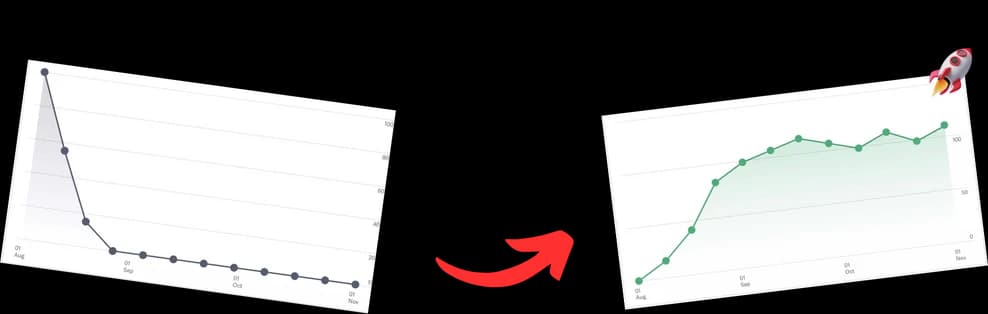
You upload on schedule, your titles are better than they used to be, and the videos are solid. Then the channel goes quiet between uploads. Comments slow down. Returning viewers drift. The next video has to rebuild momentum from scratch.
That’s where the community tab on YouTube changes the game.
Most creators treat it like a side feature for random updates. That’s a mistake. Used properly, it works like a lightweight social feed built into your channel. It keeps viewers warm between uploads, gives you fast feedback on what they care about, and helps your next video launch with context instead of silence. For channels built around podcasts, tutorials, interviews, or education, that matters even more because long gaps between uploads can kill momentum.
What Is the YouTube Community Tab and Who Can Use It
A viewer watches one of your videos, subscribes, and then hears nothing from you for a week. During that gap, the algorithm has no fresh audience signals from your channel, and the viewer has no reason to return. The Community Tab fixes that gap by giving you a way to publish between uploads, test demand before production, and send attention toward the right videos at the right time.
On YouTube, the Community Tab, now often labeled Posts in YouTube Studio, lets you publish text, images, polls, GIFs, and links to videos directly from your channel. These posts are attached to the channel, not buried under a single upload like comments. That makes them useful for channel-level goals such as warming up an audience before a release, reviving older content, and collecting topic feedback that can shape stronger future videos.
That matters because good channels do more than publish videos. They create repeated audience touchpoints that support discovery and return visits.
What it is in practice
The practical use is straightforward. Videos take planning, recording, editing, packaging, and promotion. Community posts take minutes, and the best ones support the performance of those larger uploads.
Used well, posts help with jobs that comments cannot handle cleanly:
- Preview an upcoming upload so viewers know why it is worth watching
- Ask for input before production so you make videos people already want
- Bring an older video back into circulation with a new question, angle, or clip
- Share context around a topic that later improves click-through and watch intent on the full video
This is one of the most underused parts of YouTube SEO. Search and browse performance improve when a video launches into an active audience instead of a cold one. If you also optimize the video itself with clear chapters and structure, Community posts can prime interest before the click, while chapters improve satisfaction after the click. That combination is stronger than treating posts as random updates.
Practical rule: If your channel only speaks when a new video goes live, subscribers have fewer reasons to notice the next upload.
Who can use it now
Access is much broader than it used to be. YouTube expanded Community Tab availability beyond the old subscriber-threshold model, and channels generally get access after eligibility requirements are met and advanced features are enabled through verification, according to Tella’s definition of the YouTube Community Tab.
In practice, the main point is simple. Smaller channels can use posts too. You do not need to wait until the channel feels "big enough" to build the habit.
There can still be a delay after your channel qualifies. That is normal.
What to check if you don’t see it
If the tab has not appeared yet, check these first:
-
Make sure advanced features are enabled
Verification issues can delay access. -
Give YouTube time to activate it
Rollout is not always instant, even on eligible channels. -
Check inside YouTube Studio
Posts may appear there before you notice them on the public channel page. -
Review channel standing
Policy or copyright issues can slow feature access.
The bigger reason to care is strategic, not technical. A steady posting rhythm gives you more chances to learn what your audience wants, create demand before publishing, and keep returning viewers active between uploads. That can translate into stronger first-day views, better audience feedback loops, and more subscriber loyalty over time.
Mastering the Different Types of Community Posts
Most creators underuse the tab because they post one format over and over. Usually it’s text only, usually promotional, and usually forgettable. The strongest channels treat each post type as a different tool with a different job.

Text posts for fast context
Text posts are the quickest option. They work best when you have one clear point and one clear action.
Good uses:
- announcing a recording delay
- asking a direct question
- sharing a sharp opinion tied to your niche
- setting up the next upload with a teaser
Bad use:
- posting a bland “new video out now” line with no angle
A text post needs tension, curiosity, or utility. “Uploading tomorrow” won’t do much. “I cut a full section from tomorrow’s episode because it changed the argument. Want the deleted point as a post?” gives people a reason to respond.
Polls for decisions and demand testing
Polls are the most effective format for many channels because they turn passive viewers into participants. They’re especially useful before production, not just after publishing.
If you run interviews, tutorials, or commentary, use polls to validate what the next video should cover. If you teach, use them to discover what your audience is confused about. If you host a podcast, let subscribers choose which question should open the next episode.
A few useful poll prompts:
| Goal | Poll angle |
|---|---|
| Pick the next topic | Which one should I break down next? |
| Improve retention | Where do you usually drop off in long videos? |
| Test packaging | Which title feels more clickable? |
| Build anticipation | Which segment should I clip first after upload? |
Polls also have a side benefit. Viewers can engage in one tap. That’s far less friction than asking for a comment.
Image posts for proof and personality
Images help when text alone feels flat. They’re strong for:
- whiteboard notes
- screenshot previews
- behind-the-scenes setup
- diagrams
- before-and-after examples
- guest reveal graphics
For educators, a single chart or framework can outperform a long explanation because viewers instantly understand the value. For podcasters, a recording-room photo can humanize the brand without needing polished production.
The key trade-off is this: image posts build familiarity fast, but they can also become filler if every image is just aesthetic noise. Post images that give context, not decoration.
A good image post should either explain something faster than text or make the viewer feel closer to the work.
GIFs for tone, not substance
GIFs are easy to overdo. They rarely carry strategy on their own, but they can lighten the feed and make the channel feel more human.
Use them sparingly for:
- reactions to audience moments
- playful commentary
- quick emotional punctuation after a major upload
If your niche depends on authority, keep GIFs aligned with your voice. A finance educator and a gaming creator can both use GIFs, but not in the same way.
Video posts for recirculation
Video posts are where the Community Tab starts feeding video performance directly. This format works well when you don’t just drop a link, but frame the click.
Instead of posting “Watch the new episode,” try:
- “The most debated part starts halfway through. Do you agree with the take?”
- “This section keeps showing up in comments, so here’s the full breakdown.”
- “If you only watch one part, jump to the section on pricing mistakes.”
That framing gives old and new videos a second life. It also helps subscribers understand why a specific upload matters before they click.
A Step-by-Step Guide to Creating and Scheduling Posts
A new video goes live, impressions are slow, and comments come in late. Then a well-timed Community post gives subscribers a reason to care, sends qualified traffic back to the upload, and tells YouTube your audience is active right now. That is the primary job of this tab. It is not a side feed. It is a distribution layer for your videos.

Start in YouTube Studio, but start with the video goal
Open YouTube Studio on desktop, or use the YouTube app on mobile if posting is available on your channel. Before writing anything, decide which video outcome the post should support.
That choice changes the post.
If the goal is to lift click-through on a fresh upload, write a short setup that makes the payoff clear before the link appears. If the goal is retention, use the post to pre-frame a section viewers should watch for, which pairs well with strong chapter titles inside the video. If the goal is comment volume, ask for a specific opinion that can carry into the video discussion.
Keep early posts simple. Channels usually get better results by repeating one clear post pattern until they know what the audience responds to.
Pick one action and build the post around it
Community posts fail when they ask for too much at once. A subscriber scrolling Home needs to understand the ask in seconds.
Use a simple filter:
- Need feedback before filming: post a poll
- Need traffic to a new or older upload: post the video with a reason to click now
- Need comment volume: ask one pointed question
- Need awareness for an upcoming topic: post a short text update or image
YouTube allows posts up to 1,500 characters, polls with up to 5 options, and scheduled publishing in Studio, as noted in vidIQ’s guide to the YouTube Community Tab. The limit matters less than the first line. Lead with the strongest point, because many viewers will never expand the rest.
Add media with restraint
Images, polls, and channel mentions are useful because they change how fast a viewer can process the post. They also create clutter when every post tries to use every option.
A few rules keep the feed useful:
-
Use one hook per post
Give viewers one clear next step. -
Write for fast scanning
The first sentence has to carry the post. -
Use @mentions only when they add meaning
Tagging another channel should clarify the context, not chase attention.
Teams that manage publishing across several platforms may also review broader developer resources for social media APIs for planning and reporting workflows. The practical benefit is time savings. Manual posting stays manageable for one channel, but systems matter once content operations expand.
Schedule around audience activity, not your writing time
Posting right after you finish drafting is easy. Posting when subscribers are active is better.
Schedule posts for the windows when your audience is likely to see and react quickly. Early engagement gives the post a better chance of appearing in subscriber feeds, and that can help the linked video pick up momentum. For most channels, this works best when the Community post supports a larger publishing plan instead of acting alone. A pre-upload poll can shape the angle of the video. An upload-day post can frame the most clickable promise. A follow-up post can send viewers back to a key chapter or debated segment after the first wave of comments comes in.
That is where the tab starts helping SEO and engagement at the same time. Posts create more audience signals around the topic, while better chapter framing helps the video hold attention once people click.
Here’s a useful visual walkthrough if you want to see the process in action:
A practical weekly workflow
-
Draft several posts in one sitting
Batch one poll, one image or text post, and one video recirculation post. -
Assign each post to a channel moment
Use posts before upload, on upload day, and between uploads for different jobs. -
Schedule based on expected viewer activity
Start with your best estimate, then refine after reviewing performance. -
Track what the post improved
Look beyond likes. Check whether the post helped views, comments, or traffic to a specific video. -
Repeat the formats that support video performance
The goal is not more posting. The goal is more useful posting.
That rhythm is sustainable, and it turns the Community Tab into part of your channel system instead of another box to check.
Proven Strategies to Maximize Post Engagement and Reach
A lot of channels use the Community Tab like a bulletin board. The stronger channels use it to steer viewer attention before and after a video goes live. That difference shows up in clicks, comment quality, and how often subscribers return for the next upload.

Use a weekly mix with a job for each post
Posting more only helps if each post has a clear role in your channel system. Repeating the same poll format or writing vague text updates usually flattens engagement fast.
A better approach is to assign each post a specific job across the week:
- Poll post to test topic demand or wording before the next upload
- Image post to preview a result, setup, framework, or behind-the-scenes moment
- Video post to give the new upload a sharper reason to click
- Text post to restart discussion around a claim, chapter, or viewer objection
- Recirculation post to send attention back to an older video that matches the current topic
Community posts should support the full viewing journey, not just fill dead space between uploads. If a post does not help shape the next video, improve the click on the current one, or revive a relevant back-catalog upload, it is probably noise.
Write for one response, not general reaction
The biggest drop in post performance usually comes from weak prompts. Broad questions get weak answers. Posts that ask viewers to make one small decision get far more useful engagement.
Here is the difference:
| Weak version | Better version |
|---|---|
| New video is live, like and comment and share | Which claim in this video do you agree with least? |
| Big episode coming soon | Do you want the case study first or the tutorial first? |
| Thoughts? | What is the one mistake you keep seeing in this niche? |
Clear prompts do two jobs at once. They increase replies, and they give you language you can reuse in titles, hooks, chapters, and follow-up videos.
That is the underused SEO angle. Community responses tell you how viewers describe the topic in their own words.
Match the post to the video's real bottleneck
Different posts solve different problems. The mistake is treating every post like a generic engagement play.
Use the Community Tab based on what the video needs most:
Weak topic confidence
Run a poll or text prompt before production. If viewers hesitate or split sharply, refine the angle before you record.
Low click appeal
Use an image or text post to test the sharpest promise. The phrasing that gets stronger response often points to the better thumbnail-title pairing.
Poor retention in a specific section
Post a follow-up that calls out the strongest chapter, controversial point, or misunderstood takeaway. That can send viewers back into the video with more context and better intent.
Old videos buried too quickly
Use recirculation posts tied to a current topic, not random throwbacks. Relevance matters more than nostalgia.
The tab offers channel managers real value. It is not a side feature. It is a feedback loop that helps you choose topics, frame videos better, and extend the life of uploads that still have search or recommendation potential.
Build repeatable post formats
Strong channels rarely invent every post from scratch. They repeat a few proven structures and update the topic.
Useful formats include:
- Pick one: "Which of these should I test next?"
- Agree or disagree: "Is this advice still true in 2025?"
- Troubleshooting prompt: "What part of this process keeps going wrong for you?"
- Chapter callback: "Did you watch the section on X, or skip straight to Y?"
- Result preview: "This setup cut editing time in half. Want the full breakdown?"
These formats work because they lower effort for the viewer. They also produce cleaner signals than generic "what do you think?" posts.
If your replies are thin across platforms, not just on YouTube, Fix low social media post engagement covers the usual reasons posts fail to trigger action.
Turn each post into an input for the next video
The strongest Community strategy is a loop with a measurable purpose.
Ask a question before production. Use the replies to shape the hook. Publish the video with a post that frames the biggest payoff. Then use the next post to pull viewers back to the most debated section or unanswered objection.
That process improves more than engagement on the post itself. It can improve click-through rate, sharpen chapter naming, and uncover the follow-up topics your subscribers are already asking for. For a broader framework on building that kind of feedback-driven creator system, see these audience engagement strategies for creators.
The practical test is simple. Every Community post should help a video get made, get clicked, get watched longer, or get watched again. If it does none of those, rewrite it before you publish.
Analyzing Post Performance with YouTube Analytics
A Community post can look healthy on the surface and still do very little for the channel. A post with lots of likes might create no useful discussion. A poll with fewer total interactions might reveal the exact angle that gets the next video clicked.

Where to find the data
Open YouTube Studio > Analytics > Content > Posts. Start with impressions, likes, and top-performing posts, then click See More to compare individual posts and formats in more detail, as shown in this YouTube walkthrough on Community post analytics.
That view matters because broad summaries lead to weak decisions. Channel managers need to separate format from topic, and topic from timing. If a post performed well, the next question is simple. Was it the subject, the post type, the wording, or the audience segment that made it work?
What to measure first
Keep the review tight. These are the numbers and signals worth checking after each batch of posts:
-
Impressions
Good for judging distribution. If impressions are low, weak engagement may be a reach problem, not a content problem. -
Likes
Useful, but shallow. Likes show light approval, not strong intent. -
Comments or poll votes
Better indicators of audience involvement. They show viewers cared enough to respond. -
Post type
Review polls, images, text posts, and video posts separately. Audiences often respond to each one for different reasons. -
Topic framing
Small wording changes matter. A post framed around a problem often gets different engagement than one framed around an opinion or update.
Community posts evolve beyond mere engagement extras. They become test inputs for your video strategy. If a poll option wins by a wide margin, that topic deserves stronger packaging in the next upload. If a post about one chapter of a recent video gets more comments than the video announcement itself, that section likely carries more audience interest than your title or thumbnail emphasized.
How to test without making it complicated
Simple comparisons are enough:
- ask the same question in two different ways
- compare a poll against a text post on the same topic
- test a practical framing against a debate framing
- compare a direct video link post with a post that sells the outcome first
I have found that Community testing works best when each post has a job. One post validates demand before production. Another sharpens the hook after upload. Another brings viewers back to a specific chapter or unanswered objection. That is where the tab starts supporting SEO and retention, not just surface engagement.
Patterns usually show up fast. Some channels get more reach from image posts but better audience insight from polls. Others get comments only when the wording introduces tension, a mistake, or a result gap. Those patterns should influence how you title videos, how you name chapters, and which follow-up topics you prioritize.
Cross-platform comparison can help sharpen your thinking here. Tools like SuperX Twitter analytics are useful for studying how post format and framing affect response on another network, even though YouTube behavior is different. The practical lesson stays the same. Metrics matter only if they change the next publishing decision.
For a broader framework beyond post-level metrics, this guide to YouTube analytics explained for creators is a strong companion to your Community review process.
How Community Posts Boost Your Overall Channel SEO
A creator spends hours tightening a title, thumbnail, and opening hook, then publishes to a cold audience. Another creator primes the audience the day before with a poll, follows the upload with a post that frames the payoff, and uses replies to surface objections for the next video. The second channel usually gives YouTube more evidence that viewers are active, interested, and likely to return.
That matters because channel SEO is not limited to keywords in a title. YouTube also responds to viewer behavior around the channel. Community posts can support that behavior by bringing people back between uploads, creating faster feedback loops, and helping each new video start with warmer audience interest.
The practical value is simple. Posts help you test demand before production, sharpen packaging before or after publish, and keep a video circulating after the initial upload window. That makes the Community Tab useful for search, recommendations, and retention at the same time.
Why this affects discovery
YouTube evaluates more than a single video in isolation. It looks at whether viewers respond, return, and keep interacting with your content over time. A channel that stays active gives the platform fresher audience signals than a channel that only appears on upload day.
Community posts support that process in a few specific ways:
-
Before a video is published
polls and text prompts reveal the phrasing, problems, and angles your audience already cares about -
Right after publish
a post can drive early viewers to the video, which helps generate the first wave of watch data -
After the first spike
follow-up posts can revive attention by highlighting a takeaway, a mistake, or a useful chapter people missed -
Across the full channel
replies and post performance show what topics deserve sequels, updates, or stronger internal linking between videos
This is why I treat Community content as support content, not side content.
Posts amplify good video SEO
A Community post cannot carry a weak video. If the title is vague, the thumbnail misses the promise, or the structure loses viewers early, the post may create clicks without generating strong watch time. That trade-off matters. Community activity can improve distribution, but the video still has to satisfy intent.
The best results come from pairing posts with solid packaging and viewer-focused video structure. A poll can tell you which pain point to feature in the title. Comments can give you the exact phrasing to use in the hook. Follow-up posts can send viewers back to a high-value segment, especially on longer videos where chapter naming and chapter placement influence how easily people find the answer they want.
If you want a clearer framework for that side of the system, this guide to video SEO for YouTube creators explains how search intent, metadata, and structure work together.
For educators, podcasters, and channels publishing long-form content, the connection is especially strong. Community posts surface audience language. Your video can then answer that demand in a format YouTube can index, recommend, and keep viewers watching.
The main takeaway is straightforward. Use the Community Tab to strengthen the performance of your videos, not to fill space between uploads.
If you publish long videos and want the SEO side of this system to work harder, TimeSkip helps you generate SEO-optimized YouTube chapters in seconds. It’s built for creators who want stronger discovery and better viewer navigation without adding another manual task to the upload process.