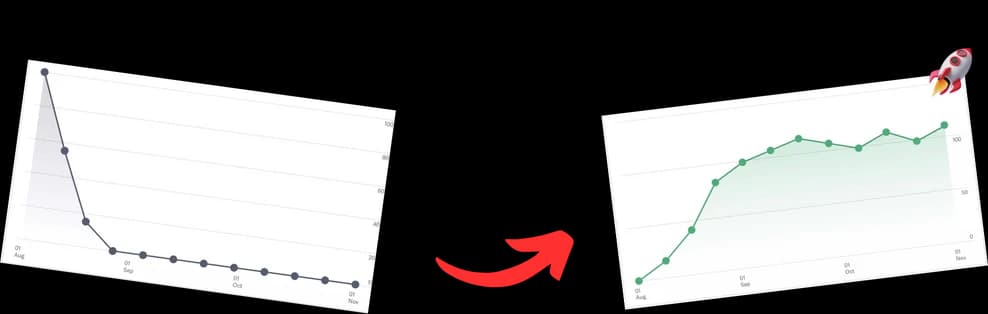
To reverse a YouTube playlist and play videos oldest first, start by checking who owns it. Playlist owners can change the saved order in YouTube. Viewers cannot permanently reorder someone else's playlist, so they need a personal copy, a third-party playlist reverser, or a browser extension.
That owner-versus-viewer distinction is the key. A creator can fix the sequence for everyone; a viewer can only change their own playback path. The sections below compare the safest practical options on desktop and mobile.
Quick Answer: How to Reverse a YouTube Playlist
If you own the playlist, open it in YouTube Studio or YouTube, then reorder videos manually or sort the playlist so the oldest episode appears first. If you do not own the playlist, YouTube usually will not permanently save a reversed order for you. Your practical options are to use the creator's playlist controls, add the videos to your own playlist in the order you want, or use a browser extension or third-party reverse playlist tool.
On mobile, the available sort controls vary by playlist and app version. If the playlist has no reverse option, saving the videos into your own playlist is the most reliable workaround.
The Frustration of Reverse Chronological Playlists
The frustration usually starts with good intentions. A creator uploads a new part to a series, adds it to a playlist, and YouTube presents the newest item first. That can be fine for news recaps or current events. It’s terrible for a course, a story-driven series, or an archive that only makes sense in sequence.

YouTube does not provide a universal reverse-playback control for every playlist a viewer opens. That is why playlist reversers, personal playlist copies, and browser extensions remain common workarounds.
Why this annoys viewers so quickly
A bad playlist order creates friction in ways creators often miss:
- Tutorial viewers lose context. They land on the advanced lesson before the setup.
- Podcast listeners hear the latest episode first. That’s fine for current commentary, but not for evergreen episode archives.
- Series watchers get spoilers. Even a title thumbnail can ruin the sequence.
- Returning subscribers bounce around. They stop trusting autoplay to take them where they expect.
Practical rule: If a playlist teaches, tells a story, or builds an argument, newest-first is usually the wrong default.
Why creators should care
Playlist order affects the viewing path. If viewers have to manually hunt for the true starting point, some of them won’t bother. They’ll leave, skip around, or only watch one video instead of several. That’s the difference between a playlist acting like a structured library and acting like a loose pile of uploads.
The core mistake is assuming playlist order is only a viewer preference. It isn’t. It shapes how your catalog gets consumed.
Instant Reversal Methods Using Web Tools
If you just need one playlist fixed right now, web tools are the fastest answer. No extension install. No script setup. No changes to the original playlist.
The workflow is simple. You take the full playlist URL, paste it into a reversal tool, and let the tool generate a playable reversed version. Results vary by playlist privacy, browser support, and whether the copied URL includes the playlist ID.
The copy-paste method that works
Use this when you’re a viewer trying to fix a playlist without touching creator settings.
-
Open the full playlist page
Don’t copy the URL from a single video that merely happens to be inside a playlist. Open the full playlist view first. -
Check the URL structure
You want the address to includeplaylist?list=. If it doesn’t, many tools won’t recognize it correctly. -
Paste it into a reversal tool
Tools such as Playlist.Tools or PlaybackLoop-style services take that URL and reorder the items on their side. -
Play the generated version
The original playlist isn’t rewritten. The tool is presenting a reversed play order for that session.
What these tools are good at
Web tools are best when speed matters more than permanence.
| Use case | Fit |
|---|---|
| Watching a public course in the correct order | Strong |
| Bingeing a creator archive once | Strong |
| Fixing your own playlist permanently | Weak |
| Mobile use across browsers | Mixed |
That last row matters. A lot of people think the tool “didn’t work,” when the problem is the browser, the pasted URL, or the playlist’s privacy status.
The gotchas people hit most
A few problems come up again and again:
-
Wrong link copied
If you copied a video URL rather than the full playlist URL, the tool may fail or only load one item. -
Private or restricted playlists
Web tools tend to work best on public playlists. Anything requiring account context gets less reliable. -
Mobile friction
On desktop, these tools feel quick. On mobile, especially Safari, they can be inconsistent.
If the tool loads but the order looks unchanged, the first thing to inspect is the URL itself, not the tool.
Best use case for web tools
This is the fix for someone who says, “I need this playlist reversed in the next thirty seconds.”
It is not the best fix for a creator who wants official order control, and it doesn’t solve the persistence problem. If you close the tab, switch devices, or revisit later, you may need to do it again.
How Creators Can Permanently Reorder Playlists in YouTube Studio
Creators have a different option. Instead of temporarily reversing playback for themselves, they can change the playlist order at the source inside YouTube Studio.
That matters because viewers won’t need a workaround at all. They’ll see the intended sequence by default.

If you’re still setting up your channel structure, this guide on how to make a new playlist on YouTube is a useful starting point before you worry about ordering strategy.
The built-in options that actually matter
Inside YouTube Studio, you generally have two practical ways to control order:
- Sort by date
- Manual drag-and-drop
Sort by date is the efficient option. Manual ordering gives you precision.
When to use sort by date
For episode archives, podcast backlogs, and beginner-to-advanced educational playlists, sorting by oldest is usually the cleanest choice. It keeps the sequence logical without requiring you to drag dozens or hundreds of items around by hand.
Use it when:
- your series is chronological
- each upload naturally follows the previous one
- you want the official order to remain obvious for every viewer
The downside is that date sorting is blunt. It won’t account for bonus episodes, trailer videos, reuploads, or a special “start here” video you want pinned near the top.
When manual ordering is worth the effort
Manual drag-and-drop is slower, but it’s the right tool when sequence matters more than raw chronology.
Use manual order if you have:
- A course playlist with an intro, setup module, then lessons
- A web series where upload date doesn’t perfectly match story order
- A podcast playlist where you want a trailer or best-entry episode first
- A mixed archive with live streams, highlights, and full episodes together
Creator rule: Use oldest-first when time defines the sequence. Use manual order when experience defines the sequence.
This walkthrough helps if you want to see the interface in action:
What YouTube Studio does better than third-party fixes
The big advantage is permanence. When you reorder inside Studio, you’re not creating a temporary viewing layer. You’re defining the playlist itself.
That gives creators a few practical benefits:
| Method inside Studio | Best for | Weakness |
|---|---|---|
| Sort by oldest/newest | Fast cleanup | Less flexible |
| Manual drag-and-drop | Precise narrative control | Tedious on large playlists |
Studio is the right answer if the wrong order is affecting your audience broadly. It’s not ideal if you’re only trying to temporarily reverse someone else’s playlist for your own viewing.
Advanced Solutions with Browser Extensions and Scripts
If web tools feel too disposable and Studio isn’t available because the playlist isn’t yours, browser-based fixes sit in the middle. They’re more integrated than copy-paste sites and faster for repeated use on desktop.
The most technical version is a userscript run through Tampermonkey. This method can feel almost native when it works well.
The Tampermonkey route
An open-source userscript can reverse playlist order directly in the browser after you install a script manager such as Tampermonkey. Based on the referenced tutorial, this approach has a 98% success rate on desktop for playlists under 2,000 videos, with about 1.2 seconds of reversal latency, but it can break after major YouTube UI updates and has a 25% failure rate on playlists containing unlisted videos, according to the userscript walkthrough video.
The setup usually looks like this:
- Install Tampermonkey in Chrome.
- Create a new script.
- Paste in the reverse-playlist userscript code from the GitHub gist or equivalent script source.
- Reload YouTube.
- Open a playlist page and let the script modify the playback order in-browser.
Why power users like this method
The biggest advantage is convenience after setup. You don’t have to keep visiting a separate site and pasting URLs. The script runs where you already watch.
This is especially useful if you regularly audit playlists, review old series in sequence, or bounce between multiple channels during research. If you’re exploring broader desktop tooling, this roundup of the best Chrome extensions for YouTubers fits well alongside playlist utilities.
The trade-offs people underestimate
Userscripts are not “set it and forget it” forever.
They depend on YouTube’s front-end behavior. If YouTube changes the interface or the internal page structure, the script can stop working until someone updates it. That makes this a strong choice for technical users and a poor choice for anyone who wants zero maintenance.
A few practical limitations matter:
-
Desktop is the happy path
This works best in Chrome or Firefox on a computer. -
Unlisted items can break the sequence
If a playlist includes videos the script can’t properly handle, the result may be incomplete. -
Mobile support is weak
If your workflow is mostly on phone or tablet, this won’t feel dependable.
Browser scripts are best for people who value speed after setup and don’t mind occasional maintenance.
Comparing Methods and Solving Common Problems
Most youtube reverse playlist advice falls apart because it treats every user as if they need the same thing. They don’t.
A viewer trying to watch one public playlist has a very different problem from a creator trying to permanently fix a course library. The right method depends on one question first: Do you need a temporary playback change, or do you need the playlist itself to stay in the new order?

The practical comparison
| Method | Permanent | Ease of use | Best for |
|---|---|---|---|
| Web reversal tools | No | Easy | One-time viewer fixes |
| YouTube Studio ordering | Yes | Easy to medium | Creators controlling their own playlists |
| Browser extensions or userscripts | No, usually session-based | Medium to hard | Desktop power users |
That leads to the issue many users run into after the first successful fix.
The persistence problem
The missing feature across current solutions is persistent reverse ordering. As of 2026, no major tool implements a sticky or cloud-synced reverse state per playlist, so users often have to toggle or reapply their preferred order repeatedly, as noted in this discussion of the lack of persistent reverse playlist settings.
That’s why a tool can feel “good” in the moment and still be a bad long-term answer.
If your real frustration is, “Why do I have to keep doing this every time?” the answer is simple. Most reverse methods don’t rewrite the playlist’s official state. They only alter playback locally, temporarily, or session by session.
The persistence problem is the line between a workaround and a workflow.
What works for each kind of user
If you’re deciding quickly, use this rule set:
-
You’re a viewer on desktop
Start with a web tool. Move to a browser script only if you do this often. -
You’re a creator fixing your own playlist Use YouTube Studio. It’s the only method in this article that changes what your audience sees by default.
-
You’re a researcher, editor, or heavy desktop user
A userscript saves time, but only if you’re comfortable troubleshooting it.
Common problems and the clean fixes
A few failures come up so often that they’re worth treating as a checklist.
Playlist won’t stay reversed
That’s usually not a bug. It’s the expected behavior of temporary solutions.
Fix:
- use YouTube Studio if it’s your playlist
- accept reapplication if you rely on web tools or scripts
- avoid assuming a browser-based reversal changed the official playlist order
Some videos are missing
This often points to privacy or playlist composition issues.
Check:
- whether the playlist includes unlisted items
- whether the tool or script loaded the full list
- whether you copied the proper playlist page rather than a partial URL
It works on desktop but not on phone
That’s common. Mobile browsers are less reliable for this use case.
Try:
- switching to desktop Chrome if possible
- avoiding Safari for reversal tools
- using Studio from a computer if you’re making permanent creator changes
The script stopped working suddenly
That usually happens after YouTube changes its interface.
Your options:
- update the script
- look for a maintained fork
- fall back to a web tool until the script catches up
How Creators Use Reversed Playlists for Channel Growth
The smartest creators don’t treat playlist order as cosmetic. They treat it as part of retention strategy.
A reversed or chronological playlist can change how easily viewers move from one video to the next. That matters most when the content has a built-in sequence: lessons, podcasts, interviews, serialized commentary, product onboarding, or long-running thematic archives.

The analytics side creators should actually watch
You can measure playlist performance inside YouTube Studio by going to Content > Playlists and opening playlist analytics. Those reports aggregate metrics such as total views and watch hours, and creator case studies referenced in the source note that optimized playlist order can increase session watch time by up to 20 to 30%, according to the YouTube playlist analytics walkthrough.
That gives creators a practical loop:
- choose an order intentionally
- monitor playlist-level watch behavior
- compare watch hours and views across playlists
- adjust sequence if a playlist underperforms
Where reversed order helps most
Not every playlist should start with the oldest video. The right order depends on the job the playlist needs to do.
- Educational playlists usually work best from oldest to newest because each lesson builds on the previous one.
- Podcast feeds may need two different approaches. Chronological order for binge listeners, newest-first for current-event shows.
- Showcase playlists often work better with manual curation, where the strongest entry point comes first.
That broader organization work matters as much as the reversal itself. If you’re cleaning up a large back catalog, this guide on organizing YouTube videos is useful alongside playlist sequencing.
Good playlist order reduces decision fatigue. Viewers don’t have to ask where to start.
There’s also a distribution angle. When you share playlists outside YouTube, link hygiene matters. If you’re building a cleaner sharing system across bios, landing pages, and creator touchpoints, this resource on master YouTube URL links is worth reviewing so the playlist path you send people into matches the experience they get.
The big takeaway is simple. Reverse ordering isn’t just a convenience tweak. It’s one of the easiest ways to make a content library easier to consume, easier to measure, and easier to improve.
If you’re already tightening playlist structure and thinking harder about how viewers move through long videos, TimeSkip is a natural next step. It helps creators generate SEO-friendly YouTube chapters quickly, which makes long-form videos easier to move through and easier for viewers to keep watching once they land on the right playlist.