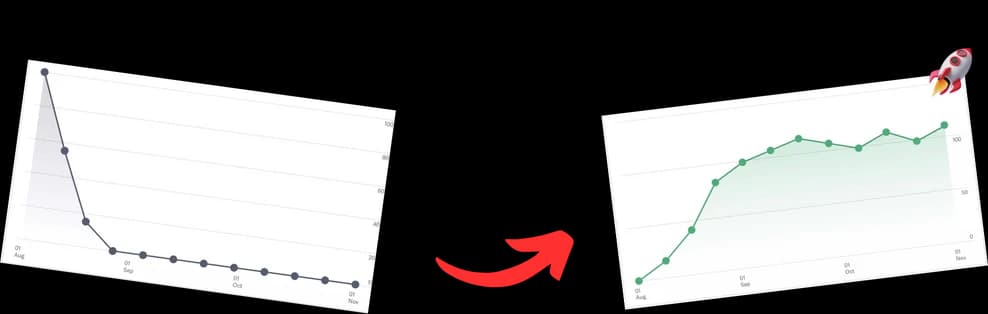
A subscribe YouTube link is more than just a URL; it's a powerful tool that serves up a one-click subscription pop-up to anyone who clicks it. Instead of just sending people to your channel and hoping they find the subscribe button, this link does the heavy lifting for you.
Why a Custom Subscribe Link Is a Growth Game-Changer
 Before we get into the nuts and bolts of creating these links, let's talk about why they're so effective. Sending someone a standard link to your channel is a passive move. It puts the work on the viewer to find and click that subscribe button. A dedicated subscribe link, on the other hand, is an active invitation.
This tiny tweak capitalizes on the instant gratification we've all come to expect online. Think about it: every extra click is another chance for a potential subscriber to get distracted and leave. By removing that step, you’re using one of the simplest, most effective growth hacks out there.
The Psychology of a Single Click
The magic here really comes down to user experience. When you present someone with a direct choice—Subscribe or Cancel—you cut through all the noise on your channel page and focus their attention on a single action. It’s a clean, direct approach that works wonders, especially when you use the link outside of YouTube, like in your social media bios or email signature.
By streamlining the subscription process, you are removing a key barrier to entry. This one-click method respects the viewer's time and makes it incredibly easy for them to act on their impulse to follow your content.
In today's crowded space, this kind of optimization is essential. YouTube's audience is staggering, with a projected 2.77 billion viewers worldwide by 2026. And with over 500 hours of video being uploaded every single minute, you need every advantage you can get to stand out. This little link gives you exactly that.
Amplify Your Link’s Impact
A direct subscribe link is a powerful tool on its own, but it really shines when you combine it with other growth strategies. For instance, using effective YouTube hashtags helps new viewers find your content in the first place.
When those new viewers arrive, your subscribe link is waiting to convert them into loyal followers. It’s this kind of holistic approach that separates channels that are just getting by from those that are on a clear path to growth.
How to Create Your One-Click Subscribe Link

Ready to turn casual viewers into loyal subscribers with a single click? Creating a direct subscribe YouTube link is one of those simple but powerful tricks that every creator should have in their back pocket. It all comes down to adding a tiny bit of code to your channel's URL, which triggers an instant subscription pop-up.
But first, you need the right URL. This is where a lot of people get tripped up. YouTube has a few different URL formats, and grabbing the wrong one can cause headaches down the road. Let's make sure you get the right one from the start.
Find Your Core Channel URL
Your first stop is the YouTube Studio. Resist the urge to just copy the URL from your browser's address bar when you're on your channel page—that’s not always the permanent link you need. Instead, we're going to dig into your account's advanced settings to find the real deal.
- Head over to YouTube.com, click your profile picture in the top-right corner, and select Settings.
- From there, look for Advanced settings on the left-hand menu and click it.
You'll see both your User ID and your Channel ID listed right there. That Channel ID is what you want. It's the key to building the most reliable subscribe link possible.
Your Channel ID is a unique, permanent identifier for your channel. It never changes, even if you set a custom URL like
@YourNamelater on. Using it ensures your subscribe link will always work, no matter what.
Sure, you might have a slick "custom URL" (like @YourChannelName), and you can use that. But trust me, building your link from the Channel ID is the most foolproof method, especially for newer channels that might not have a custom handle yet. If you're having trouble digging it up, a dedicated YouTube Channel ID finder can track it down for you in seconds.
Assembling the Magic Link
Got your channel URL? Great, the hard part is over. Now for the fun bit.
All you have to do is tack on this little snippet to the end of your channel URL: ?sub_confirmation=1. That's the magic parameter that tells YouTube to show that subscription prompt.
So, if your channel URL is:
https://www.youtube.com/channel/UC-your-channel-id
Your new, powerful subscribe link will be:
https://www.youtube.com/channel/UC-your-channel-id?sub_confirmation=1
And that's it! You've just created a one-click subscription machine. Now you can start sharing it in your video descriptions, on social media, in your email signature—anywhere you want to make it ridiculously easy for people to join your community.
Where to Place Your Link for Maximum Subscribers
Alright, you've got your shiny new subscribe YouTube link. That's the easy part. The real game-changer is knowing exactly where to put that link to turn passive viewers into loyal subscribers. This isn't about just dropping a link and hoping for the best; it's about strategic placement that catches people right when they're most hooked on your content.
Think of it as making the "subscribe" button follow your viewers around, but in a helpful, non-creepy way. The goal is to make subscribing so incredibly convenient that it feels like a natural next step, whether they found you on YouTube or stumbled across your work somewhere else online.
On-Platform Hotspots for Your Subscribe Link
Your own YouTube channel is packed with prime real estate for conversions. The most obvious spot, and one you absolutely can't ignore, is your video description. But don't just paste it at the bottom. Frame it with a strong call to action right at the top, making it one of the very first things people see.
Another high-impact location is your pinned comment. As soon as you upload a new video, pop a comment down below with your subscribe link and pin it. Viewers almost always scroll down to the comments while a video is playing, and a pinned comment stays glued to the top, just waiting for a click.
Finally, you've got to use YouTube’s own built-in tools:
- End Screens: You have the last 5–20 seconds of your video to make a final pitch. Add a clickable subscribe element here. It’s your last chance to convert someone who just enjoyed a whole video.
- Cards: These are your secret weapon for mid-video prompts. If you mention something specific about your channel's mission or a future video series, you can have a subtle card pop up at that exact moment, nudging viewers to subscribe.
Pro-Tip: Never just say, "Subscribe." Give them a reason. Try something like, "Subscribe for weekly deep dives into [Your Niche]!" Context is what transforms a simple link into an irresistible offer.
Driving Growth from Off-Platform Sources
The real magic starts when you funnel traffic from other platforms directly to that subscribe confirmation pop-up. Your audience doesn’t just live on YouTube, so your subscribe link needs to be everywhere they are. This is a non-negotiable step if you truly want to understand how to increase YouTube subscribers from every angle possible.
Start sprinkling your subscribe link in these key locations:
- Your Email Signature: Every single email you send becomes a tiny billboard for your channel.
- Website and Blog Posts: Embed the link on your site's footer, your contact page, or weave it into blog posts as a powerful call-to-action.
- Social Media Bios: Your bio on Instagram, X (formerly Twitter), and Facebook is the perfect home for a shortened subscribe link.
- QR Codes: This is how you bridge the physical and digital worlds. Generate a QR code for your subscribe link and put it on business cards, presentation slides, or even merch. Anyone with a phone can subscribe on the spot.
Shortening and Tracking Your Subscribe Link
That long, clunky ?sub_confirmation=1 link? It’s not a great look. It can come across as messy and even a little untrustworthy, especially when you’re trying to squeeze it into a social media bio where every character counts. The fix is simple: use a URL shortener like Bitly or TinyURL to create a clean, memorable link that’s far more inviting to click.
Think about it. A custom link like bit.ly/JoinTheCrew just feels more professional than a long jumble of code. It’s a small psychological trick, but it signals to potential subscribers that you’ve got a polished and established brand.
Beyond Shortening to Smart Tracking
But let's be real, the magic of using a URL shortener isn't just about looking good—it's about the data. These services come with built-in analytics, turning your simple subscribe link into a powerful tracking tool. You can finally get real answers about which of your promotional efforts are actually paying off.
Just as B2B marketers are obsessed with mastering marketing ROI through analytics, you should be just as focused on tracking how your subscribe link performs across different platforms. This is where you stop guessing and start knowing.
You can create a unique short link for every single place you share it. For example:
- Your Twitter bio:
your.link/yt-twitter - Your email newsletter:
your.link/yt-newsletter - A specific guest post:
your.link/yt-guest-post
This lets you see exactly how many clicks each source is generating, pinpointing the channels that are truly driving your subscriber growth. If you want to go deeper on this, our guide on how to track content performance breaks down measurement strategies in more detail.
This decision tree gives you a great visual for where to place your custom links for maximum impact.

It’s all about making data-driven decisions. If you analyze the click-through rates and discover your Instagram link gets 80% more clicks than the one in your email signature, you know exactly where to double down on your efforts. That’s how you grow smarter, not just harder.
Common Mistakes to Avoid with Your Subscribe Link
That little subscribe link is a powerhouse for growth, but it’s surprisingly easy to get it wrong. A few simple missteps can turn a helpful tool into something that actively annoys your audience or just plain doesn't work. By steering clear of these common pitfalls, you can make sure your link is always a net positive for your channel.
The single biggest mistake I see creators make is going overboard with the ?sub_confirmation=1 pop-up within YouTube itself. Slapping this link onto every single video card, for instance, is a surefire way to irritate your most loyal fans. Your existing subscribers will be hit with that pop-up again and again, creating a seriously frustrating experience.
A better approach? Save that aggressive pop-up link for your external marketing. It's perfect for converting brand-new audiences from places like your social media bios or email signature. For on-platform CTAs, like your end screens or pinned comments, sticking to a standard channel link is often the smarter, less intrusive choice.
Forgetting to Test and Add Context
Another critical error is deploying a link without testing it first. Before you share it with the world, always open your link in an incognito or private browser window. This is the only way to simulate what a non-subscriber sees and confirm that the pop-up is actually firing correctly.
Just as bad is simply dropping a raw link without any compelling reason to click it. You have to give people a little nudge—a clear call-to-action (CTA) that tells them why they should subscribe.
- Bad CTA: "Subscribe:
your.link/subscribe" - Good CTA: "Want more weekly marketing tips? Subscribe here to never miss a video!"
The subscription game on YouTube is no joke. Channels like MrBeast and T-Series didn’t just stumble into their massive audiences; they got there through relentless, strategic optimization. For any creator trying to grow, every detail matters—especially how you frame your subscribe link. This focus on the small things is what turns a passive viewer into a subscriber, a fact backed by recent YouTube statistics from The Social Shepherd.
Don't just show them the link; tell them what they get by clicking it. The difference between a raw URL and a contextual CTA is the difference between being ignored and gaining a new, loyal subscriber.
Frequently Asked Questions About Subscribe Links
Once you start using custom subscribe links, a few questions always seem to pop up. It's a simple little trick, but getting the details right means you can share that subscribe YouTube link everywhere without a second thought. Let's tackle some of the most common things creators wonder about.
The biggest one is always about safety. It feels like a clever hack, but is it too clever?
Does This Violate YouTube's Terms of Service?
Nope, not at all. Using the ?sub_confirmation=1 parameter is a feature that YouTube built and provides for creators. It’s 100% compliant with their terms of service—it's not some shady, black-hat trick that will get your channel in trouble.
Think of it as an official tool from YouTube's own toolbox, designed to help you grow. They want to make it easier for viewers to subscribe, so you can use this link with complete confidence.
Will the Subscribe Link Work on Mobile Devices?
Yes, it works on mobile, but the experience is a bit different than on a desktop. That perfect, one-click pop-up is really a desktop feature.
When someone clicks your link on a smartphone, it usually boots up the YouTube app and drops them right onto your channel page. While the instant pop-up won't appear, it still gets them exactly where they need to be to hit subscribe, saving them the hassle of searching for you manually. It's a far more direct route than a standard channel link.
The key is that even on mobile, the link removes friction. It’s a better, more direct user experience than a standard URL, making it a win regardless of the device.
What Happens If an Existing Subscriber Clicks It?
This is a great question, and the answer shows just how safe this link is to share everywhere. If someone who's already subscribed to you clicks the link, they simply land on your channel's homepage. That's it.
There’s no weird pop-up, no confusing error message, and zero risk of them accidentally unsubscribing. The system is smart enough to see they're already a fan and just sends them to your content. It’s completely harmless for your existing community.
Can I Track Subscriptions from This Link in YouTube Analytics?
This is the one downside. Unfortunately, YouTube Analytics doesn't have a way to directly track how many subscribers came from your ?sub_confirmation=1 link. The native analytics lump all your subscription sources together without that granular detail.
This is exactly why using a URL shortener like Bitly is so valuable. By creating unique short links for different spots—one for your Twitter bio, another for your email signature—you can track the clicks each link gets. While it doesn't confirm the final subscription, a ton of clicks from one source is a huge clue about where your new subscribers are coming from, helping you double down on what works.