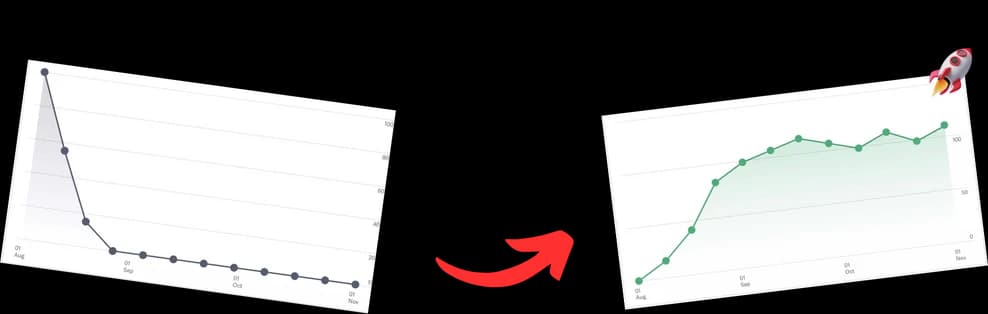
You’re live, chat is moving fast, and something just landed. Maybe it was a joke, a rant, a hot take, or the exact tutorial moment people came for. You can feel the room react, but feeling it isn’t enough. You want to know whether that moment pulled people in, held them, or converted them.
That’s where youtube live count stops being a vanity number and starts acting like instrumentation.
Used well, live count data tells you when your stream wakes up, when it drifts, and when viewers decide your channel is worth following. Used badly, it turns into compulsive tab-refreshing and bad decisions based on noisy data. The difference is knowing which numbers to trust, why different tools disagree, and how to turn that messy stream of live feedback into better content choices.
Why Every Creator Needs a Real-Time Dashboard
A creator without a real-time dashboard is mostly guessing.
During a live stream, you don’t have the luxury of waiting until tomorrow to learn whether your opening worked or whether your audience bailed during the first topic shift. You need a live read on what’s happening while you can still change the show. That means checking concurrent viewers, monitoring live subscriber movement, and watching for moments where the audience suddenly leans in or drops off.
The scale of YouTube Live makes this even more important. At any given moment, 35,411 channels can be broadcasting live, and peak concurrent viewers can reach 7,517,553 people according to YouTube live platform data from Streams Charts. You’re not just trying to stream well. You’re competing for attention inside a very crowded environment.
What a real-time dashboard actually does
A good dashboard helps you answer three questions quickly:
- Is the current segment working
- Did that call to action create movement
- Are viewers staying or slipping
That’s more useful than staring at total views after the fact. Total views are useful for reporting. Live numbers are useful for decisions.
Practical rule: Don’t watch live count to validate your ego. Watch it to spot audience behavior you can act on in the next few minutes.
There are two main sources for this data. YouTube Studio gives you the official view of your channel’s live performance. Third-party tools make counts easier to share publicly, embed in streams, or check without logging in. Both have a place. They just serve different jobs.
If you want a stronger baseline for reading what your metrics mean, this guide on YouTube analytics explained is a useful companion. The main point is simple. Numbers matter most when they change what you do next.
Finding Your Official Live Count in YouTube Studio
Before you open any public counter, start in YouTube Studio. That’s your primary source of truth.

YouTube’s native setup is the one that matters most when you’re evaluating your own channel. According to Search Engine Journal’s walkthrough of the feature, you can access the real-time subscriber count by logging into YouTube Studio, going to Analytics, finding the Real-time card, and clicking See live count. That view shows a dynamic counter, historical graphs for comparison, and milestone animations at thresholds like 1K and 100K subscribers.
How to find the live subscriber count
Use this path on desktop:
- Open YouTube Studio
- Click Analytics in the left sidebar
- Find the Real-time card
- Click See live count
That opens the fastest official read on subscriber movement available to you inside Studio. If you’re running a stream and making active calls to subscribe, this is the panel to watch.
The historical comparison matters more than most creators realize. It keeps you from overreacting to a single strong or weak session. A small live bump feels exciting in the moment, but context tells you whether that bump is unusual or just normal channel behavior.
Where to watch live viewers during a stream
For active broadcasts, the other number to keep an eye on is concurrent viewers.
That metric tells you how many people are in the room right now. It’s not the same as total views, and it’s more useful when you’re making live production decisions. If your count rises during a certain topic, segment, or guest appearance, that’s a signal. If it falls every time you go off-track, that’s a signal too.
A few practical uses stand out:
-
Opening quality
If your viewer line drops early, your intro probably took too long. -
Segment testing
If one recurring segment consistently lifts concurrency, keep it. If another drags, tighten it or cut it. -
Call to action timing
A sub ask works better after a payoff moment than before one.
Treat YouTube Studio as the baseline, not as one tab among many. If Studio says one thing and a public counter says another, Studio gets more weight.
What not to do inside Studio
Don’t obsess over every tick.
Live analytics are useful, but they can also make creators twitchy. If you stare at the graph every few seconds, you’ll start reacting to noise instead of patterns. Watch for movement around actual moments in your stream. A joke. A topic shift. A guest entrance. A visual demo. A clear ask.
That’s the level where the youtube live count becomes operational, not distracting.
Using Third-Party Tools for Public Live Counts
Third-party live count tools exist because YouTube Studio isn’t built for everything.
It’s great for private analysis, but it’s not ideal when you want a public-facing counter on a second monitor, a stream overlay for a milestone push, or a quick way to check a channel without logging into Studio. That’s where tools like SocialCounts.org, Livecounts.io, and Social Blade are useful.

According to this creator-focused explanation of live count tools, platforms like SocialCounts.org and Livecounts.io use YouTube’s Official API to pull real-time metrics such as subscriber counts, live views, likes, comments, and viewer counts. The key phrase is important: they provide nearly accurate estimations, not a perfect mirror of YouTube Studio.
When third-party tools are the better choice
These tools are best when you need visibility or flexibility.
Common use cases include:
-
Public milestone tracking
Great for subathons, countdown streams, or community pushes. -
On-screen widgets
Most creators don’t want to screen capture Studio itself. A cleaner browser widget works better. -
Checking other channels
You can’t access another creator’s Studio, but you can watch a public live counter. -
Quick browser access
If you need a lightweight tab instead of the full Studio interface, these tools are faster.
Side-by-side trade-offs
| Tool type | Best use | Strength | Limitation |
|---|---|---|---|
| YouTube Studio | Managing your own channel | Official internal analytics | Not ideal for public display |
| Livecounts.io | Public counters and overlays | Easy to embed in streaming setups | Can lag behind Studio |
| SocialCounts.org | Video and subscriber tracking | Useful for both channel and video live counts | Still API-dependent |
| Social Blade | Public reference checking | Familiar interface for many creators | Better for broad monitoring than in-stream precision |
One resource worth bookmarking if you regularly compare tracking services is this breakdown of a YouTube stats website. It’s useful when you’re deciding which tools belong in your day-to-day workflow and which ones are just nice to have.
How to choose the right one
Pick based on the job, not the brand name.
If you’re streaming and want a visual counter on-screen, prioritize embed simplicity and display cleanliness. If you’re tracking a competitor, ease of lookup matters more. If you care about video view movement on a recently published VOD or premiere, choose a tool that supports live video counts rather than only subscriber counts.
Public counters are production tools and community tools. They are not your final accounting system.
The biggest mistake creators make here is using a public counter as if it’s a precision instrument. It isn’t. It’s an accessible, useful layer that sits on top of the official system. That distinction matters a lot once counts start moving quickly.
Integrate Live Counts with OBS and Streaming Software
A live count becomes more powerful when viewers can see it.
Done well, a counter overlay creates urgency around milestones and gives the audience a visible reason to participate. Done badly, it clutters the screen, refreshes awkwardly, or distracts from the actual content. The setup is simple, but presentation matters.

Add a live count in OBS
The cleanest method is a Browser Source.
In OBS, create a new Browser Source and paste in the URL from your chosen counter tool. If you want a practical foundation for the rest of your stream layout, scenes, and source management, this OBS Streaming Setup Complete Guide is worth keeping open in another tab.
A straightforward setup looks like this:
-
Choose your counter page
Open the channel or video counter you want to display. -
Copy the browser URL
Some tools offer cleaner embed pages than others. Use the page with the least surrounding clutter. -
Create a Browser Source in OBS
Name it something obvious like “Live Sub Count” or “Live View Count.” -
Set dimensions
A compact frame often works best. If the widget feels cramped, increase the source area until text renders clearly. -
Position it intentionally
Put it where it supports the show. Don’t drop it over chat, captions, or key visual content.
Make it look native to your stream
The best counters don’t look like pasted websites. They look like part of your overlay.
That usually means trimming excess page elements, matching fonts and colors when possible, and keeping the box small enough that it reads as a live signal rather than the main event. If your tool supports custom CSS inside OBS, use it to remove visual noise and align the counter with the rest of your brand package.
A few placement rules work reliably:
-
Near milestone moments
Keep it visible during pushes, then hide it if it becomes visual dead weight. -
Away from face cam framing
Don’t compete with your own expression. People watch people first. -
Readable at a glance
Thin fonts and oversized widgets both hurt usability.
Use the counter as a segment trigger
The overlay shouldn’t be permanent by default.
Bring it in when you’re close to a milestone, when chat starts pushing toward a goal, or when you want to anchor a live challenge. Then take it off-screen once the moment passes. That keeps it feeling intentional.
Later in the stream, it helps to reinforce the production flow with a visual example:
What actually works on stream
Creators often assume the number itself drives excitement. It doesn’t.
What works is the context you build around it. Tie the count to a promise, a reveal, a giveaway rule that follows platform policy, a Q&A session, or a specific community moment. A floating number in the corner is passive. A visible milestone with audience participation becomes part of the show.
If your stream is content-light and count-heavy, viewers will feel it quickly. The metric should support the experience, not replace it.
Decoding Discrepancies in Live Count Data
If YouTube Studio says one number and a public counter says another, that doesn’t automatically mean one of them is broken.
It usually means the systems are doing different jobs on different update cycles. This is the part that frustrates creators, especially around milestones, because a visible mismatch feels personal. It isn’t. It’s a reporting issue.
According to Subscriber Counter’s explanation of live count differences, discrepancies of 10-50 subscribers between YouTube’s official live count and third-party sites are common. The same source notes that official counts update every 1-5 seconds, can lag during high-traffic events, and that API-based tools often describe their own outputs as nearly accurate estimations because polling delays affect precision.
Why the numbers differ
The first reason is polling frequency.
A third-party tool doesn’t sit inside YouTube’s internal dashboard. It asks the API for updates at intervals. Even if those intervals are frequent, there’s still a gap between what happened and what the external tool last fetched. During fast-moving moments, that gap becomes visible.
The second reason is processing lag during spikes.
Milestones, raids, high-profile collabs, or a sudden burst of attention can create moments where updates don’t appear perfectly synchronized. YouTube Studio can also lag during heavy activity, but external tools tend to show the mismatch more clearly because they depend on a separate retrieval layer.
Why view counts feel even messier
Subscriber counts are one thing. Live views can be more confusing.
That’s because YouTube validates traffic. Public-facing or external numbers may reflect a different stage of processing than what you’re seeing internally, and some numbers settle only after YouTube finishes reviewing activity. If you’ve ever wondered why one screen says momentum is exploding while another looks flatter, that’s part of the answer.
For creators who want a deeper understanding of how YouTube treats view activity in general, this article on whether YouTube counts your own views helps clarify the broader logic behind view reporting and verification.
Don’t panic over a mismatch during a live event. Panic leads to bad calls. Compare patterns, not single refreshes.
What counts as normal variance
A small discrepancy is normal. A persistent and huge mismatch deserves caution, but most day-to-day differences are just timing.
Use this framework:
-
Studio for official decision-making
If you’re evaluating your own growth, Studio is the anchor. -
Third-party tools for visibility and convenience
Great for display, rough monitoring, and public-facing tracking. -
Post-stream analysis for confirmation
If a live moment seemed strong, verify it later in your internal analytics before changing your whole strategy.
The practical mindset that keeps you sane
Creators get into trouble when they assign emotional meaning to imperfect live data.
If a third-party count lags behind, that doesn’t mean YouTube is suppressing you. If Studio stalls for a moment, that doesn’t mean growth stopped. Most of the time, the safest move is to look for direction, not precision. Are things trending up, flattening, or falling after a specific moment in the stream?
That’s the level where live count becomes useful. The rest is mostly noise.
Turn Live Count Insights into Channel Growth
The number on screen matters less than the decision it helps you make.
Once you stop treating youtube live count as a scoreboard, it becomes a feedback loop for programming, pacing, and packaging. The creators who grow from live data aren’t the ones who refresh most often. They’re the ones who connect movement in the numbers to a specific on-stream action.

One area that deserves more attention is VOD live view tracking after upload or during premieres. According to SocialCounts.org’s page on YouTube video live view count, this is an underserved area compared with subscriber tracking, and creators are seeing 15-25% discovery boosts for videos with chapters during peak hours. The same source argues that live view velocity is a better predictor of algorithmic promotion than subscriber movement alone.
What to watch during and after the stream
Three signals matter more than the rest.
-
Concurrent viewers during topic changes
If people leave when you pivot, the transition or the topic is weak. -
Subscriber movement after payoff moments
A sub ask works better after you’ve delivered value, not before. -
View velocity on the VOD
The stream doesn’t end when you click stop. Early movement on the replay tells you whether the content can keep working after the live event.
That last point is where many creators leave growth on the table. They focus on live energy, then ignore how the recorded version performs. In practice, the VOD often teaches you more because you can compare specific moments against audience behavior with less noise.
Build a repeatable review loop
A simple post-stream system works better than a giant spreadsheet.
Try this:
- Mark key moments during the stream when you saw a visible rise or drop.
- Review the replay and note what happened in those windows.
- Compare against future streams to see whether the same content pattern repeats.
- Package the VOD better with stronger titles, descriptions, and clear chapters.
If you’re also distributing stream clips or recap posts elsewhere, this guide on how to create engaging social media content is a solid reference for turning those moments into assets that pull people back to the main channel.
The best use of live count data is editorial. It tells you what deserves more screen time, what needs a tighter setup, and what your audience rewards immediately.
Where creators usually misread the data
They overvalue subscriber ticks and undervalue retention behavior.
A stream can gain some subscribers and still have weak structure. It can also feel quiet live and turn into a strong VOD if the content is useful, searchable, and easy to explore. That’s why chaptering, replay packaging, and post-live optimization matter so much for long-form creators.
The growth play isn’t “watch the number harder.” It’s “connect the number to the moment, then improve the next stream.”
From Data Points to Lasting Connections
A live count is a proxy for attention. It isn’t the attention itself.
The useful mindset is to treat every spike, stall, and dip as a clue about what your audience wants more of, what they’ll tolerate, and what makes them commit. Studio gives you the closest internal read. Third-party tools give you flexibility and presentation. Both become powerful when you stop asking, “How many are here?” and start asking, “What made them stay?”
Use the numbers to sharpen the show. Keep the focus on the people behind them.
If you publish long streams, podcasts, or tutorials, TimeSkip helps turn those recordings into searchable, chaptered videos faster. It automates YouTube timestamps so viewers can jump to the moments that matter, and that makes your content easier to move through, easier to revisit, and easier to discover.