Ever found the perfect video for a presentation or an offline study binge, only to hit a wall because the subtitles are trapped online? It's a common frustration. Being able to download a video with its subtitles isn't just a neat trick—it's a game-changer for accessibility, learning, and even creating your own content.
This guide will walk you through exactly how to save YouTube videos and their text tracks, making sure you have everything you need, whenever you need it.
Why Bother Downloading Subtitles with Your Video?
Grabbing a YouTube video is one thing, but getting the subtitles along with it unlocks a ton of new possibilities. You're no longer just a passive viewer; you now have a versatile, interactive asset. And the reasons for needing both are as diverse as the content on YouTube itself.
With YouTube's user base expected to soar past 2.85 billion monthly active users, the need for content that works in different formats has never been greater. That massive global audience makes subtitles essential for everything from learning a new language to reaching viewers with hearing impairments. You can dig into more stats on YouTube's worldwide influence over at Global Media Insight.
Real-World Scenarios Where This Is a Lifesaver
Let's look at some practical situations where downloading a video and its subtitles is a must:
-
Learning a New Language: Imagine you're learning Spanish. You could download a documentary, watch it offline on your commute, and pull up the Spanish subtitles (.srt file) to match spoken words with their written form. It's a fantastic way to immerse yourself.
-
Creating Social Media Content: A social media manager might grab a key clip from a company webinar. They can then burn the subtitles directly onto the video and share it on Instagram. This is huge, since most people watch videos on their phones with the sound off.
-
Academic and Market Research: A researcher analyzing speeches or customer interviews can download the video and its transcript. This makes it a breeze to search for keywords, pull accurate quotes, and analyze the content without spending hours transcribing it all by hand.
-
Making Content Truly Accessible: For anyone who is deaf or hard of hearing, having a local copy with embedded subtitles means they can access the information anywhere, internet or not. It's also a big help for anyone trying to watch in a loud place, like a coffee shop or on the train.
Key Takeaway: The idea here is to go beyond just watching. When you pair the video with its text, you create a powerful resource you can study, repurpose, and share with a much broader audience.
Before we get into the "how-to," you need to know the difference between soft and hardcoded subtitles. Soft subtitles are separate text files (like .srt or .vtt) that you can toggle on or off in your video player. Hardcoded subtitles, on the other hand, are permanently burned into the video itself.
Knowing which one you need will help you pick the right method. Don't worry, this guide covers both.
Simple Methods Using Online Tools and Extensions
If you're in a pinch and need to download a YouTube video with its subtitles, you don't need to mess with complicated software. Online tools and browser extensions are your fastest route. They're built for simplicity, usually getting the job done in just a few clicks.
These methods are perfect for those one-off downloads or if you're just not the type to get your hands dirty with command-line tools.
Given the sheer amount of content on YouTube, these tools are a lifesaver. By 2025, the platform is expected to host a mind-boggling 5.1 billion videos. That massive library is exactly why so many people need easy ways to download content, whether it's for a school project, language learning, or just offline viewing.
This flowchart gives you a good sense of when downloading a video might be the right call.
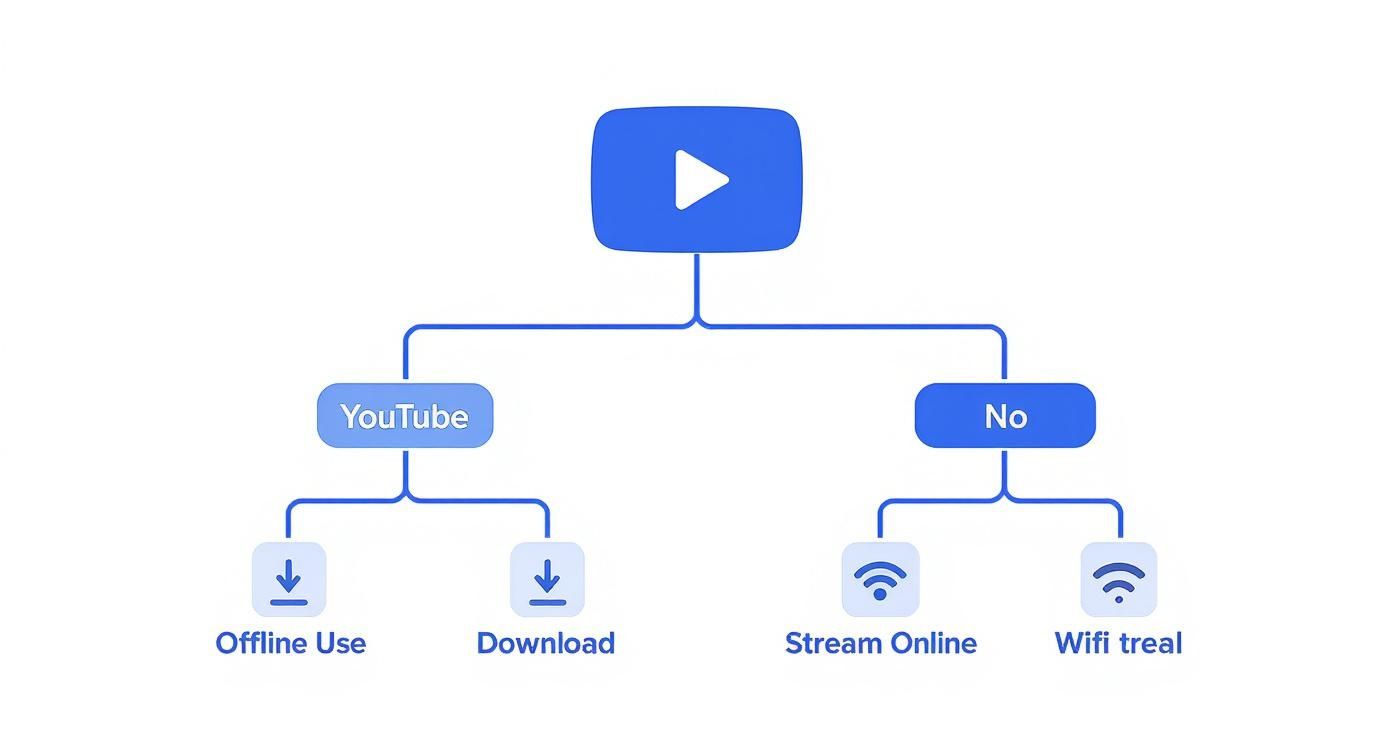
Ultimately, it comes down to whether you'll have a spotty internet connection or need the content on hand for presentations or other projects where you can't risk a buffer.
Navigating Online YouTube Downloaders
Online downloader websites are about as straightforward as it gets. The process is pretty much universal: you find the YouTube video, copy its URL, and paste it into a box on their site. From there, you just pick your quality and subtitle options.
Here's how it usually plays out:
- Grab the URL: Find your video on YouTube and copy the link from your browser's address bar.
- Find a downloader site: Head over to a reliable online downloader. A word of caution: many of these sites are packed with aggressive ads, so be selective.
- Paste the link: Drop the URL into the input field on the site and hit the download or convert button.
- Select your options: The site will then show you a list of different video resolutions (like 1080p or 720p) and any available subtitle languages.
- Download your files: You'll usually get separate download links—one for the video file (MP4) and another for the subtitles (SRT or VTT).
These sites are super convenient since there's nothing to install. The trade-off? They often have limits, like capping video quality, slower download speeds, and no support for downloading entire playlists at once.
Safety First: I always recommend using an ad-blocker with these sites. Be suspicious of any site that tries to make you install software or redirects you a bunch of times. Stick to the well-known services to keep things safe.
Using Browser Extensions for One-Click Downloads
If you download videos often, a browser extension is a game-changer. Once you install one, it typically adds a download button right below the video player on YouTube. This completely cuts out the copy-and-paste routine, making for a much smoother workflow.
A good extension will let you:
- Initiate the download with a single click on the YouTube page.
- Choose from a dropdown menu of video formats and qualities.
- Select which subtitle track you want, including auto-generated captions.
The biggest plus here is pure convenience—you never have to leave the YouTube page. The main downside is that you have to trust the extension's developer with browser permissions. Always check the reviews and only download extensions from official stores like the Chrome Web Store or Firefox Add-ons.
If you're only after the text itself, you might find our guide on how to download captions from a YouTube video more to the point.
Comparing Easy Download Methods
So, should you use an online tool or a browser extension? It really boils down to your needs and how often you're saving videos. Here’s a quick comparison to help you decide which approach is best when you need to download a video with subtitles from YouTube.
Comparing Easy Download Methods
| Method | Pros | Cons | Best For |
|---|---|---|---|
| Online Downloader | No installation needed; works on any device with a browser. | Can have intrusive ads, potential malware risk, and resolution limits. | Quick, one-time downloads, especially when you're not on your main computer. |
| Browser Extension | Super convenient with one-click access right on YouTube. | Requires installation and granting browser permissions; can become outdated. | Frequent downloaders who want a seamless, integrated process. |
Each method has its place. For a quick one-off, an online site is fine. But if you're grabbing videos regularly, the convenience of a browser extension is hard to beat.
Gaining Full Control with Command-Line Tools
When simple online tools and browser extensions just don’t cut it, it’s time to bring out the heavy machinery. For anyone who needs ultimate control, batch processing power, or access to every single subtitle format available, command-line tools are the undisputed champions.
https://www.youtube.com/embed/xBo1kjwvnkE
This approach strips away the flashy user interfaces and third-party websites, giving you a direct, powerful way to download a video with subtitles from YouTube. It might sound a little intimidating if you're not used to working in a terminal, but trust me, it’s far more straightforward than you think.
We'll be focusing on yt-dlp, a modern and actively maintained fork of the legendary youtube-dl. It's faster, gets more frequent updates, and handles modern YouTube features with ease, making it the go-to choice for pretty much everyone these days. The real beauty here is its precision—you're not just clicking a generic "download" button; you're issuing specific instructions to get exactly what you need.
Getting Started with yt-dlp Installation
Before the fun begins, you need to get yt-dlp on your system. The process varies slightly depending on your operating system, but it's a quick, one-time setup.
For Windows Users:
The easiest route is to download the yt-dlp.exe file directly from its official GitHub releases page. Once it's downloaded, move the .exe file into a folder that's already in your system's PATH, like C:\Windows\System32. This little trick lets you run the command from any directory without a headache.
For macOS and Linux Users: If you're on a Mac, Homebrew is your best friend. For Linux users, your native package manager (like apt for Debian/Ubuntu) makes this incredibly simple.
- On macOS with Homebrew:
brew install yt-dlp - On Linux with apt:
sudo apt-get install yt-dlp
Once that's done, pop open your Terminal (or Command Prompt on Windows) and type yt-dlp --version. If it spits back a version number, you're officially in business.
Pro Tip: YouTube's backend is always changing, which can sometimes break downloaders. To stay ahead of errors, it's crucial to keep yt-dlp updated. Just run
yt-dlp -Uevery once in a while. Make it a habit!
Essential Commands for Downloading Videos and Subtitles
Alright, let's get our hands dirty. With yt-dlp, downloading a video with its subtitles is just a matter of combining a few simple flags with the video URL. The base of every command will look like this: yt-dlp [OPTIONS] "YOUTUBE_URL".
Here are some of the most practical commands you'll find yourself using all the time.
1. Downloading a Video with All Available Subtitles This is the shotgun approach—quick, easy, and it gets everything. This command downloads the video in the best quality available and snags every single subtitle track it can find.
yt-dlp --write-subs "YOUTUBE_URL"
You’ll end up with a video file (like an .mp4) and a bunch of subtitle files (e.g., .en.vtt, .es.vtt, .de.vtt). Simple as that.
2. Listing Available Subtitle Languages
Maybe you don't want a dozen subtitle files cluttering up your folder. To see what's available before you download anything, just use the --list-subs flag.
yt-dlp --list-subs "YOUTUBE_URL"
This will show you a neat table of all available subtitle tracks, their language codes (en, fr, de, etc.), and whether they were auto-generated.
Selecting Specific Subtitle Languages
Now that you know how to see what’s available, you can be way more selective. This is perfect for language learners or anyone who only needs subtitles in one or two specific languages.
To download just the English subtitles, you’d run:
yt-dlp --write-subs --sub-lang en "YOUTUBE_URL"
Need a couple of different languages? No problem. Just separate the language codes with a comma. For English and Spanish, the command becomes:
yt-dlp --write-subs --sub-lang en,es "YOUTUBE_URL"
This is the kind of surgical control you just don't get with most online tools. It keeps your project folder clean and ensures you only download the files you actually need.
3. Grabbing Auto-Generated Captions A ton of videos don't have manually created subtitles, but they often have YouTube's AI-generated ones. These are surprisingly useful, and yt-dlp makes it easy to grab them.
Just use the --write-auto-subs flag:
yt-dlp --write-auto-subs --sub-lang en "YOUTUBE_URL"
This command is a lifesaver when official captions are missing but you still need a text version of what's being said. They aren't always perfect, but they’re often more than good enough for transcription or personal study.
4. Downloading an Entire Playlist with Subtitles This is where command-line tools absolutely blow everything else out of the water. Imagine needing to download a 50-video tutorial series for a long flight. Doing that one-by-one with a web tool would be a complete nightmare.
With yt-dlp, it's a single command. Just point it to the playlist URL and add your subtitle flags:
yt-dlp --write-subs --sub-lang en "PLAYLIST_URL"
The tool will patiently go through every single video in that playlist, download it, and grab the English subtitles for each one. This feature alone makes learning a few basic commands totally worth it.
How to Permanently Embed Subtitles in Your Video
So, you've successfully grabbed a video and its subtitle file—maybe a .mp4 and an .srt pair. That's perfect for watching on your computer with a media player like VLC, but it’s not exactly a universal solution.
What happens when you want to post that clip on Instagram? Or drop it into a presentation? Or even just play it on a TV that has no idea what to do with a separate text file? The subtitles simply won't show up.
The answer is hardcoding, also known as "burning in" the subtitles. This process permanently merges the text right onto the video frames, making the words part of the visual image itself. It’s the only way to guarantee your subtitles will appear on any device, any platform, every single time.
Introducing FFmpeg: The Industry Standard
To get this done, we're going to turn to FFmpeg, a free and open-source command-line tool that is the undisputed powerhouse of video manipulation. Don't let the "command-line" part scare you off. FFmpeg is actually the engine running behind the scenes of many popular video editing apps. Using it directly just gives you raw power and control without watermarks or limitations.
First thing's first: you’ll need to install FFmpeg on your system. Once it’s set up and accessible from your terminal or command prompt, you’re ready to roll.
The Command to Embed Subtitles
Go ahead and place your video file (let's call it video.mp4) and your subtitle file (captions.srt) into the same folder. Now, open your terminal in that directory and run this command:
ffmpeg -i video.mp4 -vf "subtitles=captions.srt" output_with_subtitles.mp4
Let’s quickly break down what this is actually doing so you understand the magic behind it:
ffmpeg: This just calls the FFmpeg program to start a new job.-i video.mp4: The-iflag specifies the input file—in this case, your original video.-vf "subtitles=captions.srt": This is where the action is.-vfstands for video filter, and we're telling FFmpeg to use thesubtitlesfilter and point it directly at ourcaptions.srtfile.output_with_subtitles.mp4: This is simply the name you want for your final, hardcoded video file.
Hit enter, and FFmpeg will get to work, generating a brand new video with the subtitles permanently burned in. For those who want to dive deeper, there are plenty of guides exploring different techniques to add subtitles to MP4 files with various tools.
Why Bother with the Command Line? Sure, some video editors can do this, but FFmpeg is lightning-fast and uses way fewer system resources. It also gives you total control over the output. It’s a skill that really pays off if you find yourself working with video content regularly.
Hardcode vs. Soft Subs: When to Use Each
Deciding whether to embed subtitles is a strategic choice. The best approach really depends on how you expect your audience to watch the content.
You should hardcode subtitles when:
- Sharing on social media: Think Instagram, TikTok, or Twitter. Videos often autoplay on mute, and hardcoded subtitles are your best bet to grab attention and get your message across instantly.
- Ensuring maximum compatibility: For presentations, digital signage, or playing on older devices, embedding the captions guarantees they will always be visible without any fuss.
- Controlling the visual style: When you burn in subtitles, you lock in the font, size, and position. This ensures your subtitles always match your brand's aesthetic perfectly.
You should keep subtitles as a separate file (soft subs) when:
- The viewer should have a choice: On platforms like YouTube or in media players, soft subs give viewers the power to turn captions on or off and even switch between different languages.
- You might need to make updates: If you spot a typo or want to add a translation later, you can just edit a tiny text file instead of having to re-render the entire video from scratch.
Understanding accessibility is the key here. For a deeper dive into how captions work on YouTube, our guide on https://timeskip.io/blog/youtube-closed-captioning offers some valuable insights. Ultimately, making the right choice between hardcoded and soft subtitles ensures your content is both accessible and effective for the audience you're trying to reach.
Troubleshooting and Staying on the Right Side of the Law
Even with the best tools, trying to download a video with subtitles from YouTube can sometimes feel like a bit of a gamble. You might hit a snag with a frustrating error, find a file missing, or run into a weird compatibility issue. Just as important, though, is knowing the rules of the road—specifically, copyright law and YouTube's own policies.
Let's walk through some of the common technical hiccups that pop up and how to solve them. Then, we'll shift gears and talk about the legal and ethical side of things so you can use these tools responsibly.
Solving Common Technical Issues
When a download goes sideways, it's usually one of a few common culprits. Whether you're using a simple online converter or a powerful command-line tool, here are the most frequent problems and how to get past them.
-
The "No Subtitles Found" Error: This is the big one. It almost always means the video creator simply hasn't uploaded official subtitles. Sometimes, it also means YouTube's auto-captioning system hasn't gotten around to processing the video yet. The best move is to wait and try again later. Or, if you're using
yt-dlp, you can specifically ask for the auto-generated captions with the--write-auto-subsflag. -
Extractor Errors in yt-dlp: If you see an error message that mentions an "extractor," don't panic. This is a classic sign that YouTube has tweaked its website code, and your tool is now a step behind. The fix is almost always simple: just update yt-dlp by running
yt-dlp -Uin your terminal. Keeping your tools fresh is the single best way to avoid these kinds of errors. -
Format Compatibility Problems: So you've got the video and subtitle files, but they refuse to play nicely together. This usually happens when you've downloaded less common formats. To sidestep this completely, stick with the tried-and-true combination: MP4 for the video and SRT for the subtitles. They're universally supported by just about every device and media player out there.
Key Takeaway: Most technical problems aren't deep, complicated bugs. They're usually just a simple mismatch or outdated software. Before you get frustrated, check for auto-captions, update your tools, and stick to standard file formats like MP4 and SRT.
Understanding the Legal and Ethical Lines
Downloading content from platforms like YouTube often operates in a bit of a legal gray area. It’s really important to understand the rules so you can respect creators and avoid infringing on anyone's copyright.
The same kind of thinking applies when you want to download Facebook videos and reels. At its heart, YouTube's Terms of Service says you shouldn't download content unless YouTube itself provides a "download" button for it.
But that policy is there primarily to protect copyright holders. In the real world, how it's applied often comes down to what you plan to do with the video.
Here’s a practical guide to downloading responsibly:
- Personal and Private Use: This is generally the safest territory. If you're just downloading a video for your own offline viewing—say, for a long flight or for personal study notes—it's widely considered acceptable and very low-risk.
- Accessibility Needs: If you're creating a copy for personal use to meet an accessibility need, like burning in subtitles for a family member who is hard of hearing, you're on solid ethical ground.
- Creative Commons and Public Domain: Always take a peek at the video's description to see its license. If content is licensed under Creative Commons (with the right permissions) or is in the public domain, you're usually free to download and even reuse it.
- The Creator Gives You Permission: This is the clearest green light. If the creator explicitly says you can download their video, you're good to go. Many educators and people making tutorials are more than happy to share their work.
The biggest no-go is redistribution. Never download a copyrighted video and re-upload it to your own channel or anywhere else without getting clear permission first. That's a direct violation of copyright law. If you're a creator looking to comment on or review other content, a much safer approach is learning how to take clips from YouTube videos, as that can fall under fair use.
Common Questions About Downloading Subtitles
As you start downloading videos and subtitles more often, you’ll probably run into a few specific questions. Getting a handle on the differences between file types, language options, and safety issues will make the whole process a lot smoother.
Let's clear up some of the most common things people ask when they're trying to grab a YouTube video with its captions.
Can I Download Subtitles in a Different Language?
Absolutely. Most of the better methods give you complete control over which language you download. This is especially true for command-line tools like yt-dlp, which are built for this kind of detailed work.
You can run a quick command to see a list of every language available for a video. This list usually shows you both the official subtitles uploaded by the creator and any auto-translated versions. From there, you just specify the language code you want—like 'es' for Spanish or 'fr' for French—to get that specific file. The simpler online tools usually just give you a dropdown menu to pick from.
What Is the Difference Between SRT and VTT Files?
You'll almost always see subtitles in one of two formats: SRT (SubRip Text) or VTT (WebVTT). They accomplish the same basic goal but have some key differences.
-
SRT (.srt): This is the old-school, workhorse format. It’s just simple text with timestamps, which is why it’s compatible with pretty much every video player out there. If all you need are subtitles for watching a video on your computer or TV, SRT is a bulletproof choice.
-
VTT (.vtt): As a more modern format designed for the web (specifically HTML5), VTT allows for more advanced styling. It can handle things like bold text, colors, and specific positioning on the screen. If you're embedding the video on a website or need more control over how the text looks, VTT is the way to go.
For most folks just downloading a video for personal viewing, either one will work just fine.
Is It Possible to Download Auto-Generated Captions?
Yes, and this is a huge one. A massive number of YouTube videos only have auto-generated captions, not ones that were manually created. Tools like yt-dlp were designed for exactly this situation and have a specific flag (--write-auto-subs) just for grabbing them.
While YouTube's AI captions can have some weird punctuation or transcription mistakes, they are often more than 85% accurate. They provide an excellent starting point for understanding a video or for creating your own corrected subtitle file.
Are Online YouTube Download Websites Safe to Use?
This is where you need to be careful, because the safety of these sites is all over the map. Some are legitimate and do the job, but many are plastered with aggressive, sketchy, and sometimes malicious ads. You'll run into pop-ups, confusing "download" buttons that lead elsewhere, and even attempts to get you to install unwanted software.
To keep yourself safe, stick to a few best practices:
- Use a reputable ad-blocker to get rid of the worst pop-ups and ads.
- Be very suspicious of any site that insists you install an application or browser extension to continue.
- Stick to well-known services that have been around for a while and have good reviews from the community.
Honestly, for the best security and zero headaches, using an open-source tool like yt-dlp is always the safest bet. It communicates directly with YouTube's servers, so you completely avoid the risks that come with sketchy third-party websites.
Ready to streamline your YouTube workflow and make your videos more discoverable? With TimeSkip, you can generate SEO-optimized chapters in seconds, boosting visibility and retention. Install our Chrome extension today and see the difference. Get started for free at https://timeskip.io.