The best video editing automation tools in 2026 are TimeSkip for automating YouTube chapters, titles and descriptions after the edit, PostOnce for automatically publishing the finished video to every other platform, Descript for text-based editing and filler-word removal, OpusClip for turning long videos into short clips, and Submagic or VEED for automated captions. If you generate videos at scale from templates or data, look at Shotstack or Plainly instead. Most creators only need two or three of these, one for each step that eats the most time.
Editing is still the biggest bottleneck in most video workflows. Cutting silences, removing retakes, captioning, reframing for vertical, writing chapters and then uploading the same video to five platforms all take hours that don't make the video any better. Video editing automation tools handle those repetitive steps so you can spend your time on ideas and filming.
This guide was refreshed for October 2026. It covers 13 tools, what each one actually automates, current pricing, who it suits, and its honest limitations. Prices change often, so treat the numbers below as a starting point and confirm on each vendor's pricing page before you buy. If you plan to reuse each edit across channels, these efficient content repurposing strategies are a useful companion.
Quick comparison: automated video editing tools
| Tool | What it automates | Best for | Starting price (2026) |
|---|---|---|---|
| TimeSkip | YouTube chapters, titles, descriptions, tags | YouTubers, podcasters, educators | $19/mo |
| PostOnce | Publishing the finished video to 9 platforms | Creators posting on several platforms | $29/mo (7-day free trial) |
| Descript | Text-based editing, filler words, retakes | Podcasts, interviews, talking-head videos | Free plan; from $16/mo (annual) |
| OpusClip | Long video to short clips with captions | Podcasters and long-form creators | Free plan; from $15/mo |
| Submagic | Styled captions, B-roll, silence removal | Short-form creators | From $12/mo (annual) |
| VEED | Subtitles, translation, cleanup in the browser | Marketers and social teams | Free plan; per-seat paid tiers |
| CapCut | Auto captions, templates, AI effects | Budget short-form editing | Free plan; Pro subscription |
| Pictory | Script, article or long video to edited video | Content marketers | From $25/mo (annual), 14-day trial |
| Filmora | Desktop editing with AI tools | Beginner to intermediate editors | Free (watermark); from $59.99/yr |
| SendShort | Long video to shorts, captions, scheduling | Short-form volume | From $15/mo (annual) |
| Lumen5 | Blog post or text to video | Marketing teams | Free plan; paid tiers |
| Shotstack | API and template video rendering | Developers and SaaS products | From $39/mo; pay as you go from $10 |
| Plainly | After Effects templates rendered from data | Agencies and brands at scale | From $48/mo (annual), 14-day trial |
1. TimeSkip: Automating Post-Production Metadata
TimeSkip handles the step most creators forget is part of editing: the metadata that ships with the video. It's a Chrome extension and web app that reads your video's transcript and generates SEO-friendly YouTube chapters, plus titles, descriptions and tag suggestions. For podcasters, educators and anyone publishing long videos, it replaces 20 to 30 minutes of scrubbing through the timeline to write timestamps by hand.
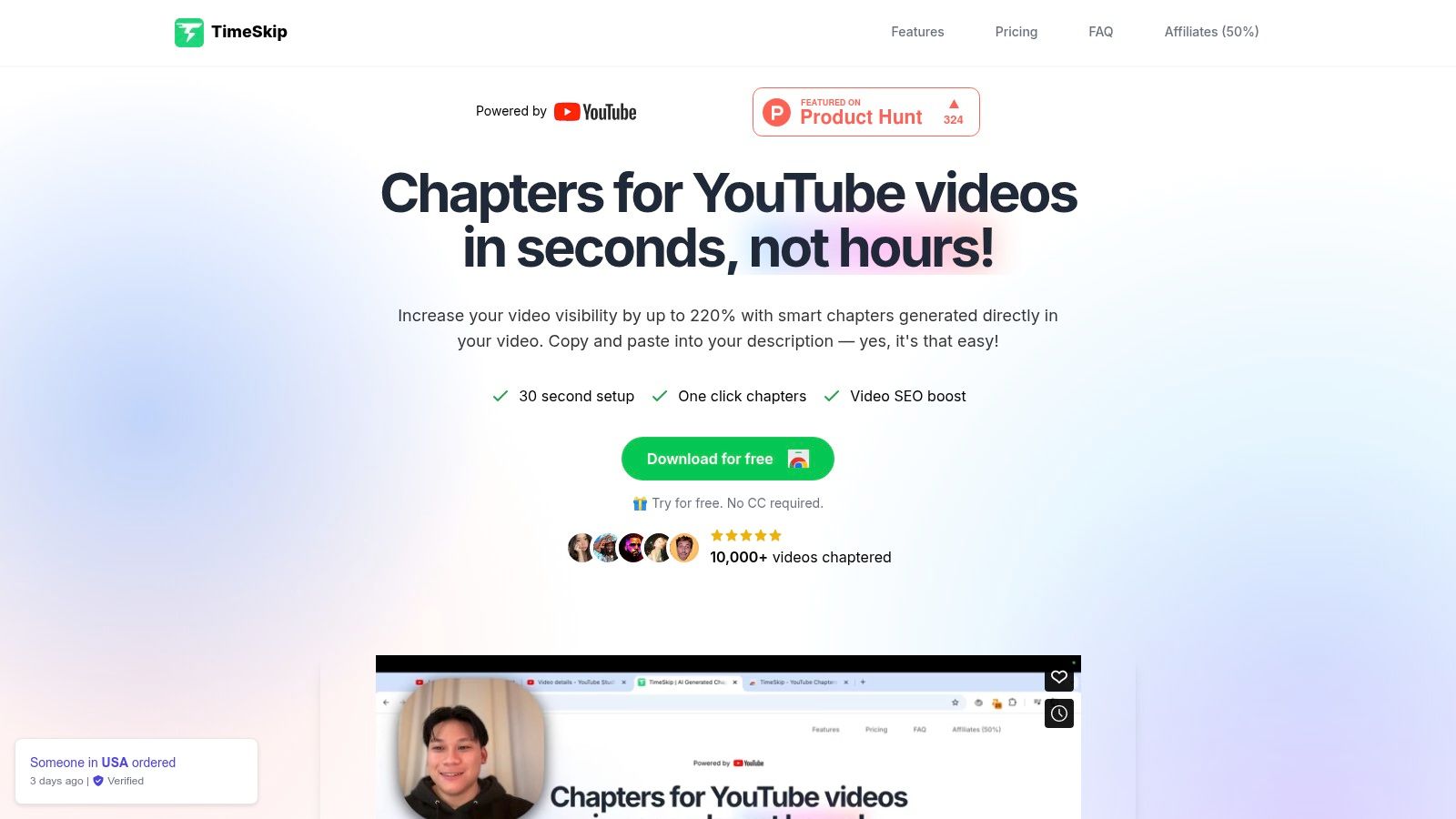
Once the extension is installed, a TimeSkip button appears on the YouTube watch page and in YouTube Studio. One click generates chapters you can review and paste into the description. Instead of splitting the video by time, TimeSkip finds topic changes and writes descriptive, keyword-aware chapter titles, which makes long videos easier to navigate and gives YouTube and Google more context for Key Moments in search. To see where it fits alongside other software, this overview of the best content creation tools is a good reference.
Key Features
- AI chapter generation: Detects topic shifts in the transcript and writes descriptive chapter titles instead of "Part 1, Part 2".
- Titles, descriptions and tags: Drafts the rest of your upload metadata in the same workflow.
- Works where you publish: Runs on the YouTube watch page and inside YouTube Studio.
- Long-video support: Handles videos up to 10 hours on the Studio plan.
Key Takeaway: Your edit isn't finished until viewers can navigate it and search engines can understand it. TimeSkip automates that last step so every video ships with proper chapters.
Who Is It Best For?
Podcasters, tutorial creators, educators, product reviewers and marketers who publish long-form video on YouTube and care about search traffic. You can try the free YouTube chapter generator before signing up.
Pricing and Access
- Pro: $19/month, 15 videos per month, up to 90-minute videos.
- Studio: $39/month, 50 videos per month, up to 10-hour videos, priority support.
- Lifetime: $399 one-time for unlimited videos.
Yearly billing is discounted, and every plan can be cancelled anytime with a 7-day refund policy.
| Pros | Cons |
|---|---|
| Chapters, titles, descriptions and tags in one click | The extension needs a Chromium-based browser |
| Keyword-aware chapter titles | Focused on metadata; it doesn't edit, schedule or distribute video |
| Works on YouTube and in YouTube Studio | |
| Handles very long videos |
Website: timeskip.io
2. PostOnce: Automating Distribution After the Edit
Once a video is edited and captioned, most creators spend another chunk of time downloading it and re-uploading it to TikTok, Instagram, Facebook, LinkedIn and the rest. PostOnce automates that step. You keep posting where you already post, and PostOnce republishes the video to your other connected accounts automatically, usually within about 20 minutes, through each platform's official API.
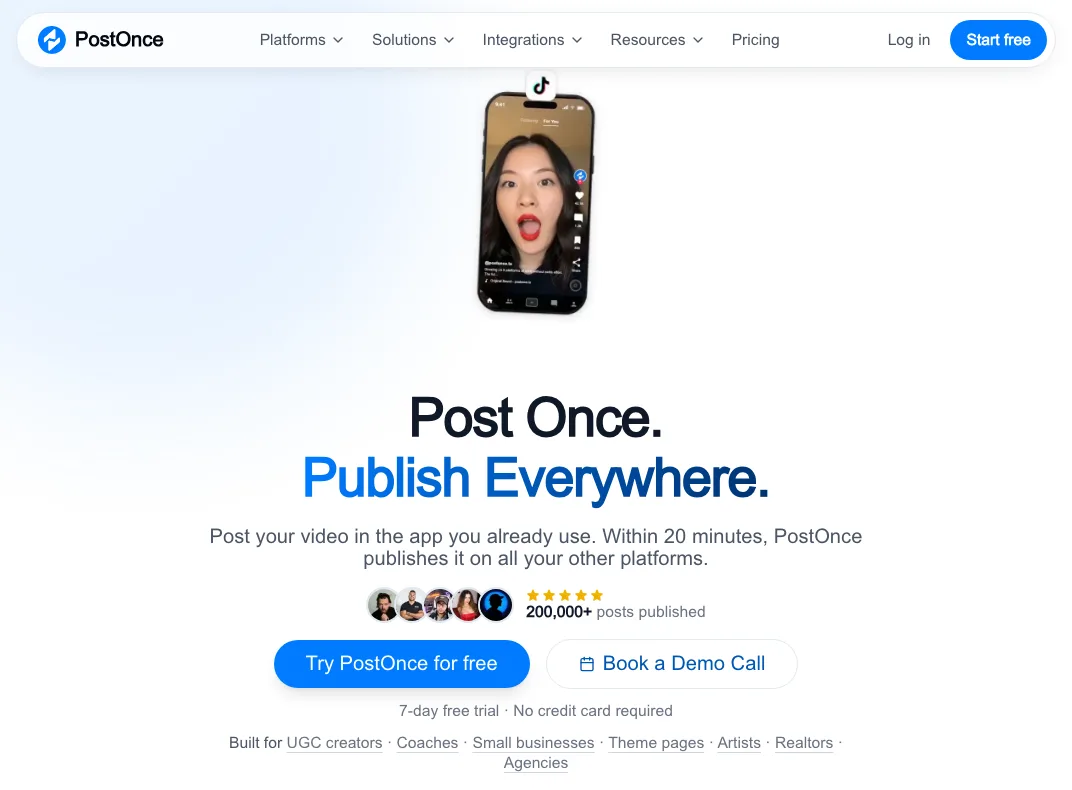
It works in every direction across YouTube, TikTok, Instagram, Facebook, LinkedIn, X, Threads, Bluesky and Pinterest, so a YouTube Short can become a Reel and a TikTok, or your TikToks can become Shorts. That makes it a natural partner for clipping tools like OpusClip or Submagic: they produce the clips, PostOnce gets them everywhere. PostOnce says more than 3,500 creators use it and it has published over 200,000 posts.
This walkthrough shows how to auto publish Instagram Reels as YouTube Shorts:
Key Features
- Auto-crossposting workflows: Set up "YouTube → TikTok, Instagram and Facebook" once, and every new post flows to the destinations.
- Existing content: Push your back catalog to a new platform, a fast way to seed a new Shorts or TikTok account.
- Scheduling: Plan posts when you want more control than "publish as soon as it goes live".
- Image and carousel repurposing: Converts image posts into formats other platforms accept.
- Developer API and MCP server: Trigger publishing from your own tools or AI assistants.
Pricing and Access
All plans include every platform, unlimited workflows and unlimited posts. Plans differ by how many social accounts you connect.
- Creator: $29/month ($24/month billed yearly), up to 15 accounts.
- Pro: $69/month ($58/month billed yearly), up to 50 accounts.
- Agency: $199/month ($166/month billed yearly), up to 200 accounts.
Every plan starts with a 7-day free trial, no credit card required.
| Pros | Cons |
|---|---|
| Hands-off distribution after the edit | Not a video editor |
| 9 platforms on every plan, no post limits | Not an SEO tool; pair it with TimeSkip for metadata |
| Uses official APIs, no password sharing | No permanent free plan |
Website: postonce.to
3. Descript: Automated Editing by Editing Text
Descript transcribes your recording and lets you edit the video by editing the transcript. Delete a sentence and the matching footage is cut. Its automation tools go further: Remove Filler Words strips "ums" and "ahs", Remove Retakes and Shorten Word Gaps tighten pacing, and Underlord, its AI co-editor, can make edits from a prompt. For dialogue-heavy content, it removes most of the tedious first-pass cutting.
Use Case & Analysis
- Ideal For: Podcasters, interviewers, course creators and anyone editing talking-head video.
- Pros: Text-based editing is fast and intuitive, strong cleanup automation, handles both audio and video.
- Cons: Less suited to effects-heavy or cinematic edits; the free plan exports at 720p with a watermark.
- Pricing: Free plan with 60 minutes of media per month. Paid plans are Hobbyist ($16/month annual, $24 monthly), Creator ($24/month annual, $35 monthly) and Business ($50/month annual, $65 monthly), priced per person.
Website: descript.com
4. OpusClip: Long Videos to Short Clips
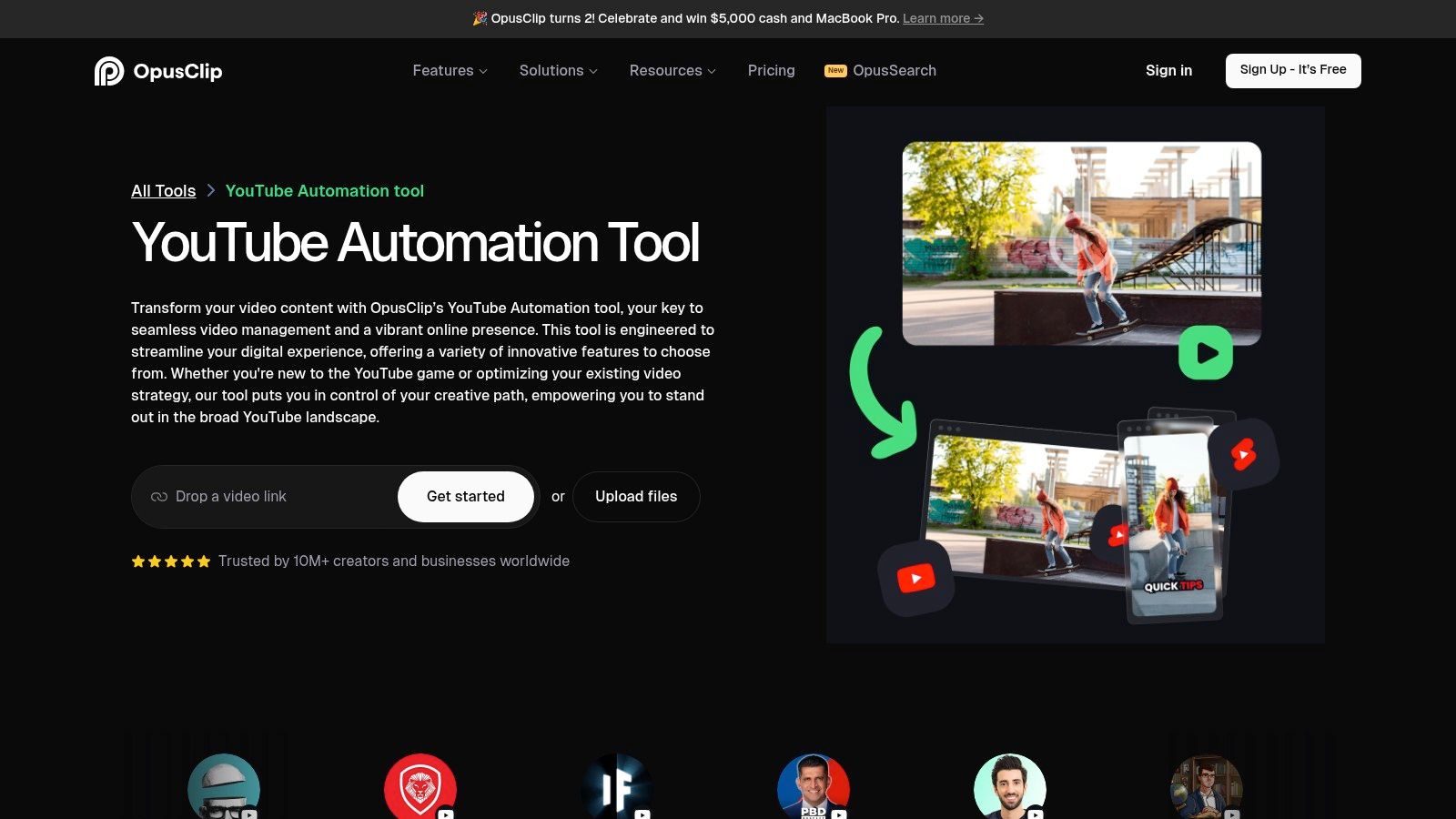
OpusClip turns long videos such as podcasts, interviews and tutorials into short clips. Its AI picks the strongest moments, reframes them for vertical, adds captions and gives each clip a virality score so you know which to post first. You paste a link or upload a file and get a batch of ready-to-review shorts.
Use Case & Analysis
- Ideal For: Podcasters and long-form creators who want a steady stream of Shorts, Reels and TikToks.
- Pros: Good at finding self-contained moments, automates reframing and captions, very simple workflow.
- Cons: Short-form only; AI picks still need a human review for context. Free exports include a watermark on animated caption templates.
- Pricing: Free plan available. Paid plans are Starter at $15/month and Pro at $29/month, with custom Business pricing.
Website: opus.pro
5. Submagic: Automated Captions and Short-Form Polish
Submagic focuses on the look of short-form video. It generates styled, animated captions with emojis and highlighted keywords, then adds AI hook titles, B-roll, auto zooms and removal of silences and bad takes. Upload a clip and it comes back ready for TikTok, Reels or Shorts.

Use Case & Analysis
- Ideal For: TikTok, Reels and Shorts creators who want trendy captions without manual work.
- Pros: Fast, polished caption styles, useful cleanup tools, no watermark on paid plans.
- Cons: Built for short videos (2-minute limit on Starter, 5 minutes on Pro); limited control compared to a full editor.
- Pricing: Starter $12/month annual ($19 monthly), Pro $23/month annual ($39 monthly), Business $41/month annual ($69 monthly). You can try it without a credit card.
Website: submagic.co
6. VEED: Browser Editor with Strong Auto-Subtitles
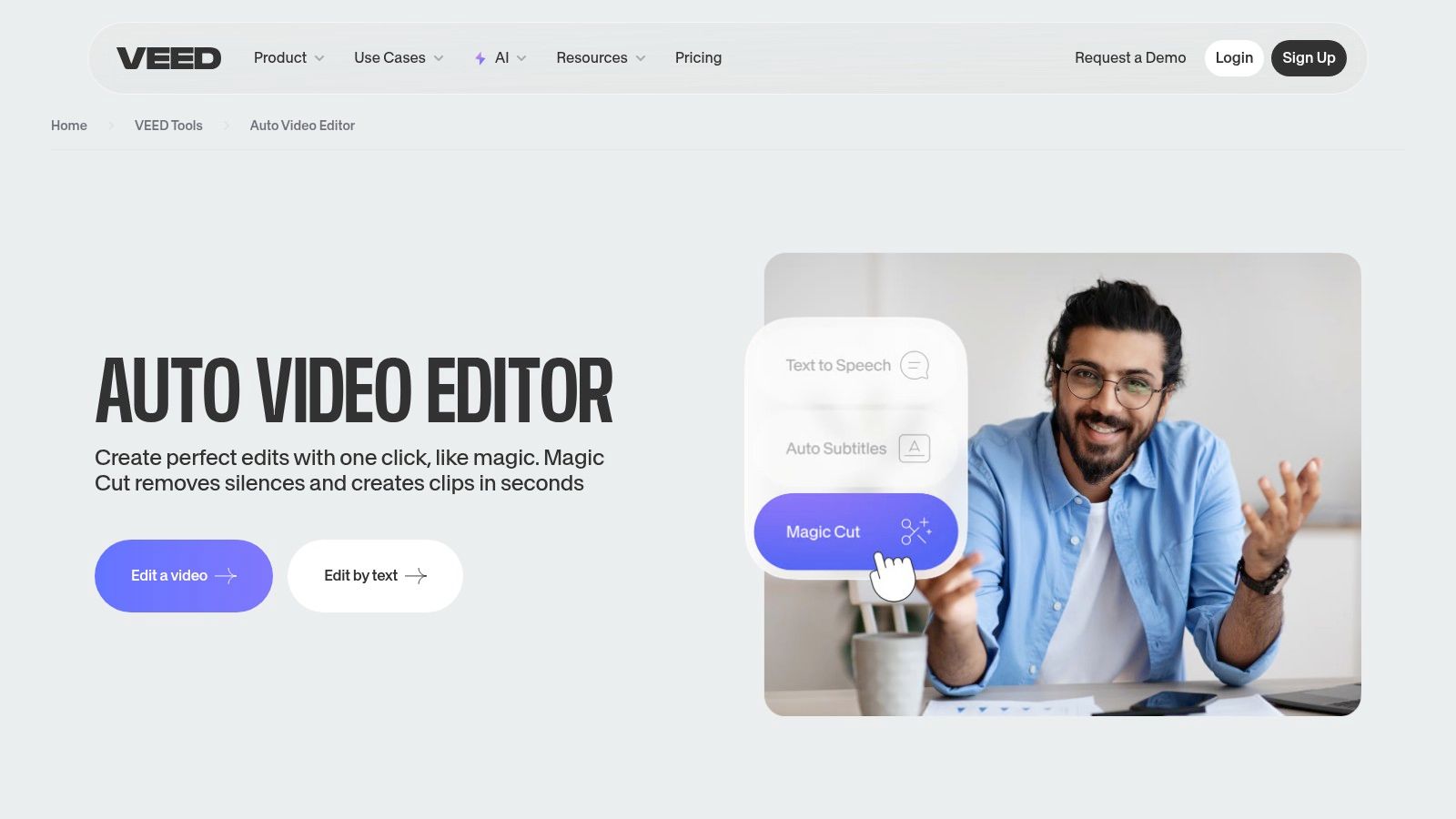
VEED is an online video editor whose best automation features are auto-subtitles and translation, plus cleanup tools like silence removal, background removal and AI voiceovers. Because it runs in the browser, it suits teams who need to share and review projects without installing software.
Use Case & Analysis
- Ideal For: Social media managers, marketing teams and creators who need fast, captioned edits.
- Pros: Accurate subtitles and translation, beginner-friendly interface, team collaboration.
- Cons: Free exports are watermarked, and large projects can feel slow in the browser.
- Pricing: Free plan available. Paid plans are billed per seat and include unlimited subtitle generation (fair use of 50 hours per month), with translation minutes and AI credits varying by tier.
Website: veed.io
7. CapCut: Free Short-Form Editing with AI Helpers
CapCut, from ByteDance, is the default editor for many short-form creators. It offers auto captions, templates, background removal, AI effects and direct export to TikTok, on mobile, desktop and the web. It doesn't automate an entire edit, but its templates and AI tools cut a lot of manual work from vertical videos.
Use Case & Analysis
- Ideal For: Short-form creators who want a capable editor at little or no cost.
- Pros: Generous free tier, huge template library, works on phone and desktop.
- Cons: Some AI features, and in some regions auto captions, now sit behind the paid plan. Pricing and feature availability vary by region and platform.
- Pricing: Free plan; Pro subscription for premium features, cloud storage and AI credits. Check the price in your own account, as it differs by region and app store.
Website: capcut.com
8. Pictory: Text and Long Video to Finished Video
Pictory turns scripts, blog posts or long recordings into edited videos. Its AI builds a storyboard with stock footage, text overlays, music and captions, which you then adjust. It's a fast way to give written content a second life as video on YouTube or LinkedIn.

After creating a video, you can draft a matching description with TimeSkip's YouTube description generator.
Use Case & Analysis
- Ideal For: Content marketers, bloggers and course creators converting text into video.
- Pros: Fast text-to-video, automatic captions, beginner-friendly.
- Cons: AI-picked stock footage can look generic and often needs replacing; limited fine-grained editing.
- Pricing: 14-day free trial. Starter $25/month annual ($29 monthly), Professional $35/month annual ($59 monthly), Teams $119/month annual ($199 monthly), plus Enterprise.
Website: pictory.ai
9. Filmora: Desktop Editor with AI Tools
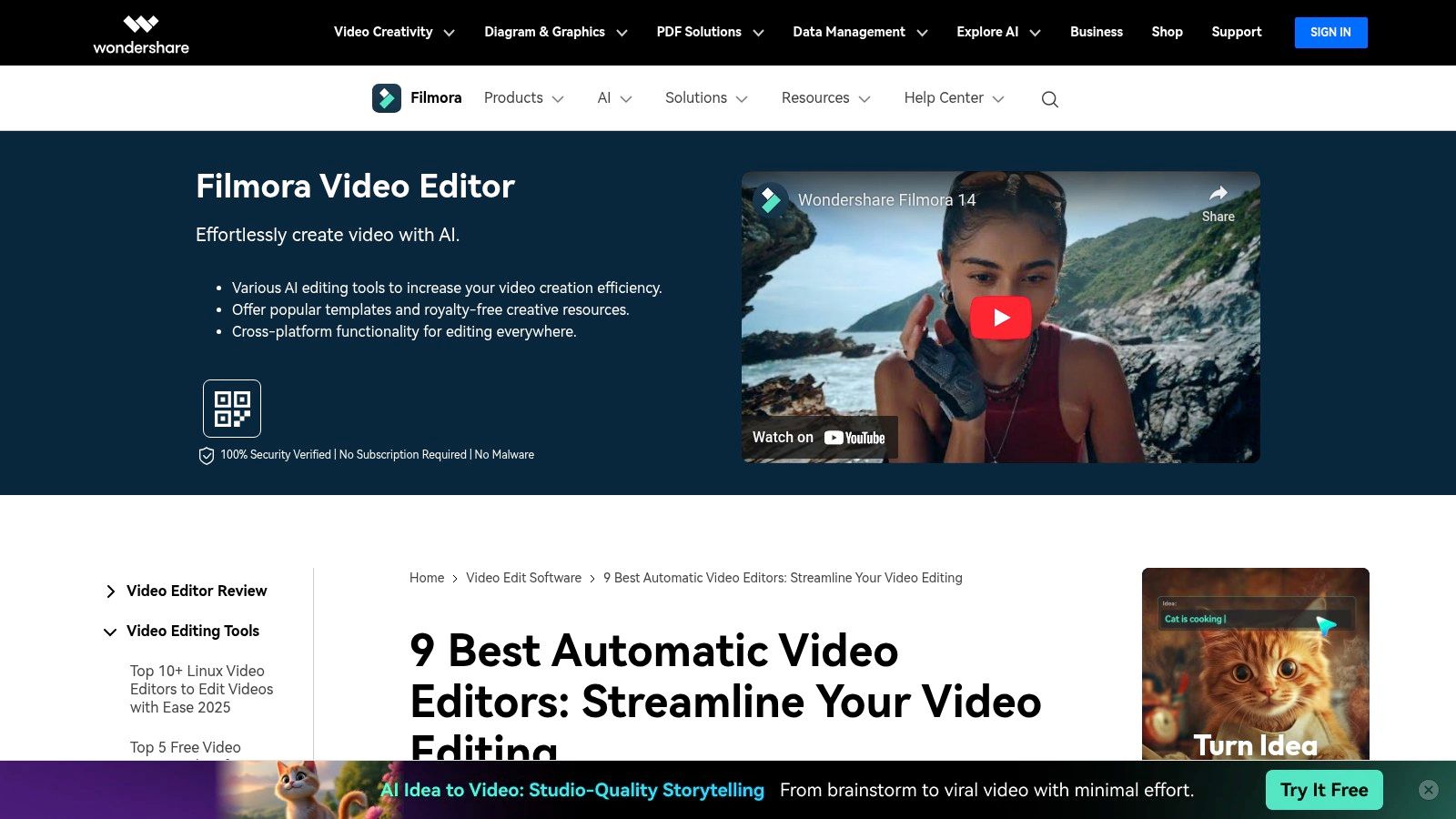
Filmora by Wondershare is a traditional timeline editor with a growing set of AI features: text-based editing, smart cutout for removing backgrounds, auto captions and an AI assistant. It's a step up from template apps for creators who still want hands-on control.
Use Case & Analysis
- Ideal For: YouTubers, educators and small businesses who want a desktop editor with time-saving AI.
- Pros: Approachable interface, useful AI tools, works on Windows and Mac.
- Cons: Free exports are watermarked, and the heavier AI features use a monthly credit allowance.
- Pricing: Free version with watermark. The Advanced annual plan is listed at $59.99/year with 1,000 AI credits per month; a cheaper Basic plan and a one-time perpetual license are also available.
Website: filmora.wondershare.com
10. SendShort: Shorts Creation with Built-In Scheduling
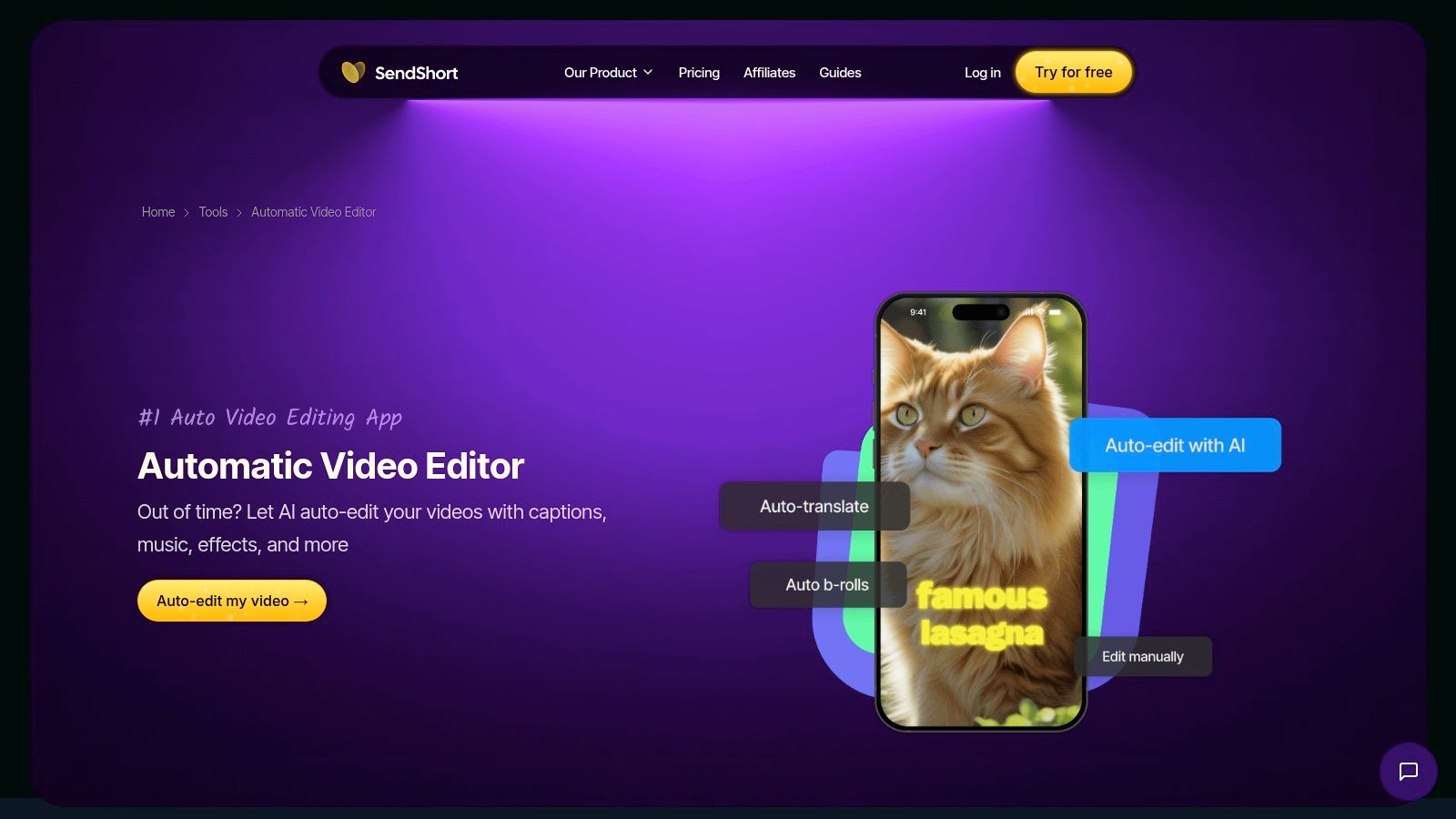
SendShort turns long videos into short clips with auto captions in 100+ languages, AI hook titles, auto B-roll and silence removal. It also includes a scheduler for posting to TikTok and YouTube, so it covers more of the short-form pipeline than a pure clipping tool.
Use Case & Analysis
- Ideal For: Creators and social managers producing short-form video in volume.
- Pros: Clipping, captions and basic scheduling in one place; simple interface.
- Cons: Not for long-form editing; scheduling covers fewer platforms than a dedicated distribution tool.
- Pricing: Starter $15/month annual ($19 monthly), Professional $23/month annual ($29 monthly), Business $47/month annual ($59 monthly). No permanent free plan.
Website: sendshort.ai
11. Lumen5: Blog Posts to Branded Videos
Lumen5 turns articles and scripts into videos by summarizing the text and matching each scene with stock footage, images and music. Brand templates keep logos, colors and fonts consistent, which suits marketing teams that publish a lot of short explainer content.

Use Case & Analysis
- Ideal For: Marketing teams, bloggers and publishers repurposing written content.
- Pros: Easy text-to-video, strong brand controls, no editing skills needed.
- Cons: Less control than a traditional editor; free videos carry Lumen5 branding.
- Pricing: Free plan with branded videos; paid tiers for watermark-free exports and team features.
Website: lumen5.com
12. Shotstack: Video Editing API for Developers
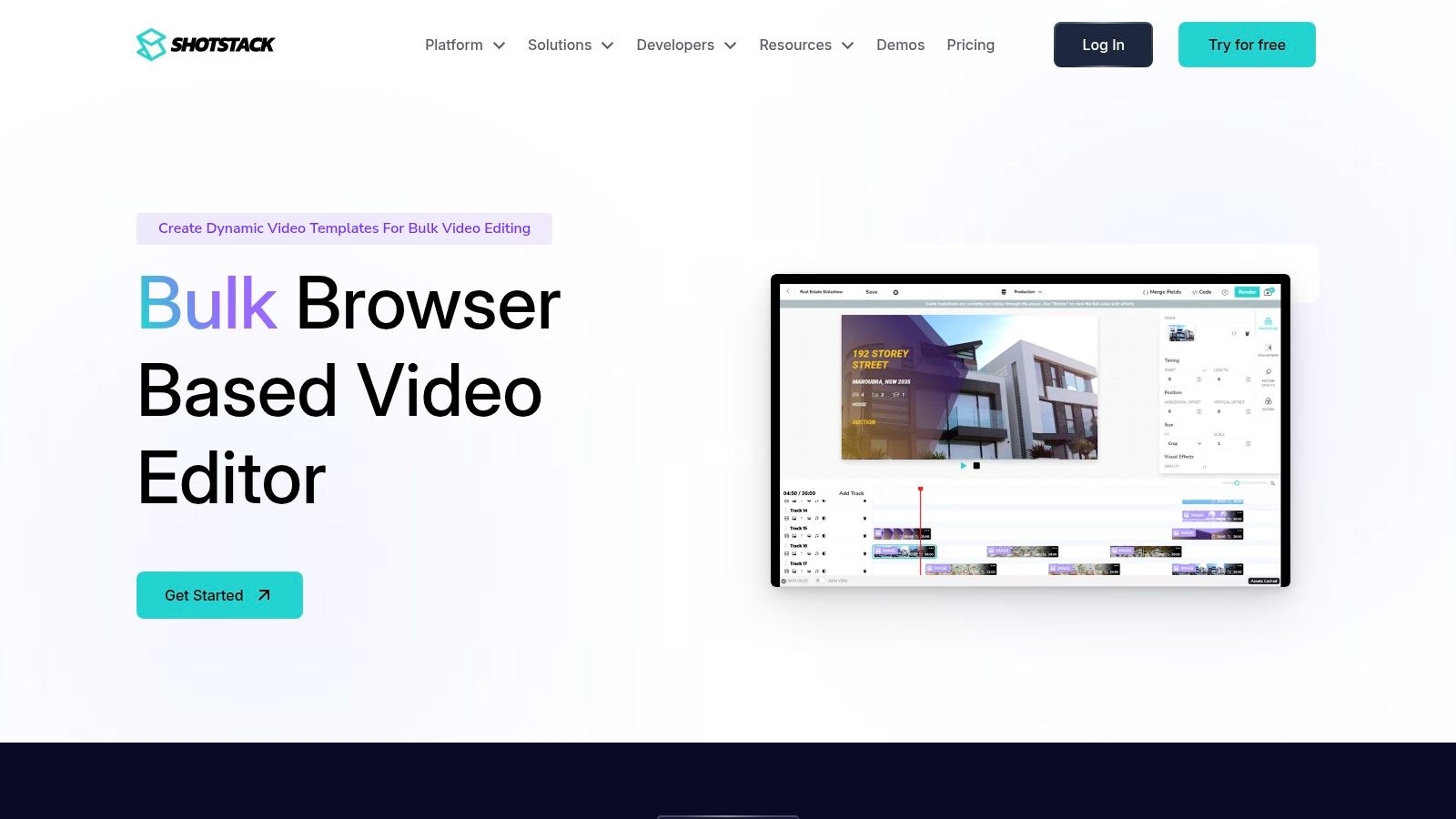
Shotstack is a cloud video editing API. You design templates with merge fields, then render personalized or data-driven videos programmatically, such as product showcases, real estate listings or automated highlights. It now also bundles AI image, video, voice and music generation, billed in credits.
Use Case & Analysis
- Ideal For: Developers, SaaS companies and agencies building video generation into a product or workflow.
- Pros: Scales to large volumes, flexible API, free sandbox for development.
- Cons: Requires development work; not a tool for one-off creative edits.
- Pricing: Pay as you go from $10 (50 minutes). Monthly plans are Starter $39, Pro $99, Scale $199 and Volume $499, with more render minutes on each tier. New sign-ups get 10 free credits.
After automated production, long videos still benefit from structure; here's how to add chapters to YouTube.
Website: shotstack.io
13. Plainly: After Effects Templates Rendered from Data
Plainly turns Adobe After Effects projects into automated video generators. Connect a template to a spreadsheet, API or integration and Plainly renders a unique video for each row, with cloud rendering handled for you. It keeps motion-graphics quality high while automating volume.
Use Case & Analysis
- Ideal For: Agencies and brands producing personalized or data-driven videos at scale.
- Pros: Professional After Effects output, API access and native integrations, scalable rendering.
- Cons: Someone needs After Effects skills to build templates; pricing suits businesses more than solo creators.
- Pricing: 14-day free trial. Starter $48/month annual ($69 monthly) for 50 render minutes, Explorer $94/month annual ($134 monthly), Team $182/month annual ($259 monthly), with Pro, Unlimited and Enterprise above that.
Website: plainlyvideos.com
Tools We Removed in This Update
- Magisto: Vimeo acquired Magisto in 2019 and has since wound it down, so we no longer recommend it.
- Pirsonal: Still operating, but it's a niche enterprise personalization platform. Shotstack and Plainly cover the same use case with clearer self-serve pricing, so we replaced it with Descript and CapCut, which more creators actually use.
How to Choose Your Video Editing Automation Stack
There's no single best tool, only the right one for the step that costs you the most time. Map your workflow from raw footage to published post and automate the slowest step first.
- First-pass cutting: Descript for dialogue, Filmora or CapCut for hands-on edits.
- Captions: Submagic for short-form style, VEED for accurate subtitles and translation.
- Repurposing long videos: OpusClip or SendShort to produce clips; Pictory or Lumen5 to turn text into video.
- Metadata: TimeSkip for YouTube chapters, titles and descriptions. Long videos that you can also repurpose from a podcast benefit most.
- Distribution: PostOnce to publish the finished video on every platform automatically.
- Video at scale: Shotstack if you have developers, Plainly if you have After Effects designers.
Use free plans and trials to test each tool on a real project before you commit. A small stack you actually use beats a big one you don't.
Ready to automate the last step of long-form editing? TimeSkip generates SEO-friendly YouTube chapters, titles and descriptions from your transcript in one click. Try it at TimeSkip, and if you also want every finished video published everywhere automatically, pair it with PostOnce.